
Create a New List
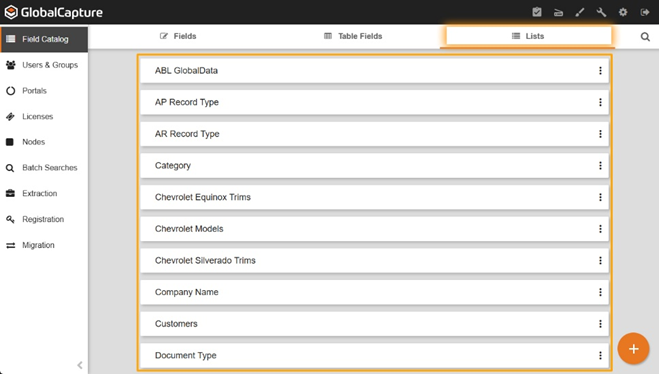
From the Lists Tab within the Field Catalog, click the Add New Icon ( 
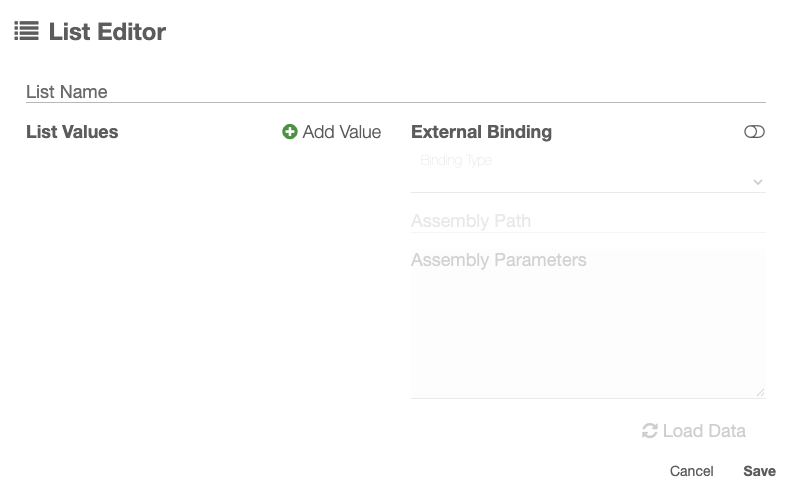
List Name
Give your list a descriptive name that clearly identifies its contents. A meaningful name makes it easier to identify the list when assigning it to a field and helps determine where the list can be reused. Because lists can be assigned to multiple fields, descriptive naming also helps prevent the creation of duplicate lists containing the same values.
If I needed a list with values Yes and No. Naming it Yes/No make it reusable. Give it a specific name like Approved List is vague and makes it less intuitive to reuse in another field not related to approvals that need the list values.
List Values
Click Add Value ( 
The values will be displayed in the list in the same order in which they are entered here.
External Binding
An External Binding is a list that pulls its values from an external source, such as a SQL Database or a Mongo Database.
External Bindings are useful when you have a list in another location that may get updates, and you'd like to see these changes reflected automatically within your GlobalCapture list.
Creating an Exernal Binding
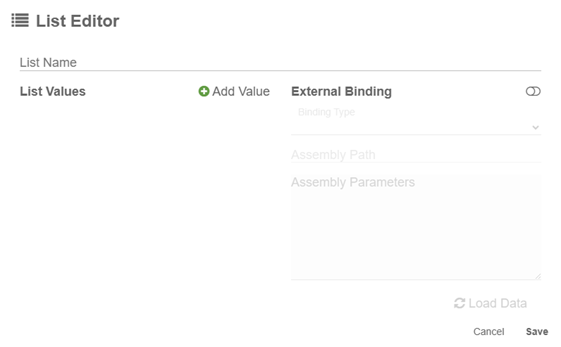
The List Editor will open.
Provide a name for your list and set up external binding.
Remember, the List name should indicate what is in the list, not what it will be used for.
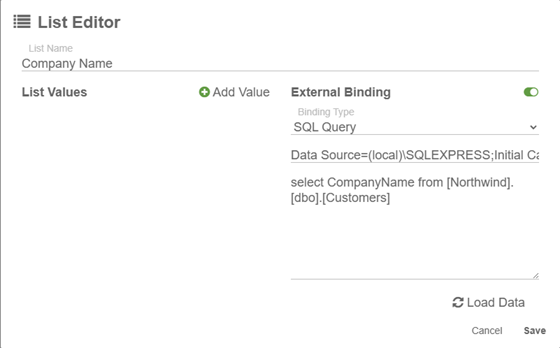
Toggle the External Binding switch on and select your Binding Type.
-
SQL Query
-
MongoSQL Query
-
PostgreSQL Query
Enter the Connection String and Query that will return the list values.
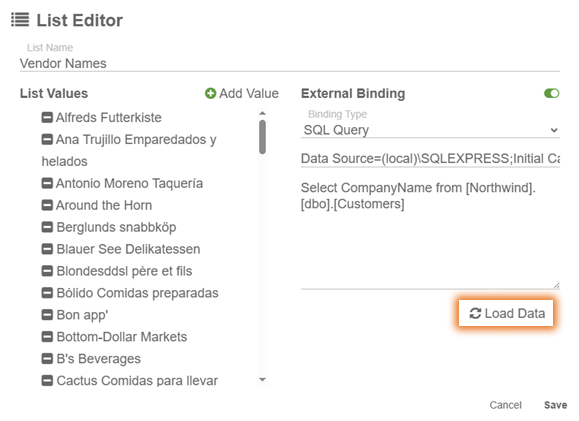
Select Load Data to pull the values for your new list.
Now your External Binding has been created.
Save your List.