Managing Portals:
Accessing Portal Management
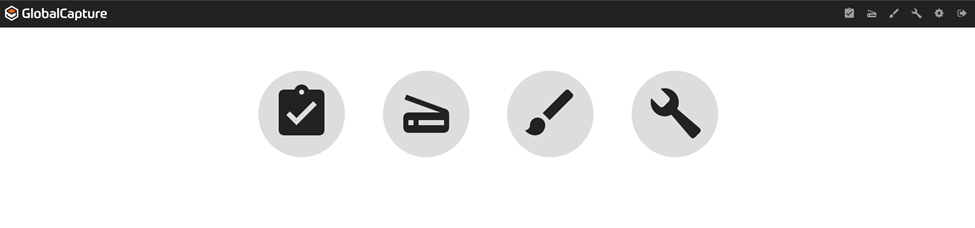
Log into GlobalCapture and then click the Manage ( 
From the sidebar, Navigate to Portals.
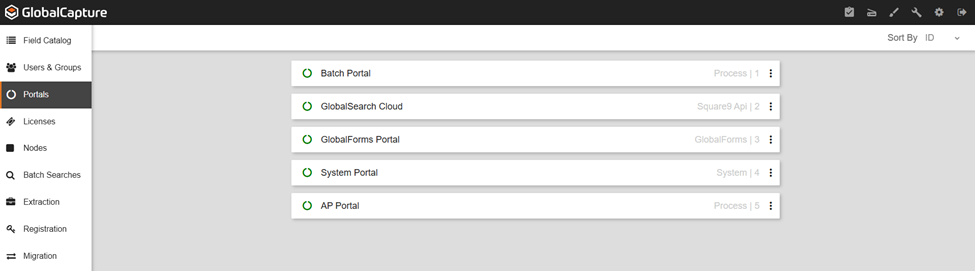
The main portals page displays a list of the portals.
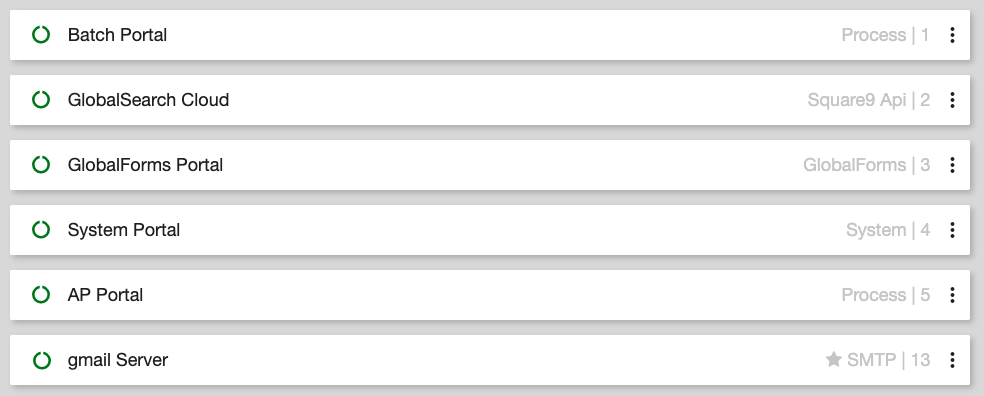
A quick glance provides the Connectivity Status of the portal, the Name of the portal, the Type of portal, and the ID of the portal in the database.
Modifying and Deleting Portals
Exercise extreme caution if modifying or deleting portals. It is best practice to not Modify or Delete any portals created during the GlobalCapture setup process.
It is highly recommended you reach out to support before you modify any portals.
To make changes to the portal, click the Ellipsis and select Edit.
Edit will open the portal configuration where you can make your changes.
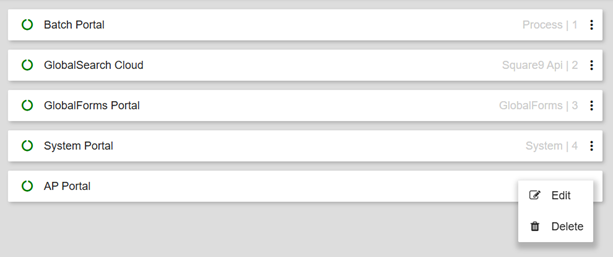
Exercise caution when deleting portals. Once a portal is deleted it is gone and will need to be rebuilt. This can also have negative impacts on existing workflow and connections to GlobalSearch, GlobalForms, and Mongo.
It is NOT recommended you delete any portals created during the GlobalCapture installation.
Portal Connectivity
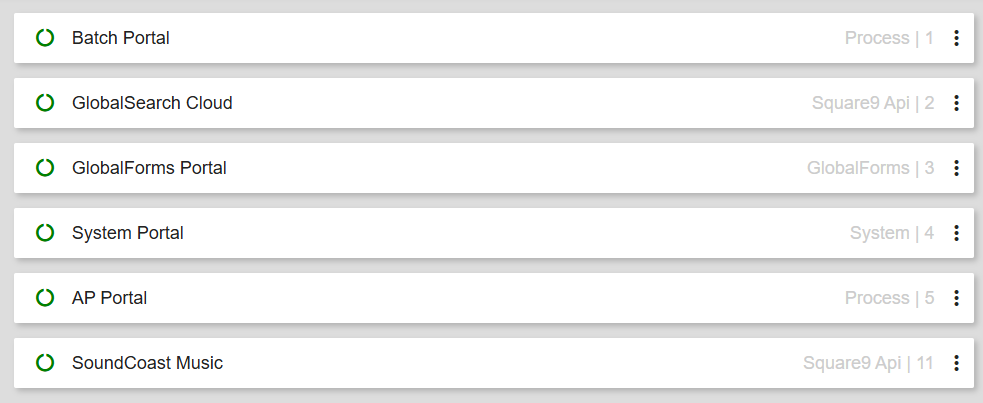
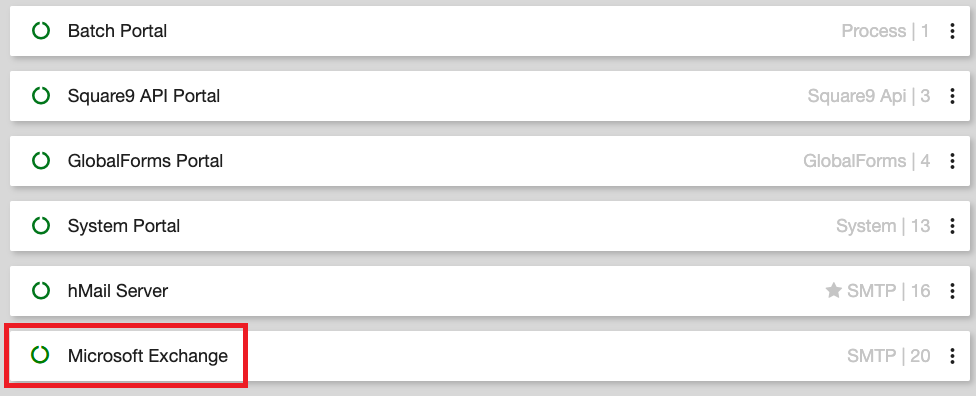
Portals that are connected successfully will have a green circle.
If the connection circle is red, the portal has not been successfully connected and the portal needs troubleshooting.
Creating a New Portal
From within Portals, click the Add New Icon ( 
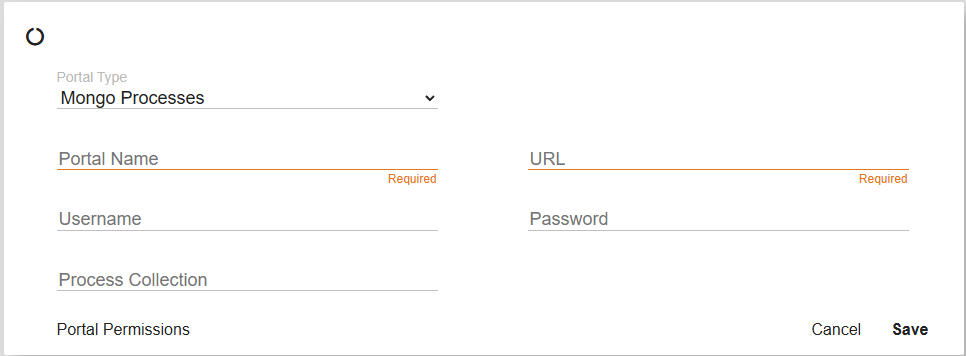
From the Portal Configuration Menu, a new Portal can be created.
Select a Portal Type from the dropdown menu to begin the creation of a new Portal.
Mongo Process Portal
A Mongo Processes portal allows you to target specific process collections.
Workflows can be set to execute within, and end in, different processes.
This can be used to control who has access to specific processes (similar to Batch Portals in previous versions of GlobalCapture).
The execution process portal is defined when saving the workflow and the end process portal is defined in the End Node.
Mongo Process Portal Creation
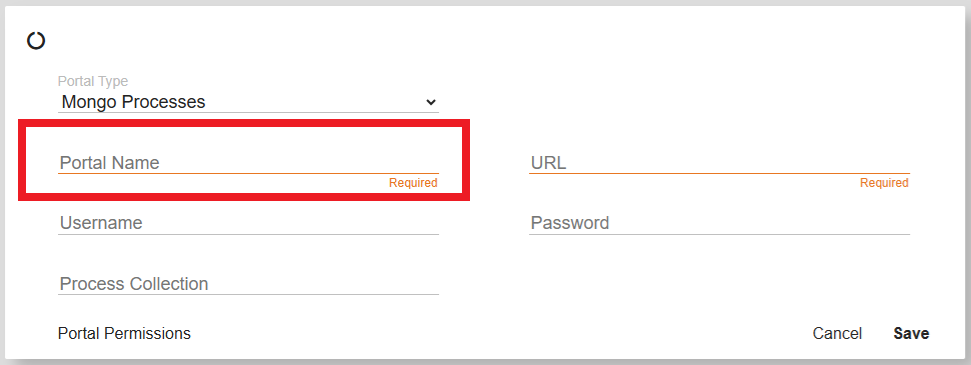
Name your portal. The name should indicate the types of users who will be secured to the workflows and/or the types of workflows that it will manage.
Ex. Accounting Portal, Human Resources Portal.
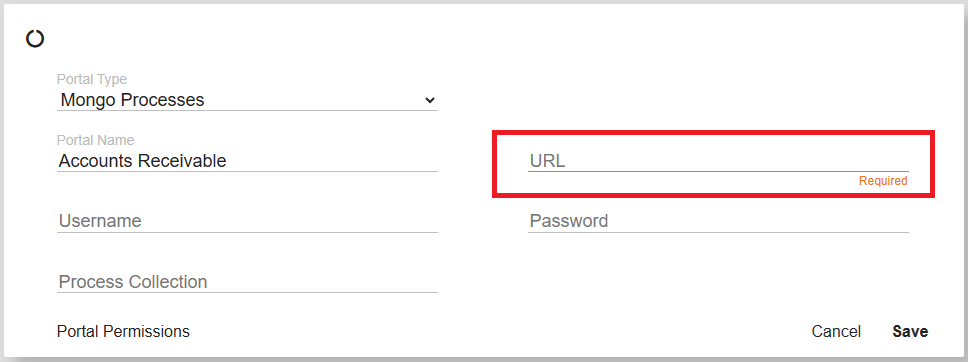
Provide the URL for the Mongo Instance.
In most cases, this can be copied from the automatically generated Mongo Process portal created during install.
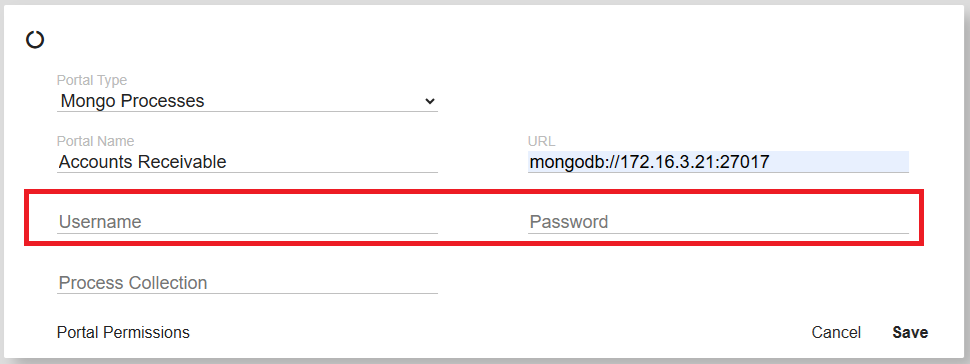
Provide the Username and Password for a user that has full access rights to the Mongo Database.
This user was created during the GlobalCapture install/upgrade process.
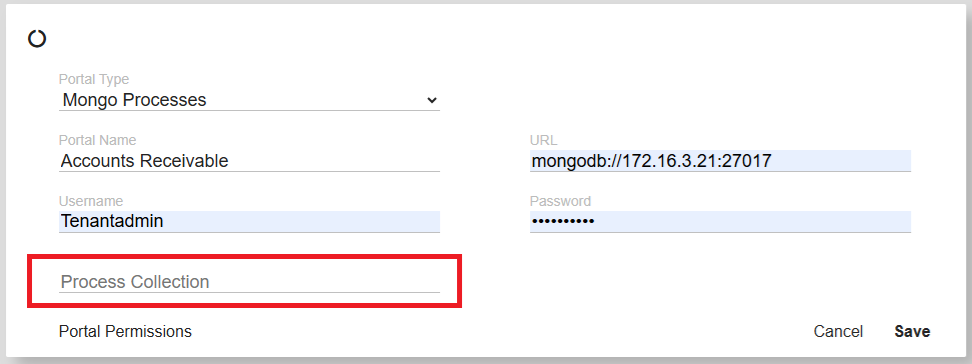
When a new Mongo Process is created in GlobalCapture, a new database is created in Mongo. To give the new Mongo database created a specific name, enter that name in the Process Collection field.
Setting Mongo Process Permissions
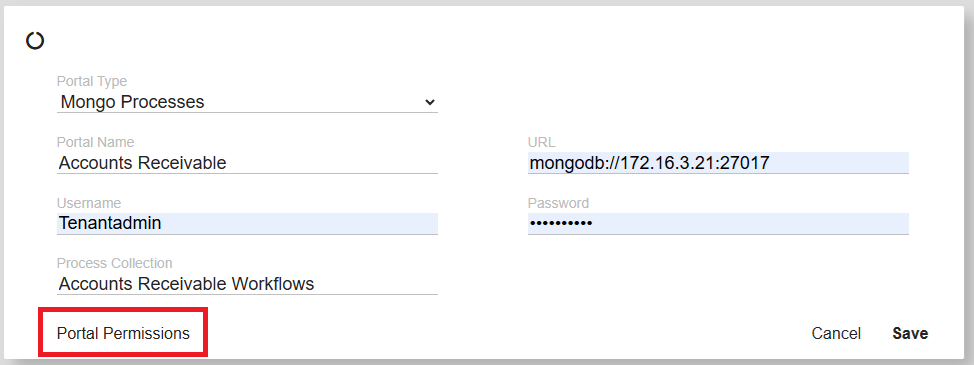
Select Portal Permissions to secure desired Users and Groups to the portal.
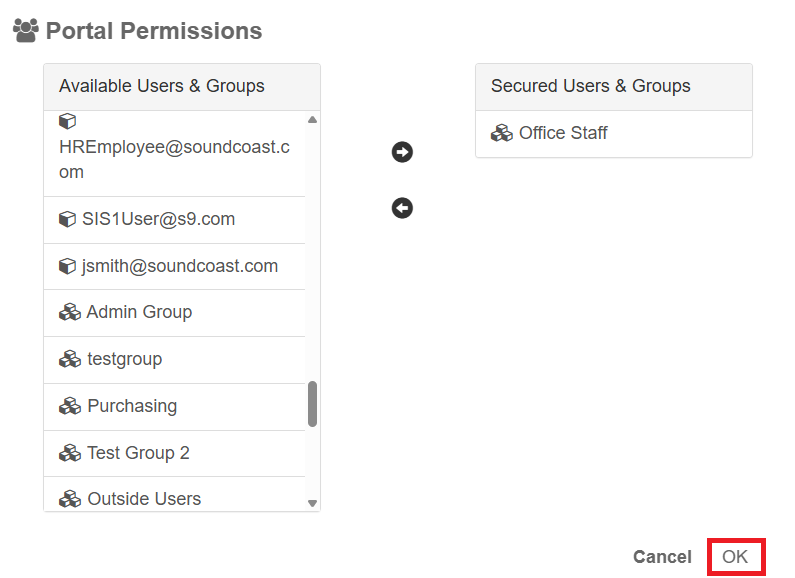
Move any Users or Groups you wish to secure from the Available column into the Secured column by using the arrows or double clicking the user/group name.
By securing users to this portal they will be able to assign workflows to this portal when saving the workflow and when using the End node.
GlobalSearch API Portal
The GlobalSearch API portal, formerly named the Square9API portal, creates a connection between GlobalCapture and GlobalSearch.
This allows GlobalCapture to release documents and data to GlobalSearch.
When GlobalCapture is installed with GlobalSearch, this portal is automatically created.
Create additional GlobalSearch API portals to allow GlobalCapture to communicate with multiple instances of GlobalSearch.
GlobalSearch API Process Portal Creation
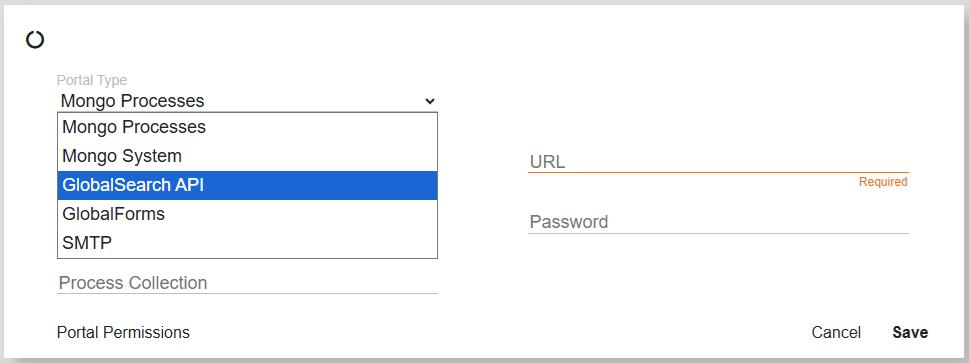
Select the GlobalSearch API option from the Portal Types drop down.
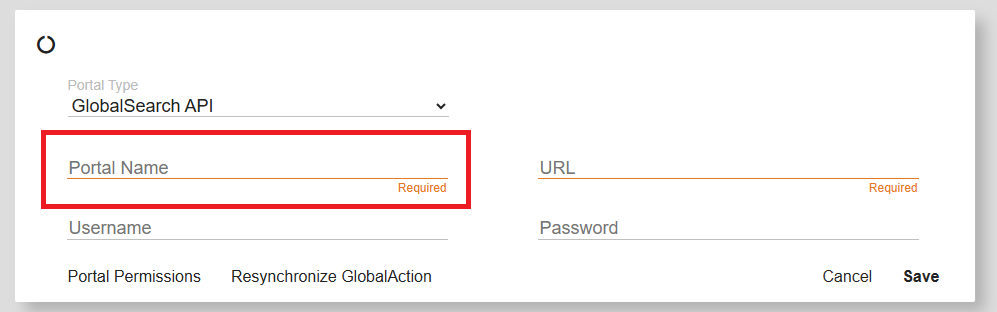
Name the new portal. If you are connecting to multiple instances of GlobalSearch, it is recommended you name the portal after the instance of GlobalSearch to which it connects.
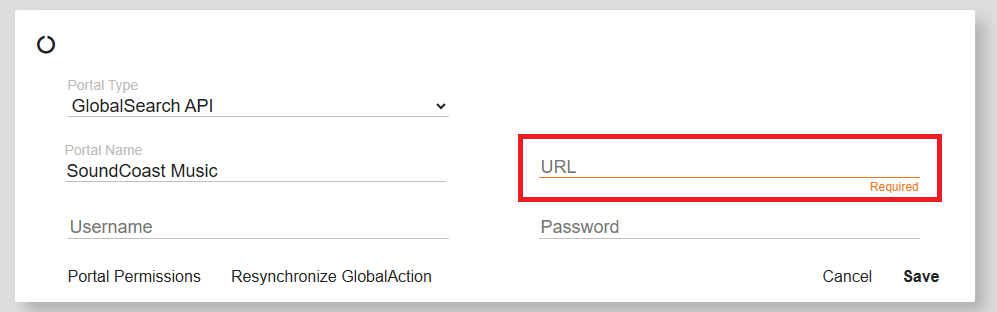
Provide the URL for the GlobalSearch instance.
It is recommended you use the name of the server and not the IP address as the IP address may change depending on your network configuration.
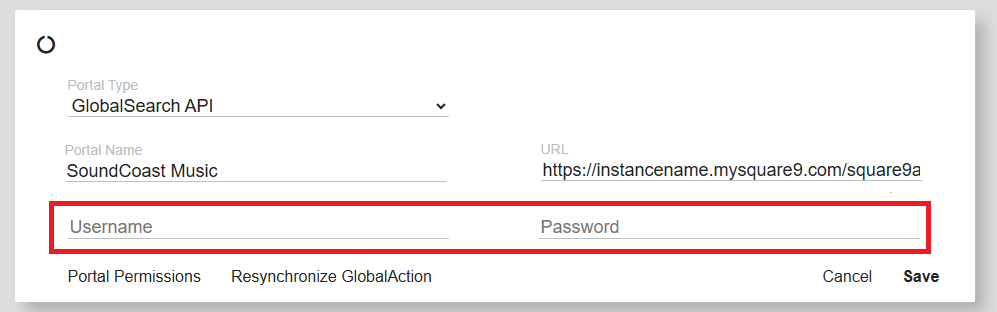
Provide a Username and Password for a user that has full access rights to GlobalSearch, or it will limit the functionality of the portal.
Creating Searches for use in GlobalAction and GlobalCapture Designer
Note
When creating a search specifically for workflows in GlobalAction or GlobalCapture, you must secure the search to both yourself and the Square 9 API Portal Admin User in order for the search to be available in Designer.
Setting GlobalSearch API Process Permissions
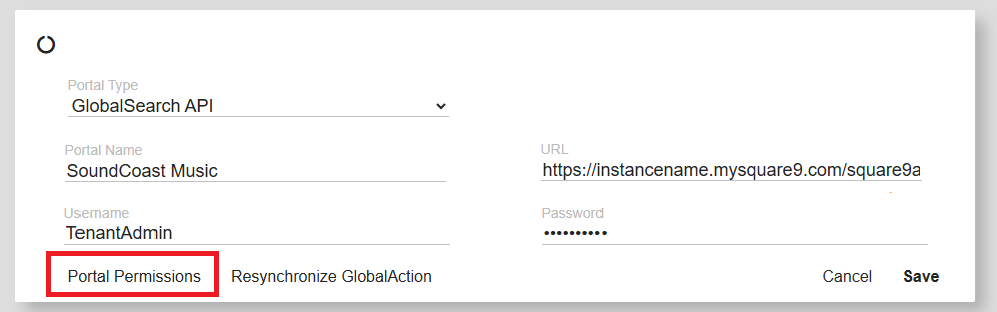
Select Portal Permissions to secure desired Users and Groups to the portal.
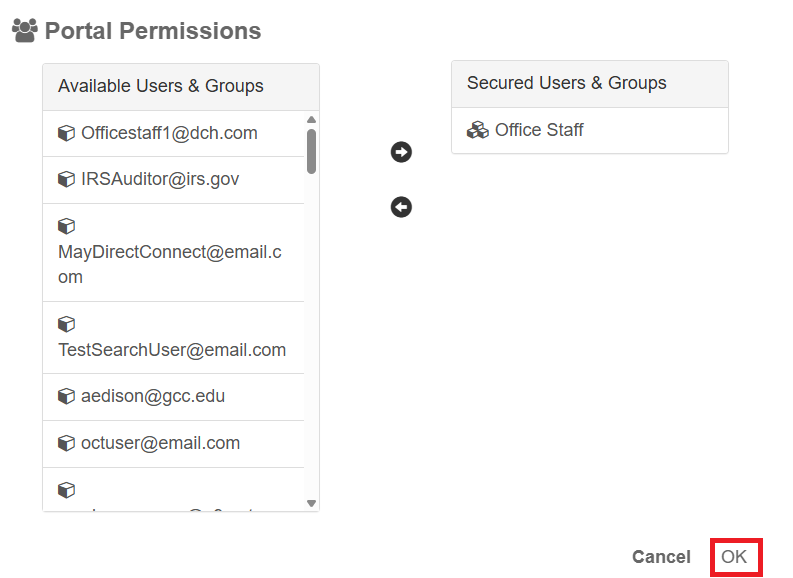
Move any Users or Groups you wish to secure from the Available column into the Secured column by using the arrows or double clicking the user/group name.
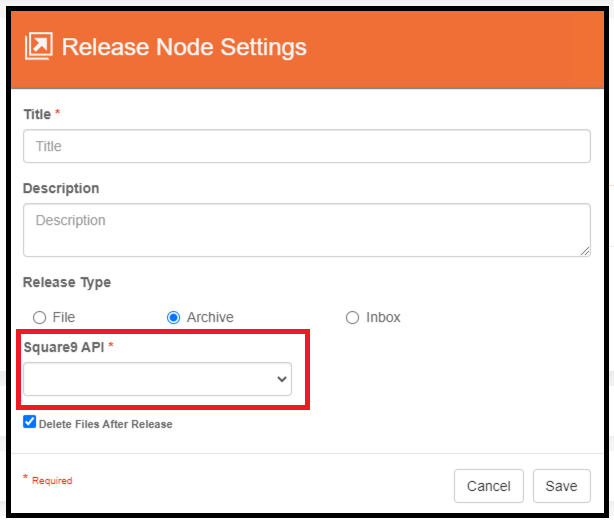
When users configure a Release Node to release documents to GlobalSearch Archives or Inboxes, they will only see GlobalSearch API portals to which they are secured.
If releasing to multiple instances of GlobalSearch, the system administrator has control over which users can release documents to each connected instance of GlobalSearch.
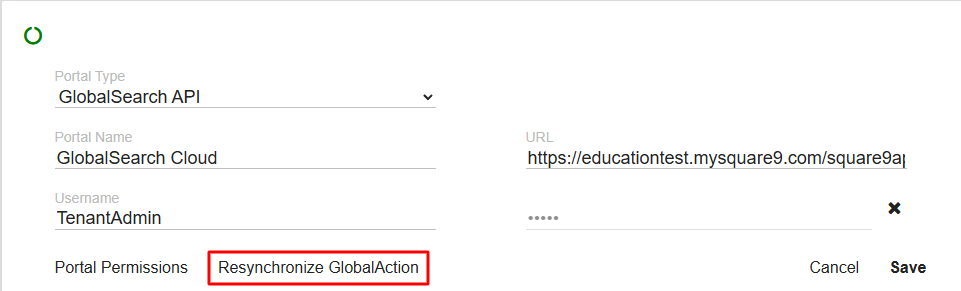
Resynchronize GlobalAction resyncs GlobalAction processes with GlobalSearch. It clears all document locks and regenerates them based on where documents are in the GlobalAction processes.
GlobalSearch and GlobalAction should remain synchronized. This is mostly a maintenance tool in the event you suspect there is a desynchronization. Evidence of a desynchronization could be incorrectly locked processes within GlobalSearch or documents failing to import.
If an administrator were to rename a Queue Action, the documents currently in process will not have that action available to them. This is a situation where Resynchronize GlobalAction will update the in process documents actions. To avoid any potential problems, make sure the GlobalAction service has been stopped and all users are logged out of GlobalSearch and GlobalAction before performing a GlobalAction Resynchronization.
GlobalForms Portal
A GlobalForms portal creates a connection between GlobalCapture and GlobalForms, allowing GlobalCapture to import GlobalForms submissions.
This allows for GlobalForms submissions to be picked up and processed by GlobalCapture workflows.
Additional portals to other instances of GlobalForms can be created by adding additional GlobalForms portals.
GlobalForms Portal Creation
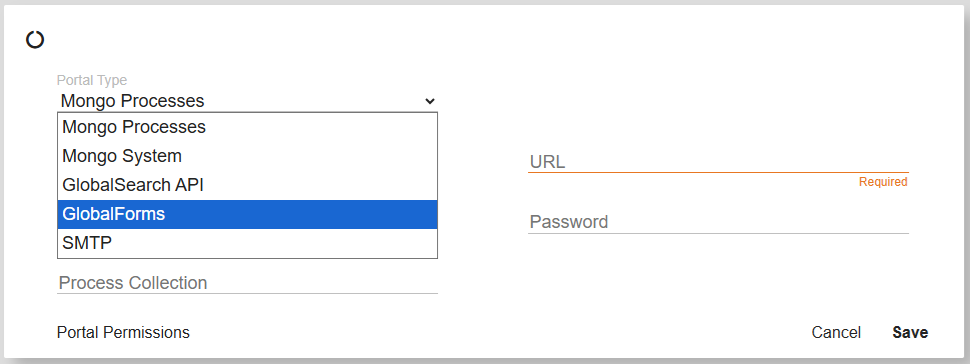
Select the GlobalForms option from the Portal Types drop down.
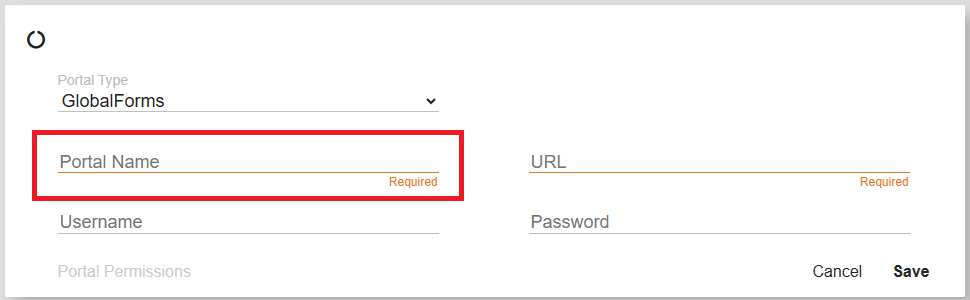
Name your Portal.
If you are connected to multiple instances of GlobalForms, it is recommended you name the portal after the instance of GlobalForms to which it connects.
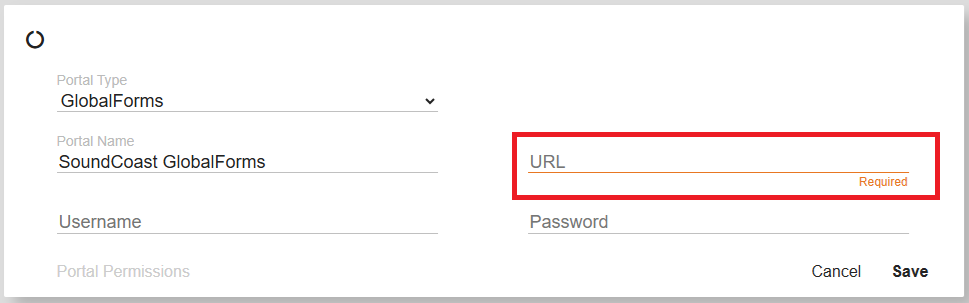
Provide the URL for the GlobalForms instance. It is recommended you use the name of the server and not the IP address as the IP address may change depending on your network configuration.
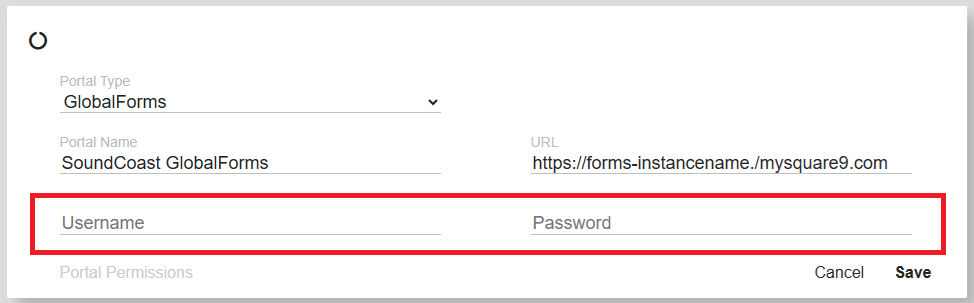
Provide a Username and Password for a user who has full access rights to GlobalForms or it will limit the functionality of the portal.
There are no Portal Permissions to configure for GlobalForms portals.
Click Save.
System Portal
A Mongo System portal stores all workflows and should be disregarded.
There is no need to create additional system portals and do not make changes to the System Portal that is created during installation.
This portal CANNOT be deleted.
SMTP Portal
An SMTP portal allows you to specify your own SMTP server to send outgoing emails via the GlobalCapture/GlobalAction Email Node.
You can configure multiple SMTP portals for different email servers and select the appropriate SMTP server when configuring the Email Node.
SMTP Portal Creation and Configuration
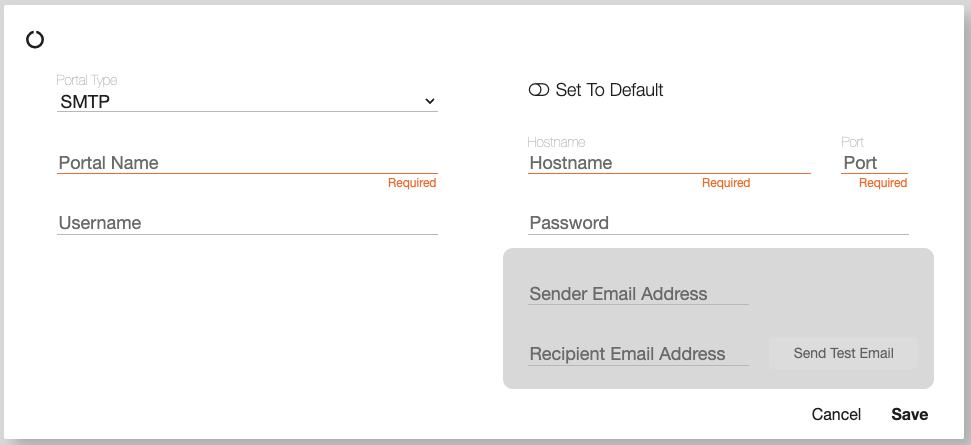
It is important when creating a new SMTP portal to provide a Name that distinguishes it from other SMTP portals that are configured.
When selecting the email server to use when configuring the Email Node, the Portal Name is what is visible.
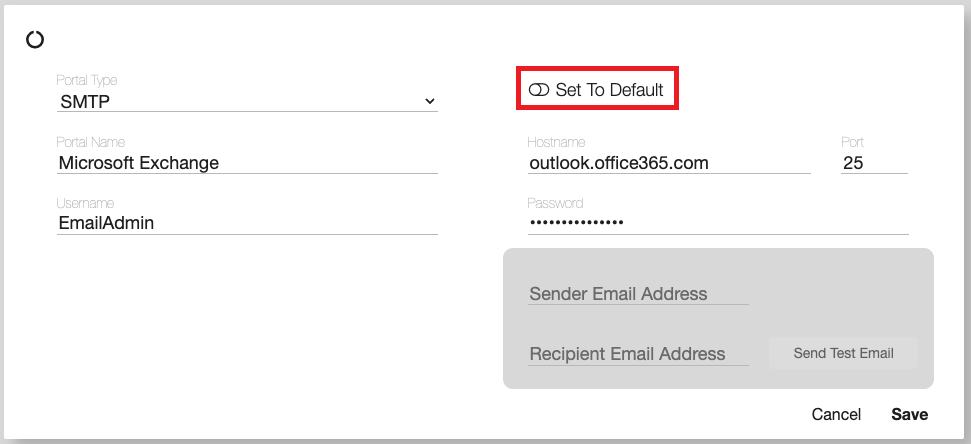
Enabling Set to Default will use this SMTP portal as the default for any Email Node in which no SMTP portal is selected.
If no SMTP portal is set as a default and no SMTP portal is selected in the Email Node configuration, the workflow will error on the Email Node.
If upgrading, SMTP settings configured in the GlobalCapture config file will persist and be used if no SMTP portal is selected in the Email node or no SMTP portal is set as default.
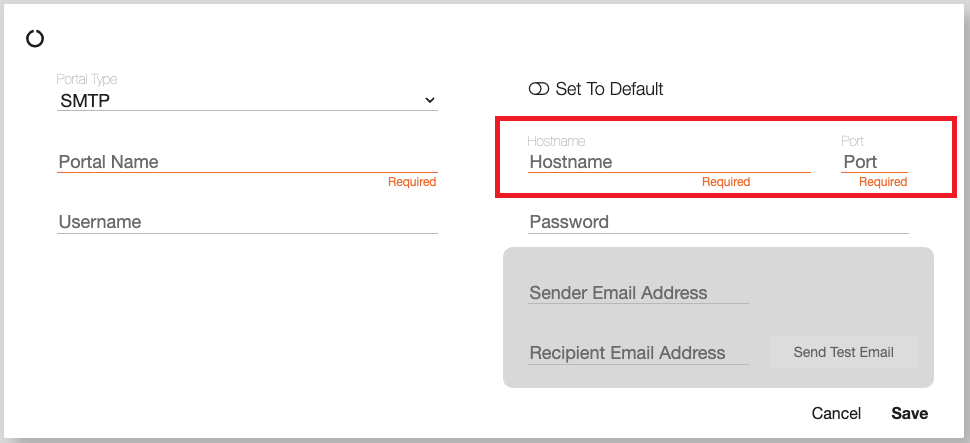
Enter the Hostname and Port for your email server.
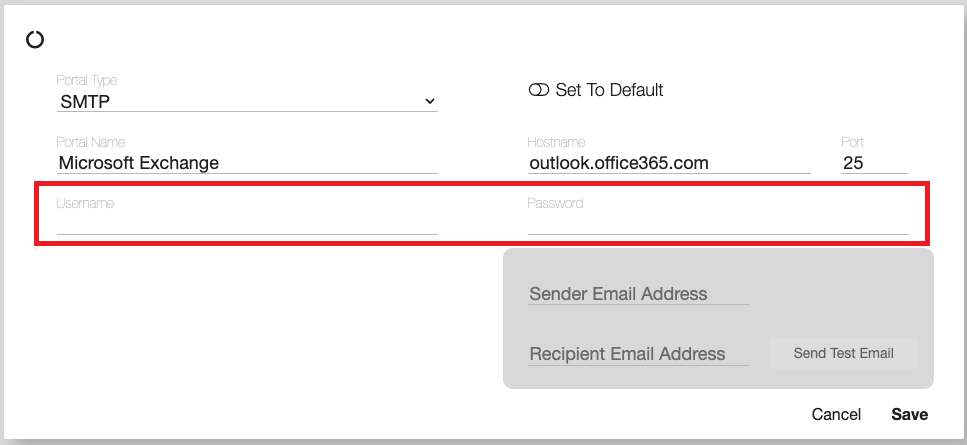
Provide a Username and Password for your email server.
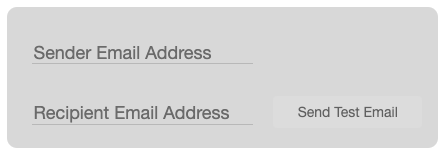
The gray box contains a process for testing your SMTP portal configurations.
If your configuration is correct, the recipient email address should receive a test email.
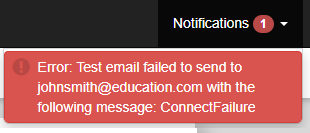
Note: You will receive a GlobalCapture notification as to the success or failure of your test email.
If your email fails, the portal has not been successfully connected.
Check to ensure your Hostname, Port, Username, and Password are correct.
The connection circle on the left side of the portal card will turn green if the connection is successful.
The Star (