
Introduction to Batch Searches
Accessing Batch Searches
To access Batch Searches, select the Manage ( 
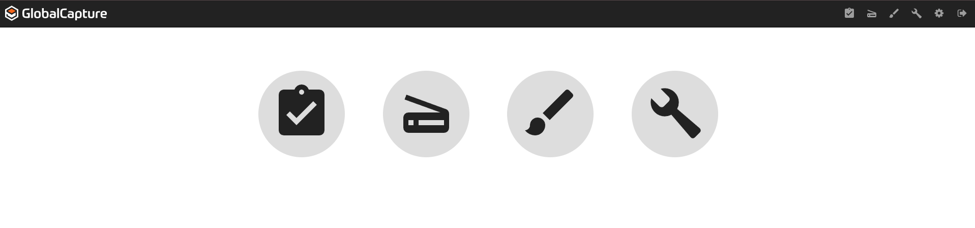
From the sidebar, navigate to Batch Searches.
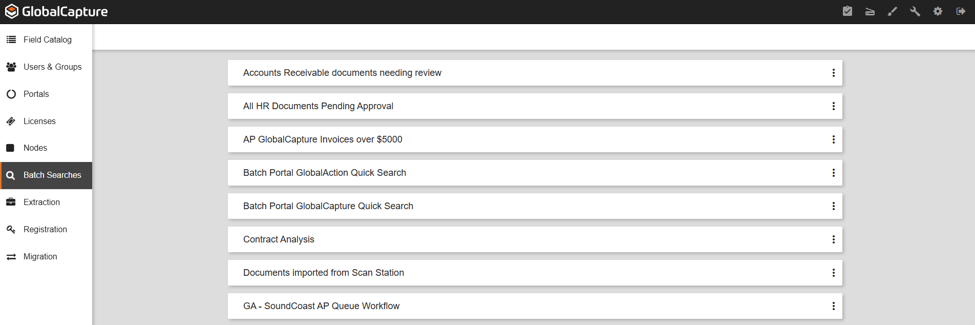
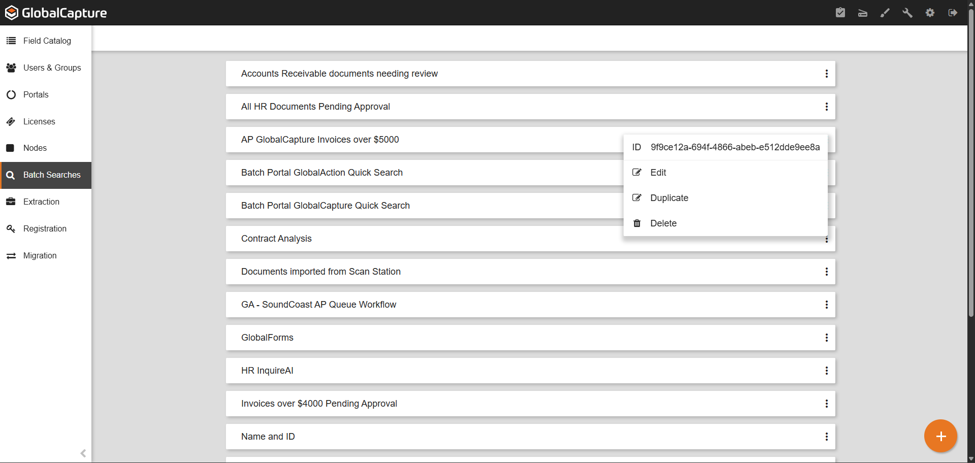
The Batch Searches page displays the list of all Batch Searches created.
From here you can Create new Batch Searches in addition to Editing, Duplicating, and Deleting existing Batch Searches.
Batch Searches serve multiple functions.
-
They allow users to filter documents that are currently being processed based on process portal, workflow, extracted data, system data, etc.
-
They limit user access to in-process documents that are relevant to their job functions.
-
They determine the visibility and accessability of data within the grid and document viewers.
Two searches are created when GlobalCapture is configured, the Batch Portal GlobalAction Quick Search and the Batch Portal GlobalCapture Quick Search.

The Batch Portal GlobalAction Quick Search returns all GlobalAction processes that are secured to the Mongo Process portal named Batch Portal.
The Batch Portal GlobalCapture Quick Search returns all GlobalCapture processes that are secured to the Mongo Process portal named Batch Portal.
Creating a Batch Search
-
To create a new Batch Search, click the Create New (

-
Start by giving your search a Name.
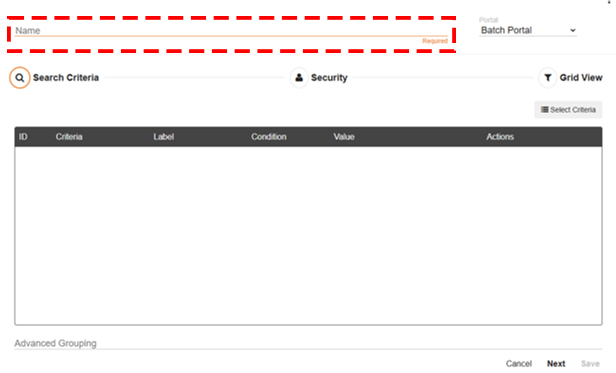
The name should specify what types of processes or documents will be returned in the search.
-
Select the Portal that contains the workflows you would like to search.
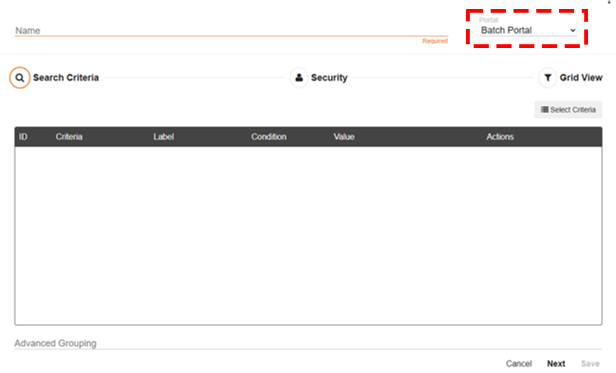
The search will only return results from workflows secured to the selected portal.
The search configuration is divided into three sections:
-
Search Criteria defines the fields and conditions for the search.
-
Security defines the users who have access to the search and what information is available.
-
Grid View configures how the data is displayed in the Grid View.
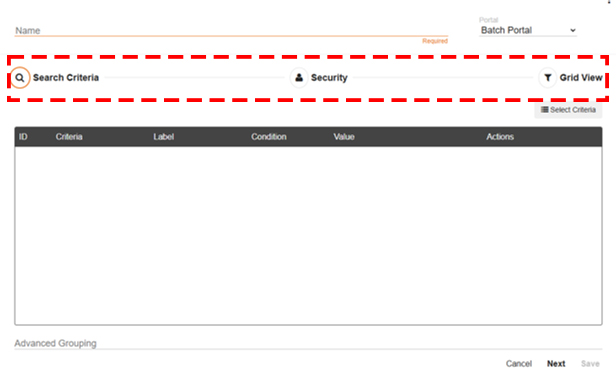
Search Criteria
-
Click Select Criteria to define the data used in the search.
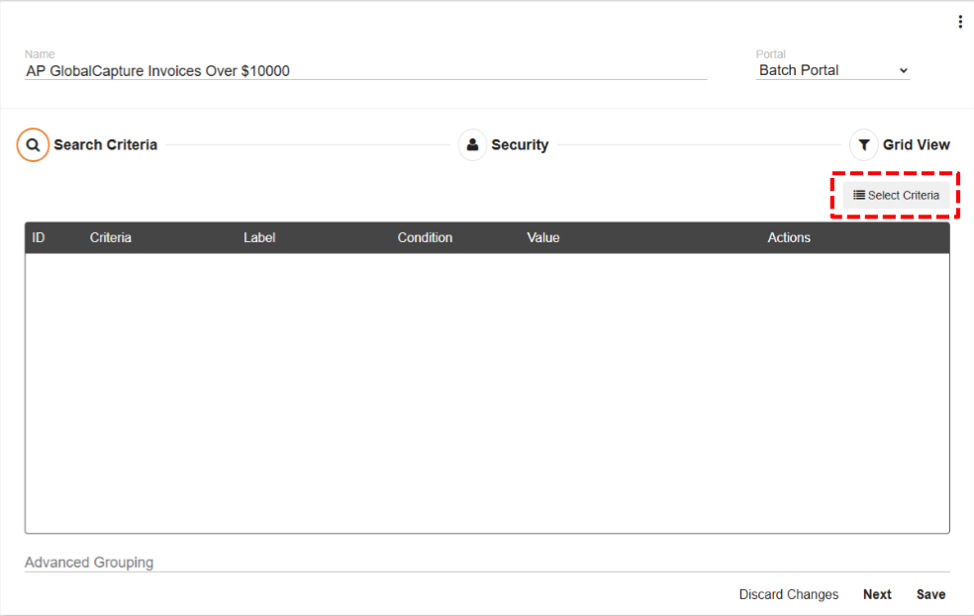
Process Properties is system data related to the workflow process.
This includes data like Batch ID, Workflow Name, Total Time in process, User access, and more. All process data is collected even if not displayed in the Grid view.
To learn more about available process properties, visit S9 Notation.
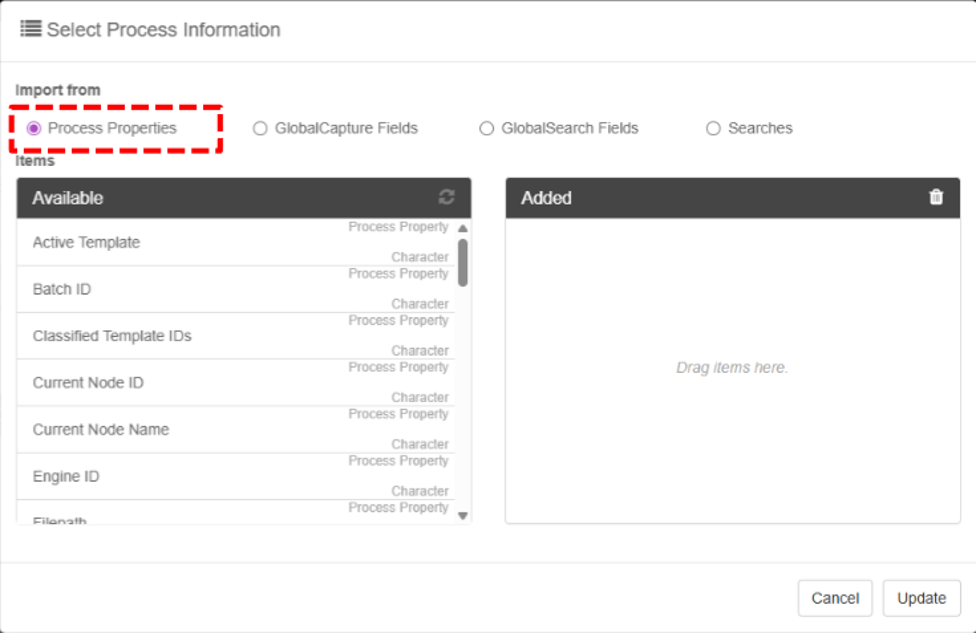
Commonly used Process Properties
Workflow Name is the name of the workflow that the batch is currently processing in.
Status is the current status of the selected process.
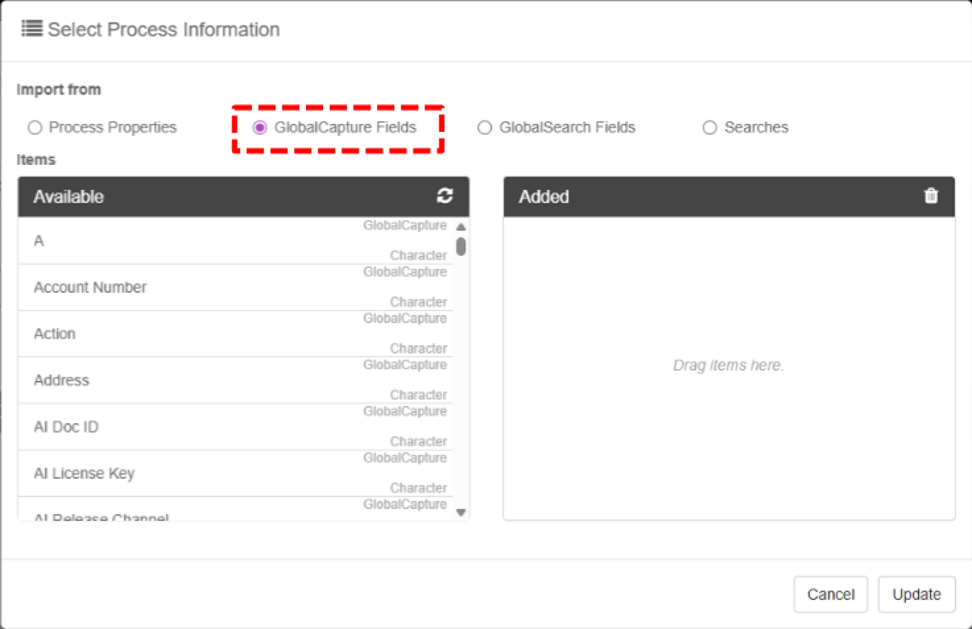
GlobalCapture Fields imports Process Fields from the GlobalCapture Field Catalog.
Use data captured into GlobalCapture Process fields to refine your search.
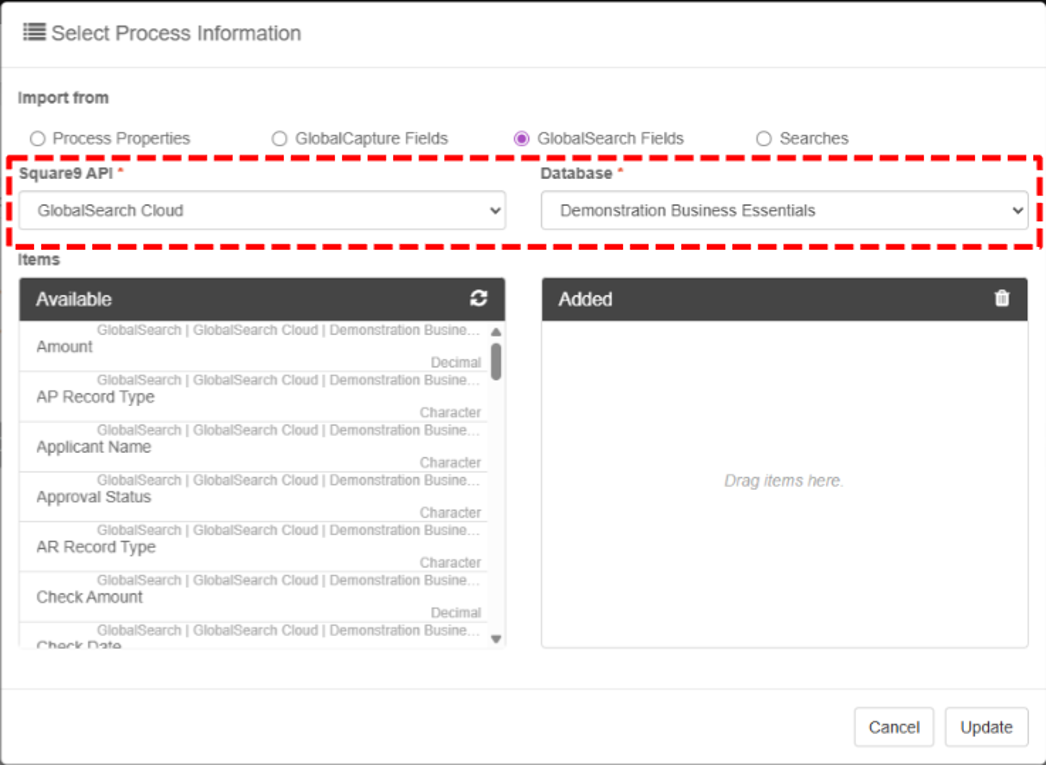
For GlobalSearch Fields select the Square9 API portal to choose the instance of GlobalSearch if there is more than one, and then the database that contains the desired fields.
GlobalSearch Fields are only accessible to GlobalAction document workflows.
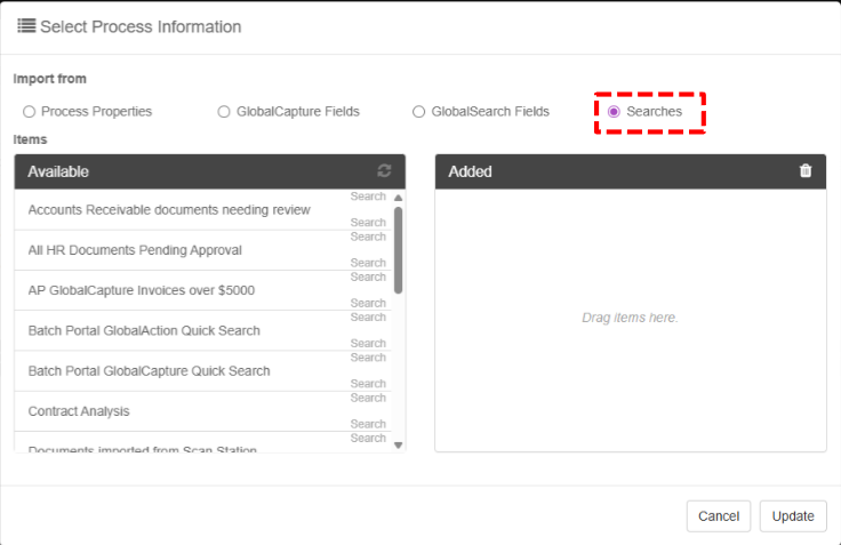
Searches adds all the parameters from the selected search(es) to the search criteria.
-
This is advantageous because it allows you to provide the same search criteria across multiple searches without adding multiple parameters to your search.
-
It also allows you to quickly makes changes to all the searches because any changes made to the included search are automatically reflected in any search that uses it.
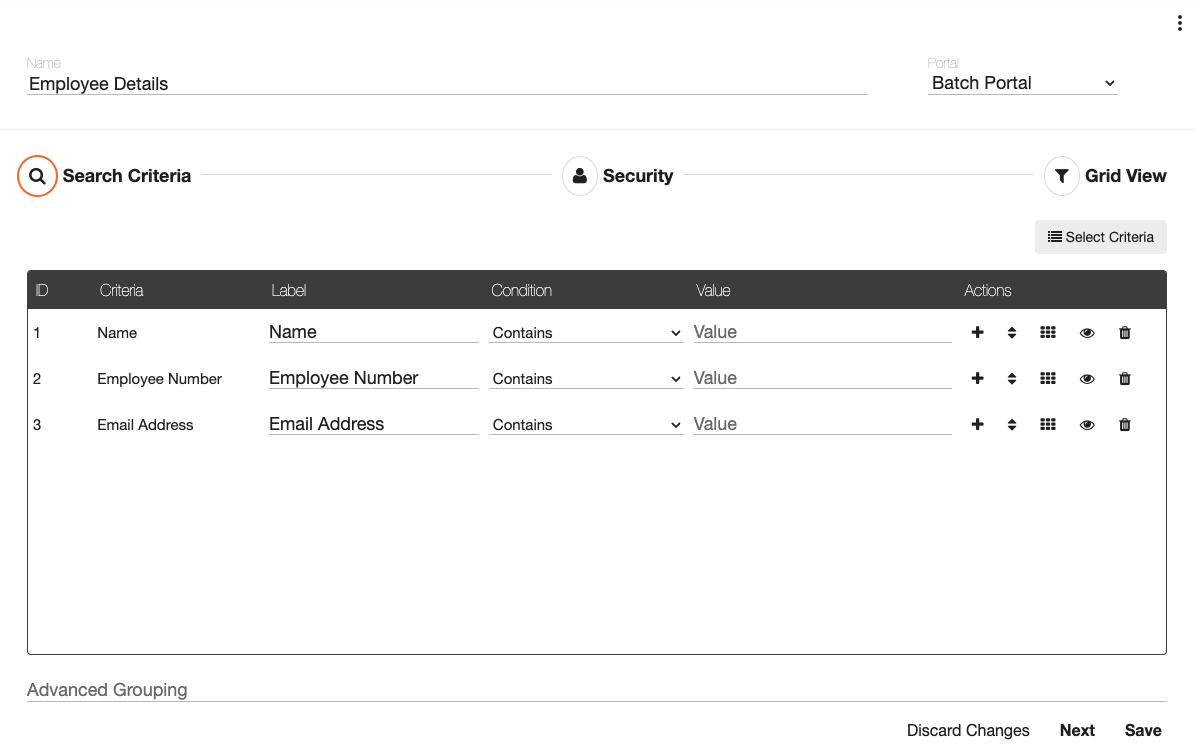
Ex. If I need to create multiple searches that share the same fields such as: Name, Employee Number, Email Address, I would:
-
Create a search called Employee Details that includes the fields above.
-
Include that search with any other search I build that needs those same 3 fields.
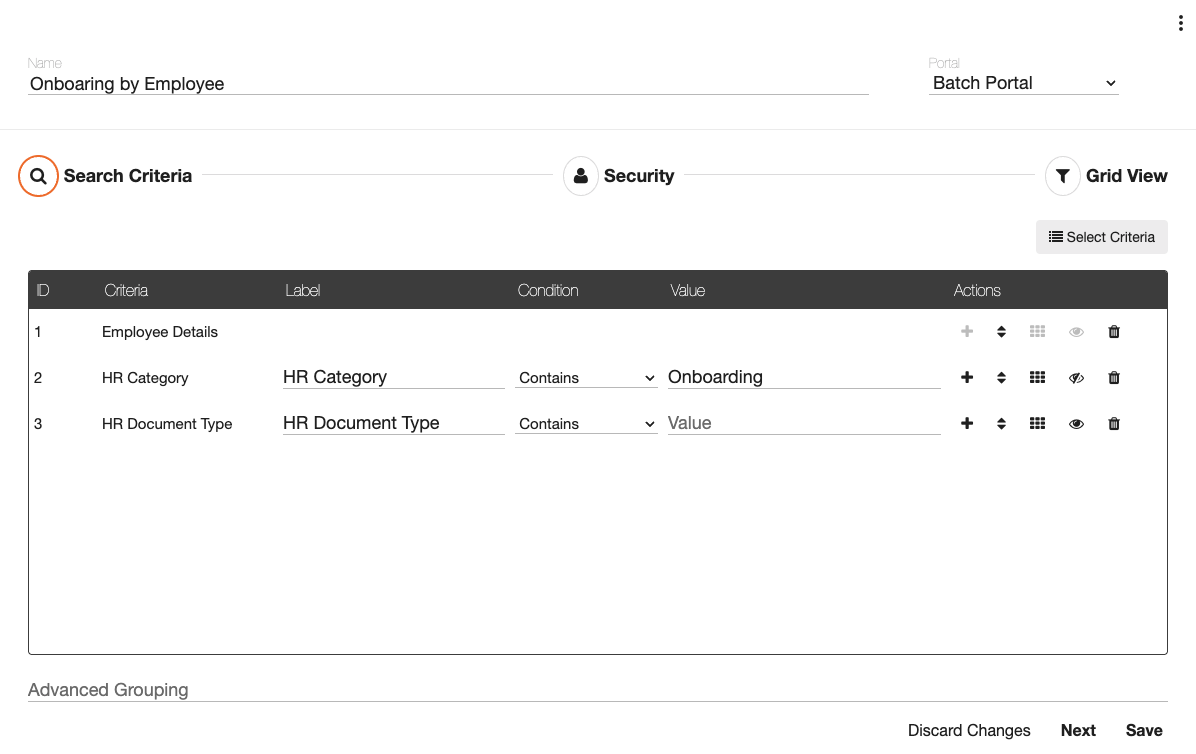
When a user runs the search, they are presented with the search options for the Employee details and the HR Document Type.
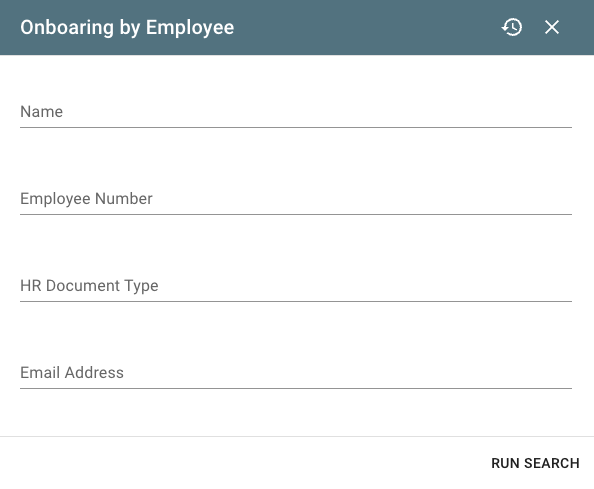
If I needed to add Employee Phone to all searches using the Employee Details search, I could just add it to the Employee Details search and it would be applied to all searches that utilize Employee Detail.
-
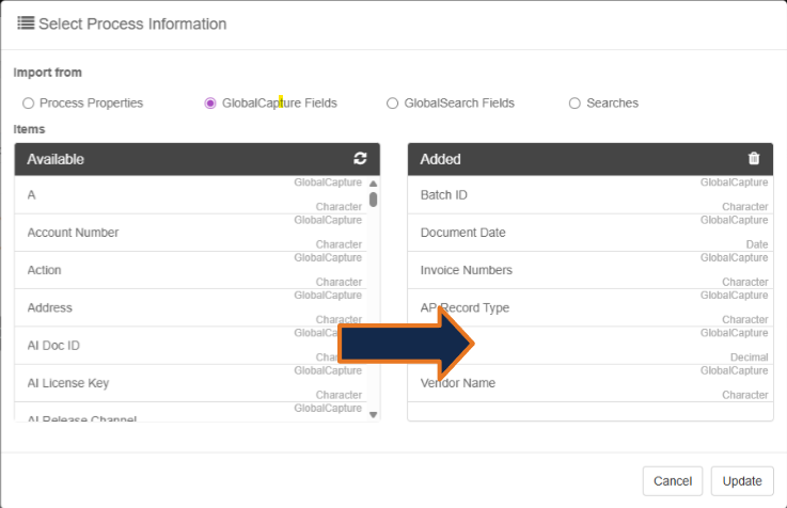
Move any of the Available fields to the Added column to add them to your search. You can select fields from different sources.
Configuring Search Criteria
-
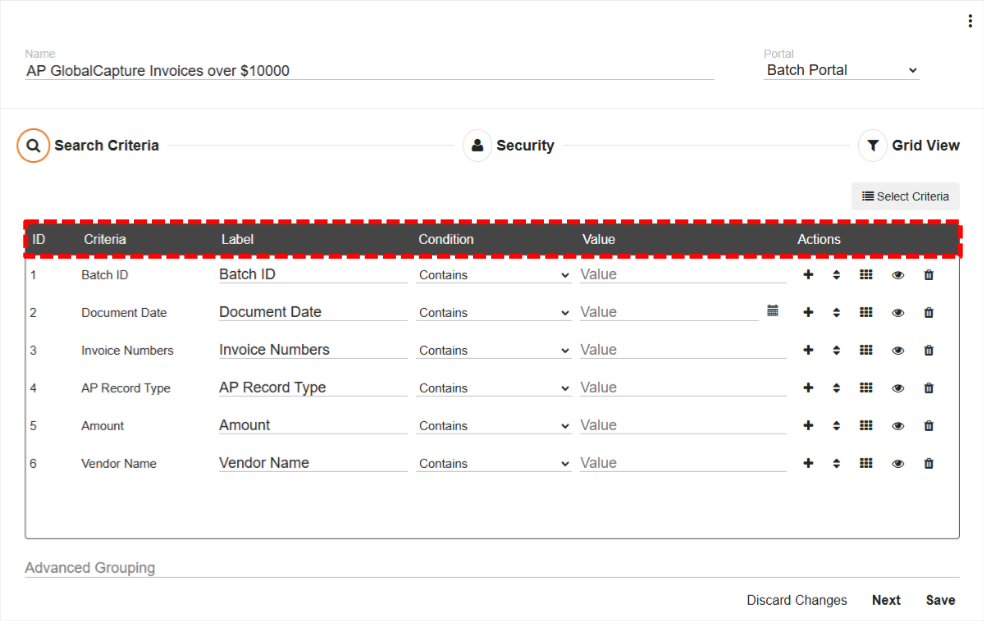
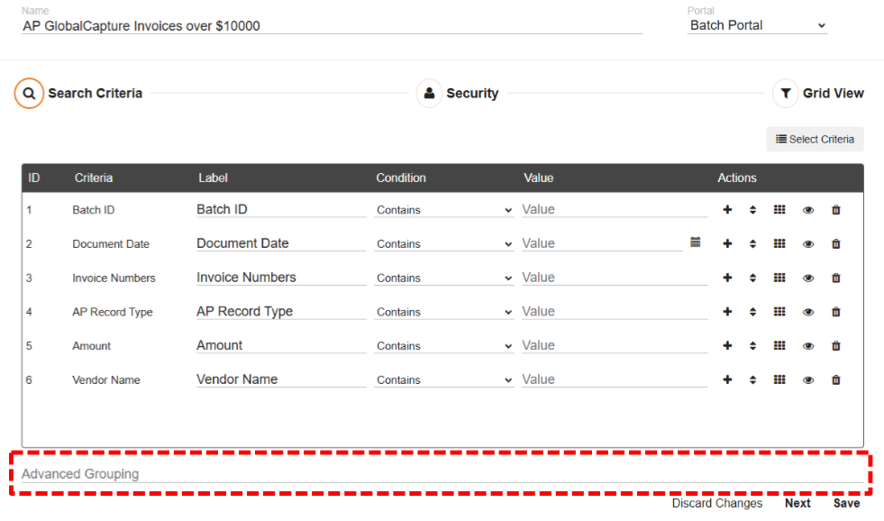
The ID is the number used to identify the search parameter for advanced grouping.
-
The Criteria is the name of the data field that will be searched against.
-
The Label is the prompt that shows up for the user when they run the search.
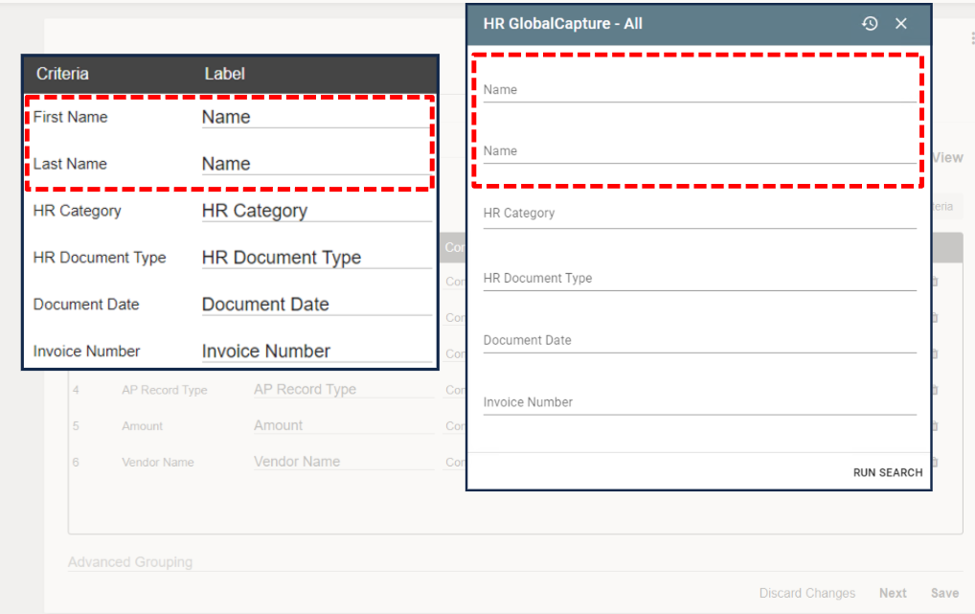
If different Criteria have the same Label, the label WILL show up multiple times in the search prompt. This behavior is different from GlobalSearch so plan your search accordingly.
It is important to clearly label your search criteria.
-
The Condition defines how to compare the data entered into the connected index field.
While many of these need no explanation, when Invalid or Valid is selected, no user input is required. Documents will be returned when data within the selected field is valid or invalid based on field data type or formatting of the index field.
Ex. If a field is designated Numeric and data contains an O instead of a 0 (zero), the document would be returned if Invalid for the field is selected.
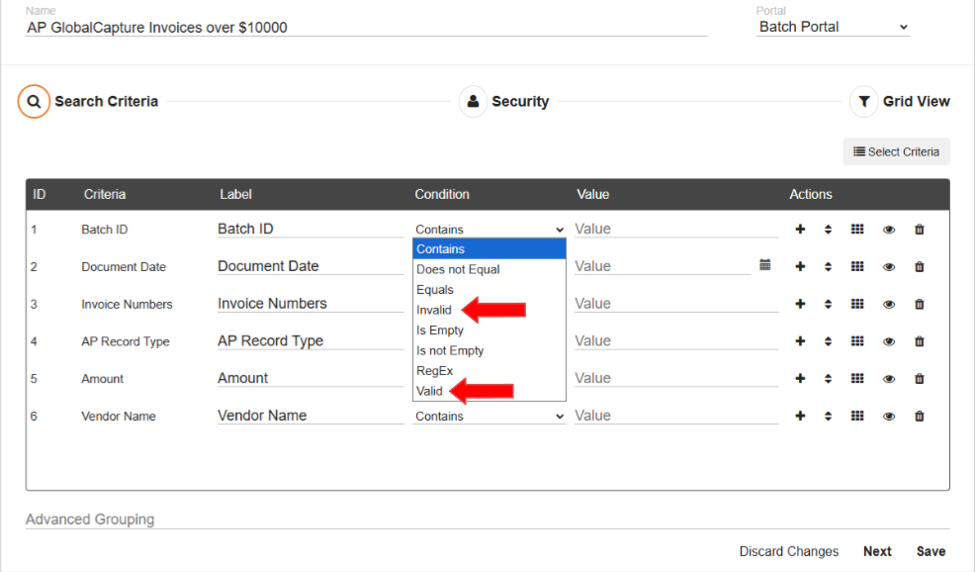
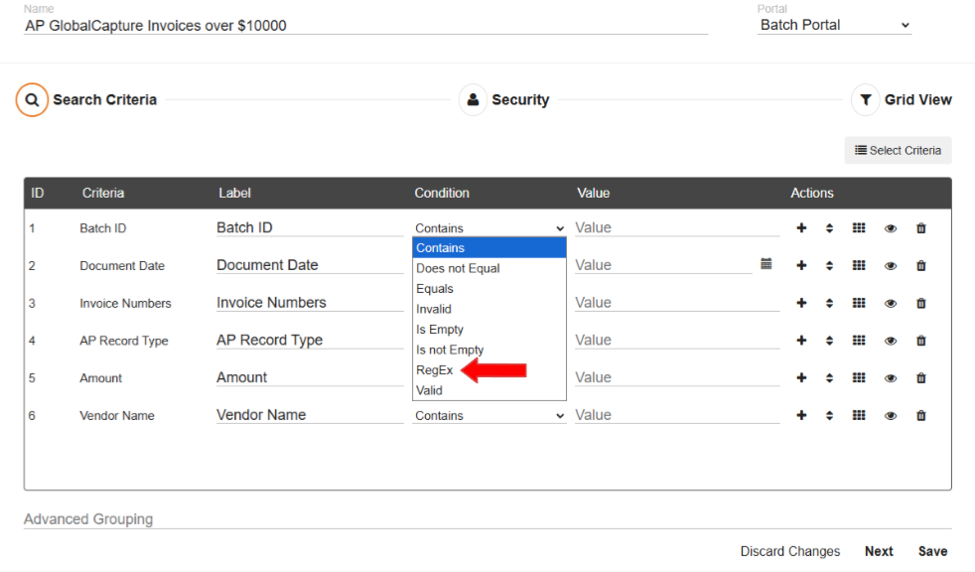
When Regex is selected and exposed, the user can enter a regex into the search prompt to find matching data. If regex is chosen and the user enters non regex data, the data must match exactly and is case sensitive.
Ex. Condition: Contains, Vendor Name: Fender. Fen (yes), der(Yes), fend (no, due to case).
If the search parameter is NOT exposed to the user, the search will return results that match the administrator entered regex.
-
The Value is the search parameter. Leave blank for the user to enter data or enter data here to preload the data into the search. This field will behave differently depending the the type of field. Some common ones are:
-
Process Field: Status - Will display a popup of available statuses.
-
Process Field: Workflow Name - This is a type ahead list of the name of the workflows in GlobalCapture/GlobalAction.
-
Field Type: Date - Use a date picker to select a date or use the system date/date and time.
-
{TODAY} - Get todays date.
-
{NOW} - Get the current date AND time.
-
-
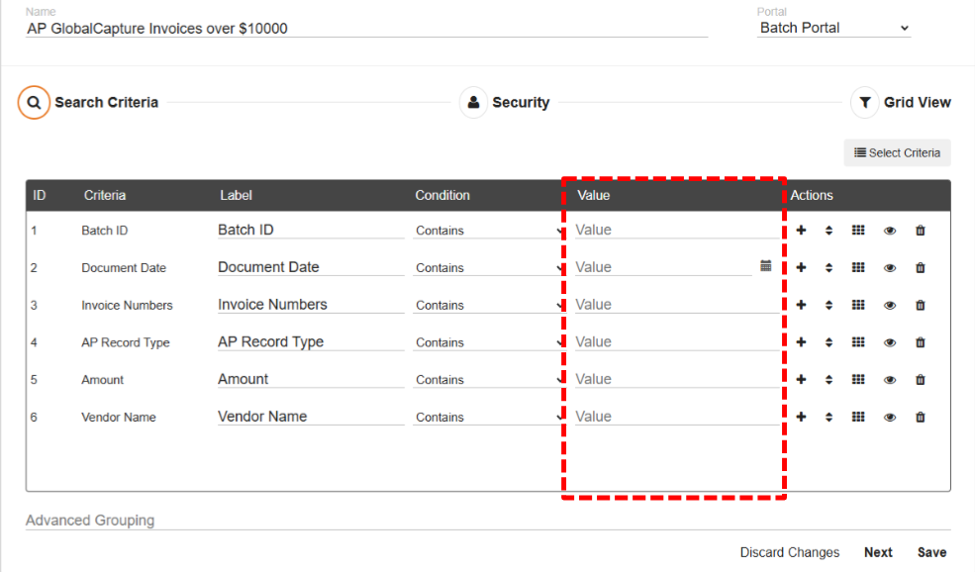
Visit the Square 9 Knowledge Base article S9 Notation to learn more about values, including the use of Date Math.
-
The Actions configure visibility, order, and allow for removal of data fields.
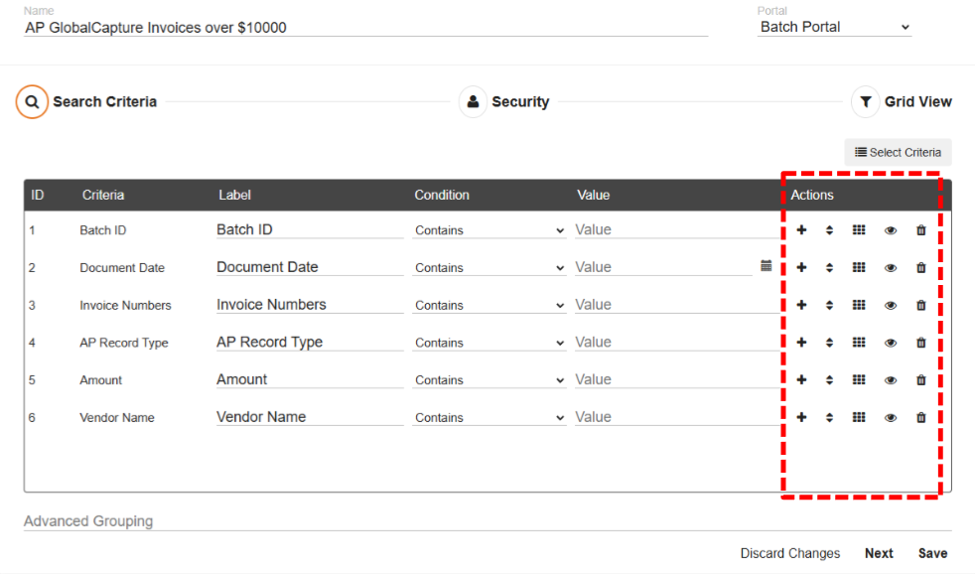
Add ( 
Reorder () - Reorder the list. The order that appears here will be the order the user sees in the search.
Grid Visibility () - Controls visibility in the search results grid. Orange indicates this data will appare in the grid.
Show/Hide () - Shows or hids the pompt within the search. If you ahve preloaded data into the search value and you DON’T want the user to have the ability to replace it, make the field invisibile.
Delete () - Remove the criteria from the search.
If you make changes to the order, be sure to check your Advanced Grouping and ensure it still proivdes the desired outcome.
If your search consists of field and searches or imports from multiple searches, the prompts will be ordered based on ID number. All ID 1’s, followed by all ID 2’s and so on.
-
The Advanced Grouping uses AND/OR to broaden or narrow your search. If left blank, the default is AND.
-
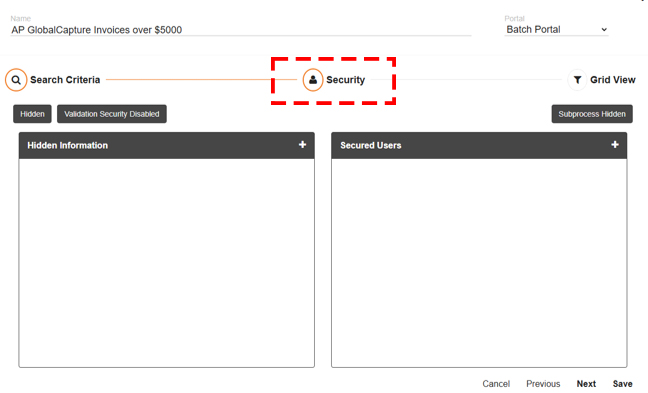
Once you have your Search Criteria set, click Next or Security to configure search security.
Setting Security
Security serves to limit access to processes and data for GlobalCapture/GlobalAction processes. Security can be configured granularly to allow for viewing, modifying data, modifying the document, taking actions on a document as well as hiding fields from users.
-
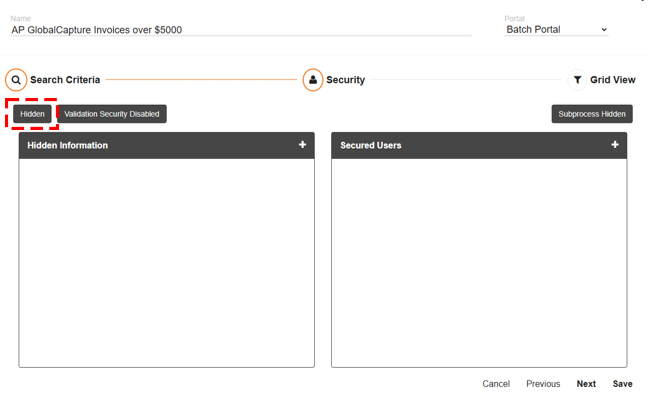
Enabling Hidden hides the search from everyone secured to it.
Since there is no save draft button for a search, any search saved as an admin will be available to everyone secured to it.
*Enabling Hidden allows for a search to be created and ready to use without giving access to it until hidden is disabled.
-
Validation Security Enabled/Disabled is the legacy model for securing users to batches.
If any workflows are leveraging user security set on a Validate node, Validation Security should be Enabled on the Search.
If using Validation Security, users should not be added to the Secured Users panel for this search as this may impact permissions assigned in the node.
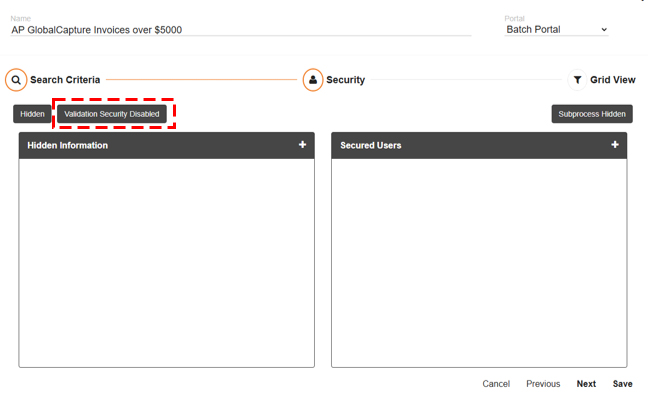
It is important to note that when Validation Security is enabled on a Search, ALL USERS will see that search whether or not they are secured to it but only users secured in the Validate node will get any results. For new workflows, we DO NOT recommend using the legacy security approach.
-
Subprocess Hidden/Shown controls the ability for Search results to include active subprocesses.
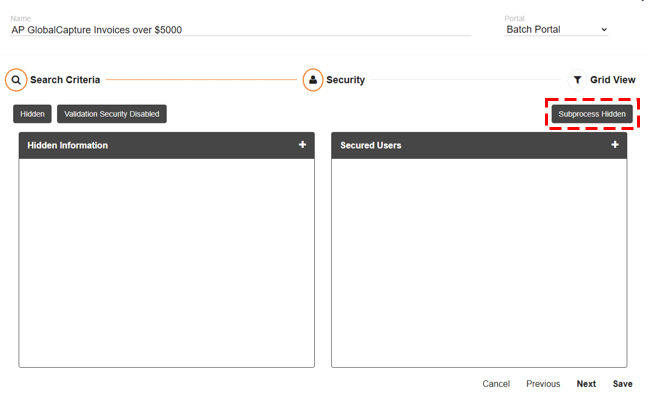
Enabling Subprocess Shown option will include this data in results returned by the search.
*Subprocesses occur when a node breaks up the pages of a document during processing. This occurs most commonly in OCR steps like Classify or PDF Convert.
Ex: When the convert node is applied, a multi-page document is separated into individual pages for the conversion and then stitched back together. The breaking apart of the document is a subprocess.
-
To prevent a user from adding specific fields to the search results grid in their own browser configuration, add those fields to the Hidden Information section.
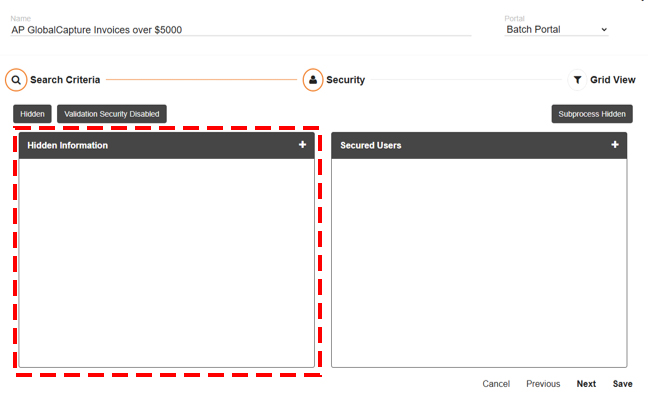
*Note, you can not exclude Process Properties. All Process Property fields are considered essential and cannot be hidden.
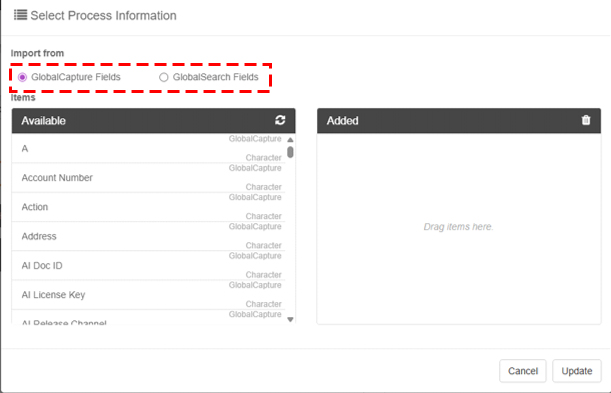
GlobalSearch and GlobalCapture fields can be hidden.
Hide fields by moving them into the Added column and click Update.
-
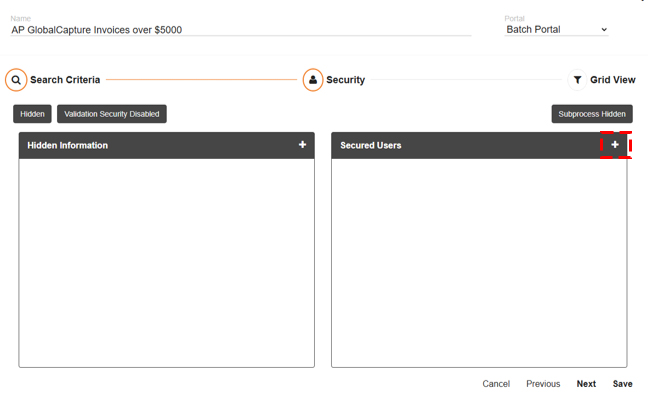
Secured Users is where you add users who will have access to this search. Only secured users will have access to the search in Validation*.
If using Validation Security, users should not be added to the Secured Users panel for this search as this may impact permissions assigned in the node.
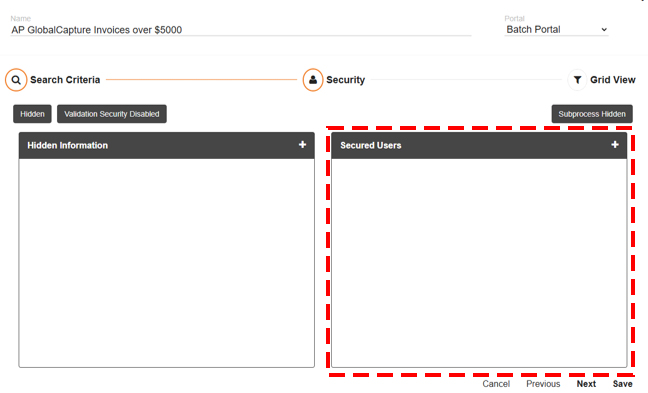
*If Validation Security is Enabled, all users will see this search in the batch portal but only those secured here or in the Validation node of the workflow will get any results.
-
Click the plus sign (+) to secure users to this search.
-
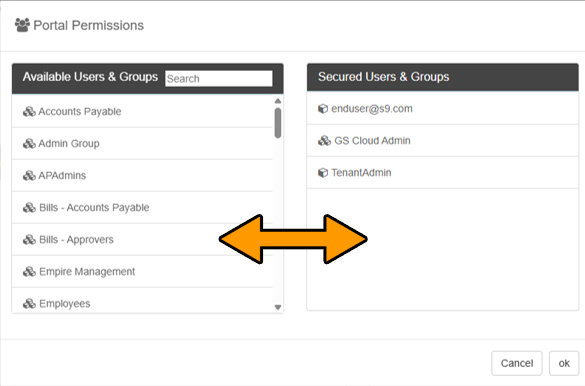
Double click the user to add to secured users and double click the user again to remove them.
-
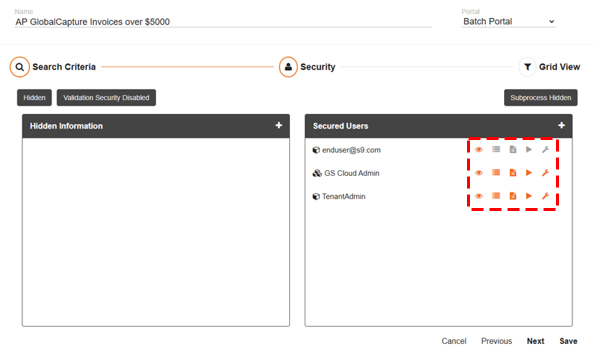
Designate user permissions by clicking each option.
View ( 
Process Fields ( 
Document ( 
Actions ( 
Admin ( 
Remove User ( 
When finished applying security, select next to move on to Grid View or save to save your changes.
Grid View Settings
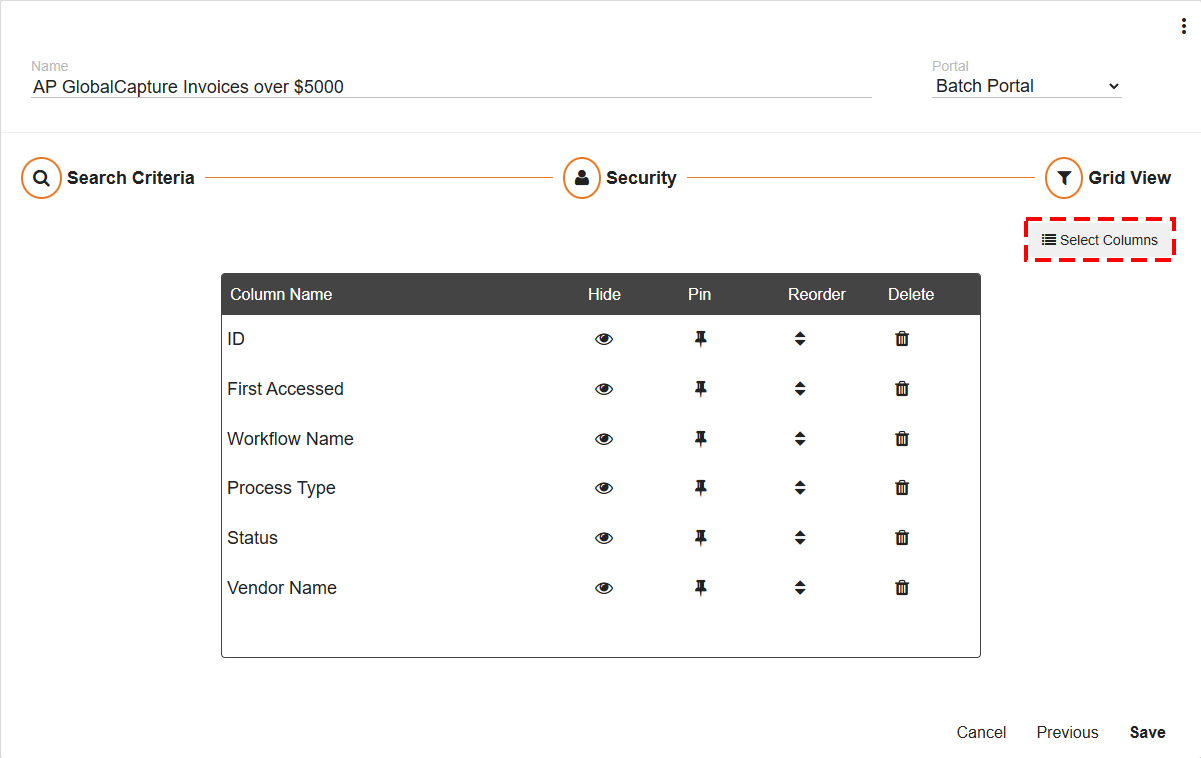
The Grid View is where you determine what data displays in the search grid results.
The Status, ID, Workflow Name, First Accessed, and Process Type are included by default but can be removed if not needed or wanted.
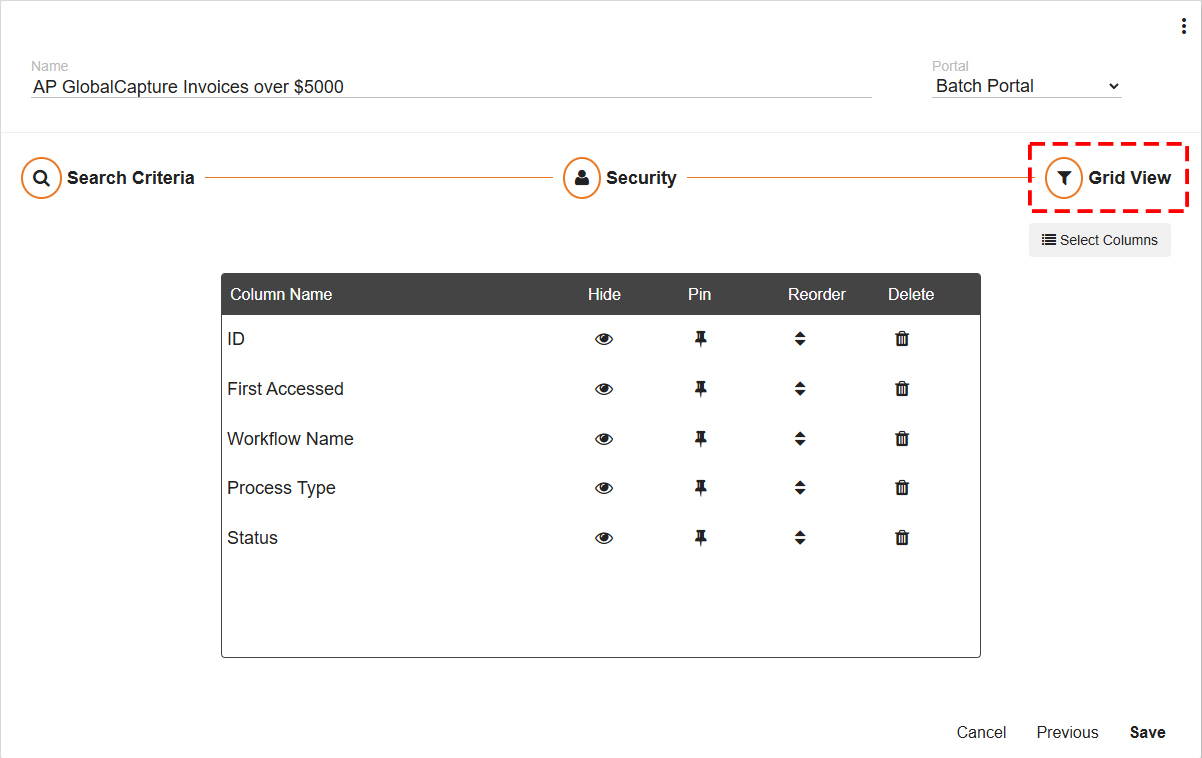
Click Select Columns to select data that will appear in the grid that was not part of the default or any search criteria.
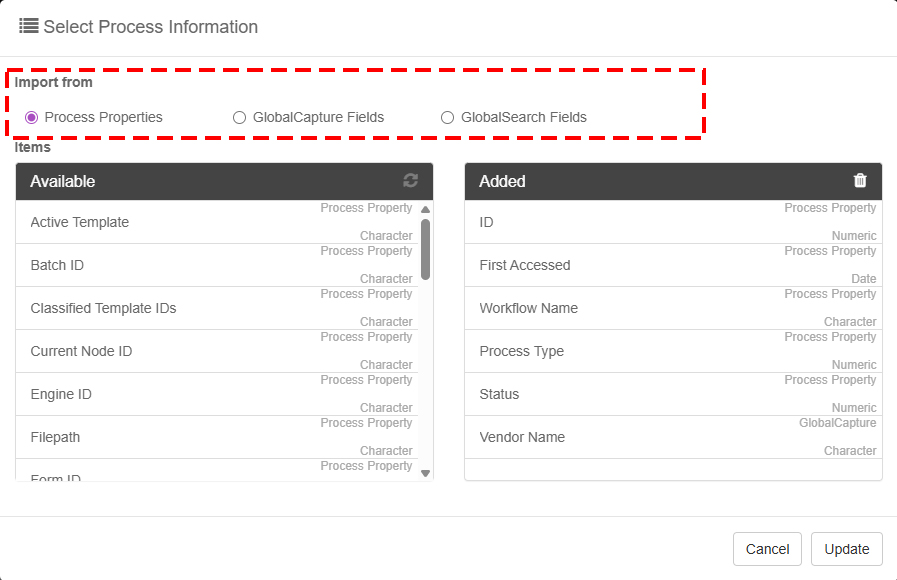
Additional fields can be added to the grid in the Process Properties, GlobalCapture Fields, or GlobalSearch Fields from the Available column to the Added Column.
You can also remove fields by removing them from the Added column.
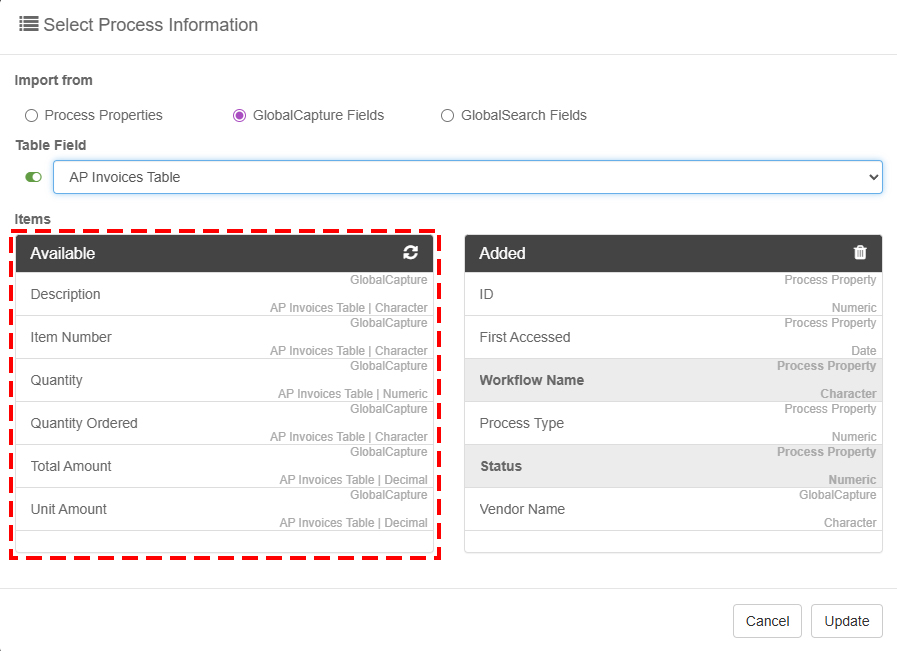
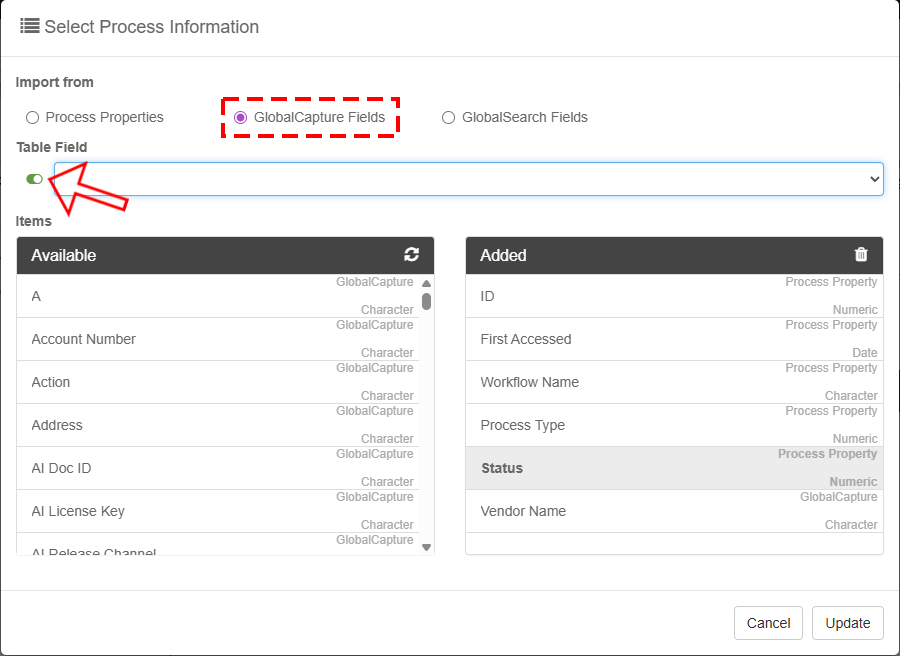
When selecting GlobalCapture Fields you are presented with a Table Field Option.
-
This list will contain all the GlobalCapture Tables.
-
When selecting a table, a list of fields that make up the table will be presented in the Available fields list.
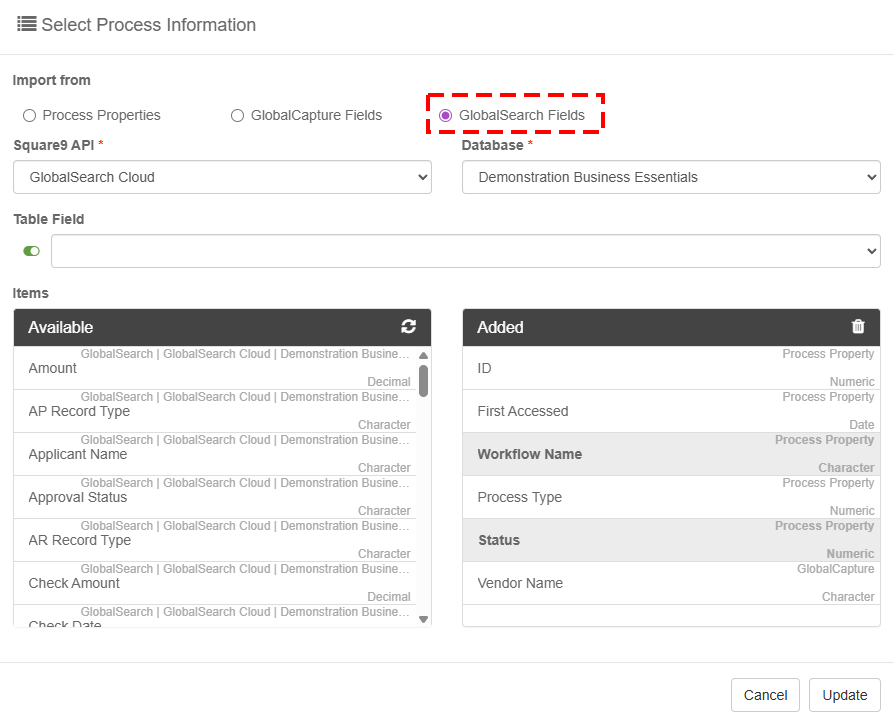
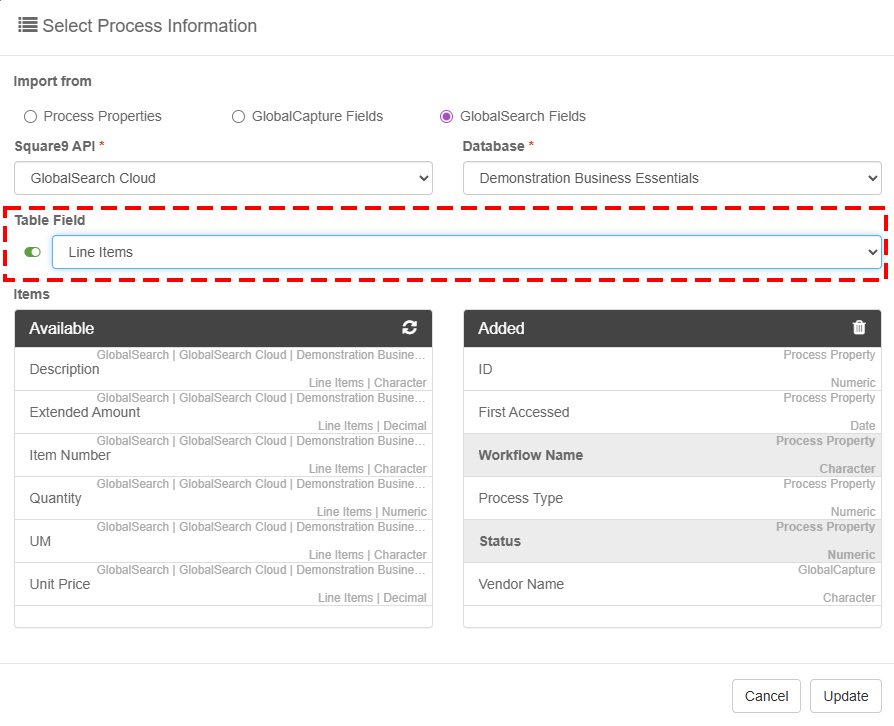
When selecting GlobalSearch Fields select an instance of GlobalSearch to connect to and a database to retrieve available fields.
-
The Table Fields list will contain all the GlobalSearch tables in the selected instance and database.
-
When selecting a table, a list of fields that make up that table will be presented in the Available fields list.
Click Update when you have desired Grid View fields.
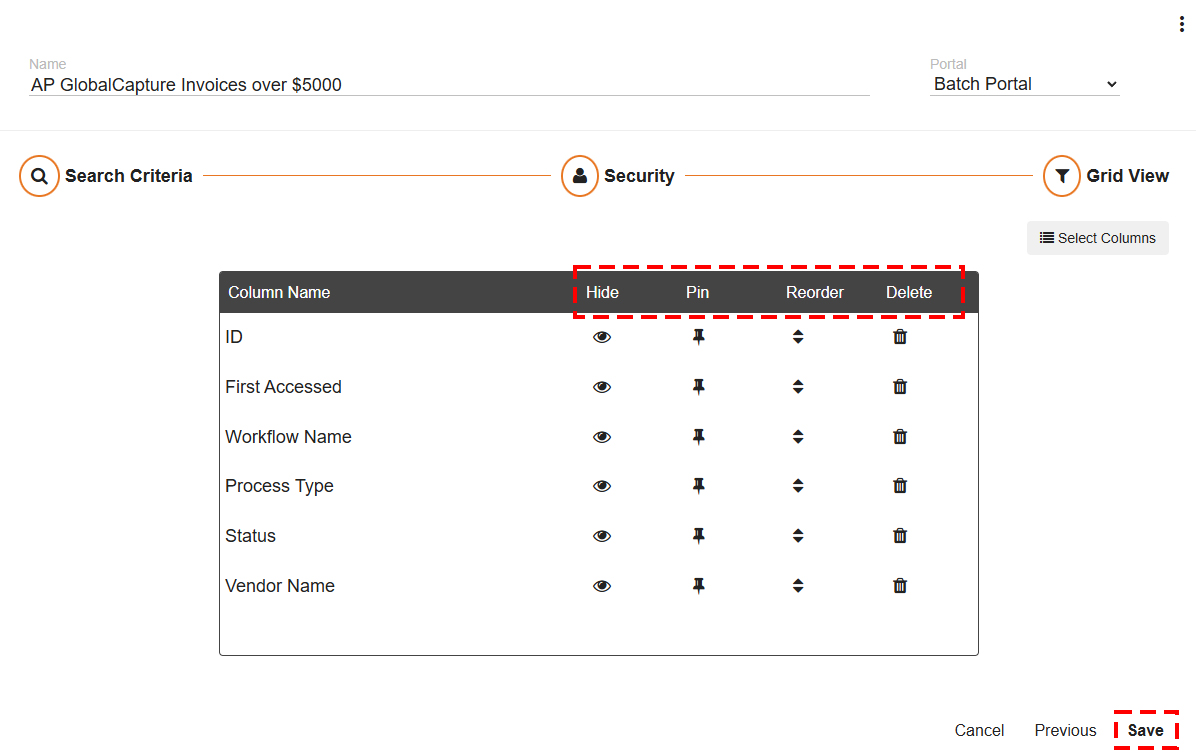
-
Hide (

-
Pin (

-
Reorder (

-
The user can rearrange the order in the Grid Viewer.
-
-
Delete (

Click Save to save your search and make it available to secured users.
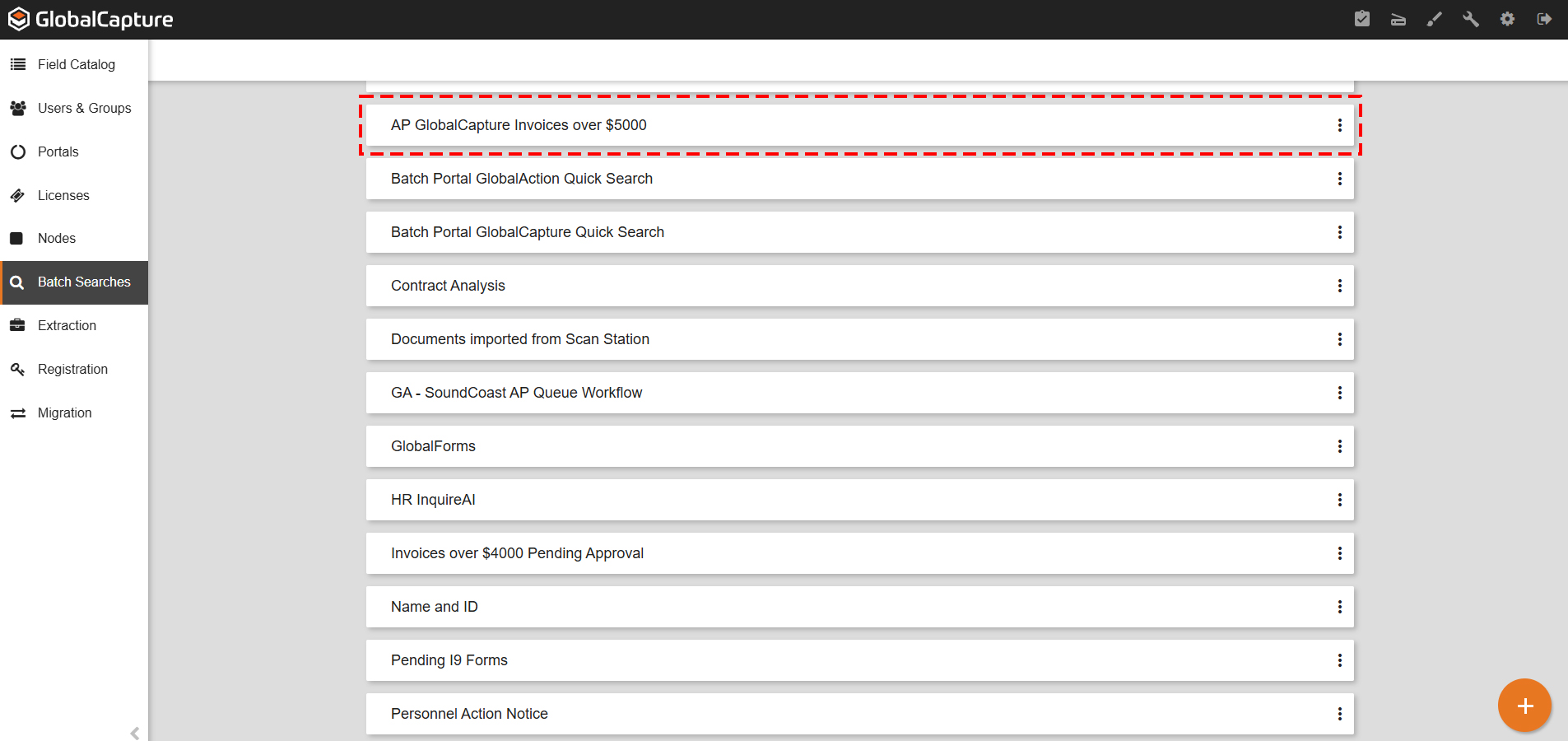
Our configured Batch Search appears in the Batch Searches list.
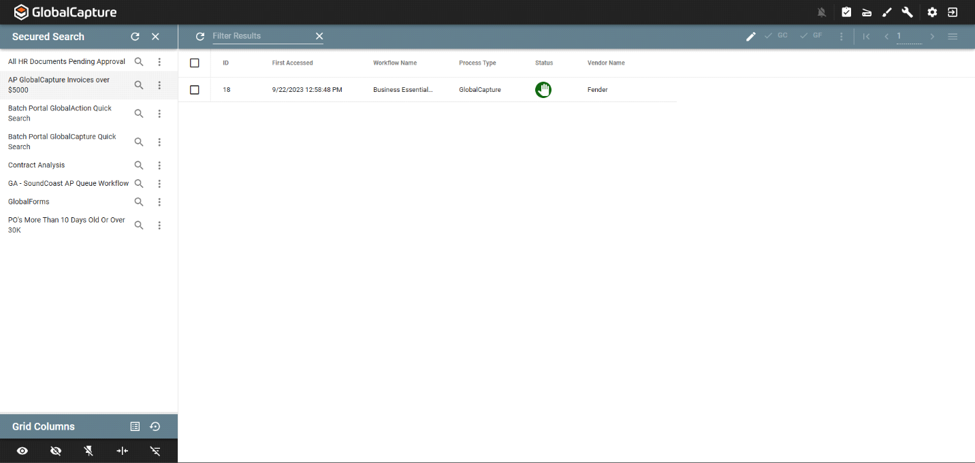
And again, the configured Batch Search appears within the Grid Viewer with the applied security settings.
Edit, Duplicate, or Delete your Batch Searches
-
The Ellipsis Icon beside your search opens a menu which allows you to edit, duplicate or delete your search.
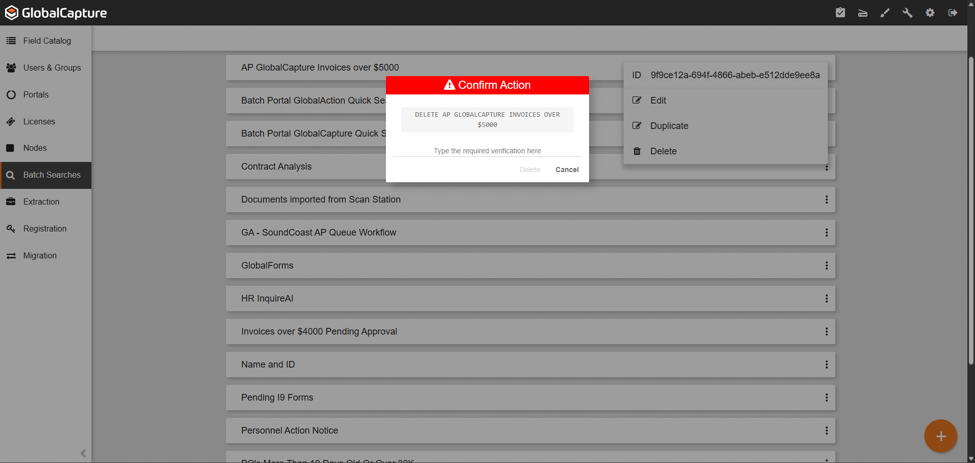
Exercise caution when deleting searches as it cannot be undone and can impact your users Validation experience.