Managing Licenses
Allocating a License
Licenses can only be assigned by a GlobalCapture Administrator.
-
Login to GlobalCapture and select the Manage (

-
In the left pane, select Licenses (

-
Ensure the Licenses tab is selected.
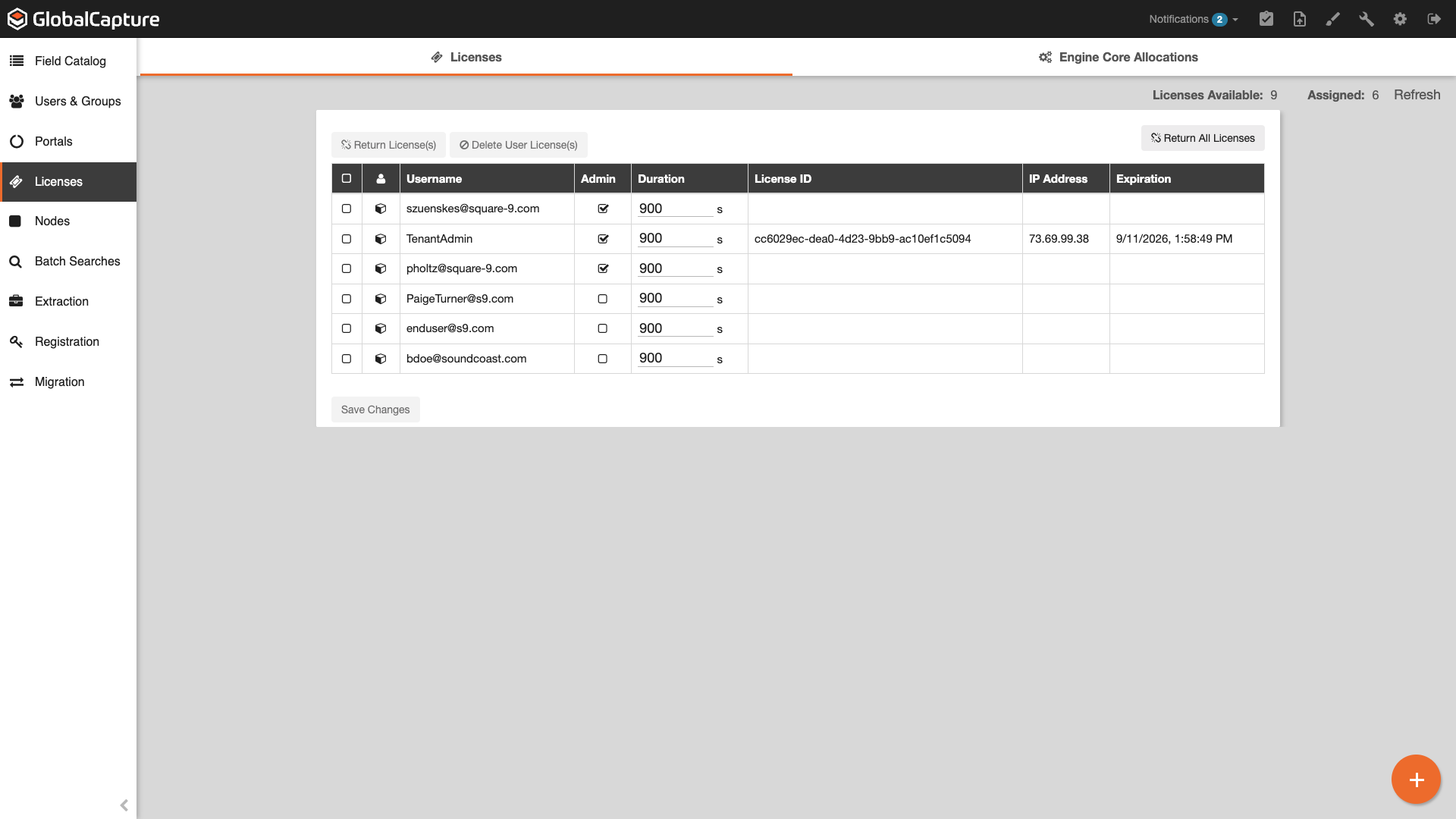
The Licenses page will show you all users that have a license allocated, their admin status, the number of licenses available, and the number of licenses assigned. The system will not allow you to over allocate users. Once the number of Licenses Available hits zero, no new users can be given permission in GlobalCapture.
Licensed users can be removed and have their license reassigned to another user.
Adding a User
Secure new users to GlobalCapture to Scan, Validate, Design, and/or Manage GlobalCapture.
-
Click the Add User (

-
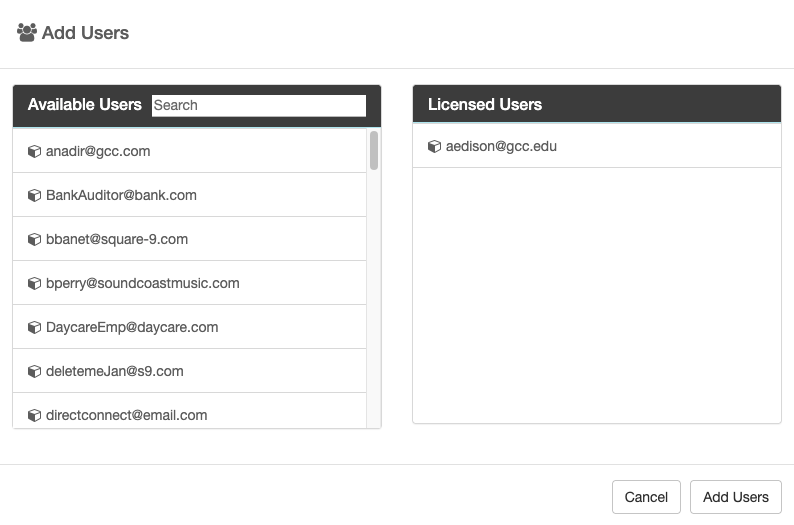
Double click on one or more users to add them to the Licensed User panel. Use the filter to quickly find a specific user.
-
Click Add Users.
When adding users, they automatically consume a license and are assigned permission to Scan and Validate only.
Managing Users
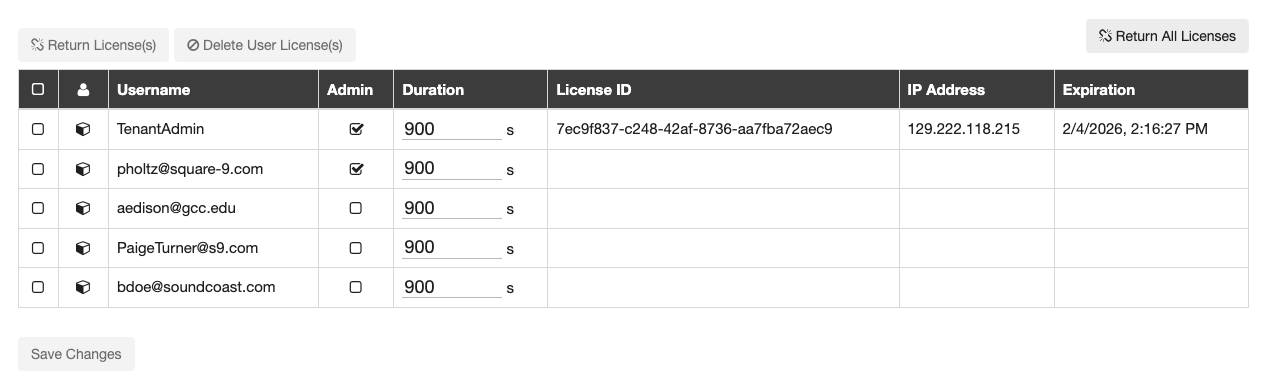
Admin - Enable the Admin checkbox to assign the user Admin permissions. Admin permission give the user access to the Design and Manage options within GlobalCapture. This includes creating, editing, and deleting, workflows, importing and exporting workflows, creating GlobalCapture Searches and more.
You should only assign Admin privileges for those who need it.
Duration - The amount of inactive time before the license is returned. You can see the current time of expiration for anyone currently logged in. This time continuously updates for active users so they are not logged out while using GlobalCapture.
Return License(s) - Returns licenses for the selected users. This does not remove the users access to GlobalCapture.
Delete User License(s) - Removes the users access to GlobalCapturea and frees up the license so that it may be allocated to another user.
Return All Licenses - Returns licenses for ALL users except the person currently managing the users. This does not remove the users access to GlobalCapture.
Deleting a User
If you are at the maximum number of licensed users, you may delete the license of a user that no longer access.
-
Click the Select Box (

-
Click Delete User License(s).
That license is now available to be assigned to another user.
Engine Core Allocations
Engine Core Allocations are for Cloud environments.
This ensures that designated workflows have access to their own processing pool, regardless of the volume in other workflows.
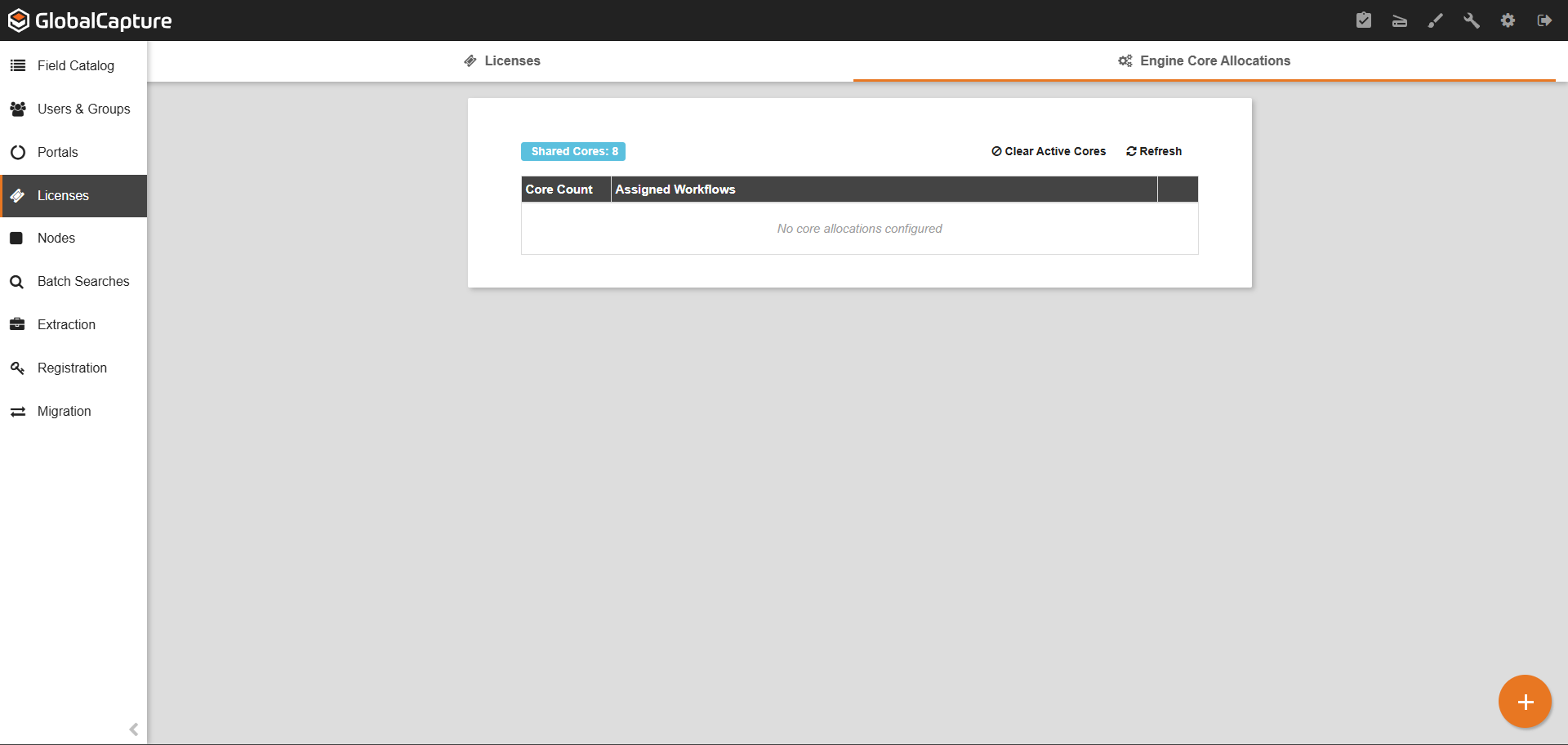
Access to these advanced management features requires a Boost Feature License.
If this license is missing, the priority level and dedicated core options will be hidden in
the Capture Admin and Designer interfaces.
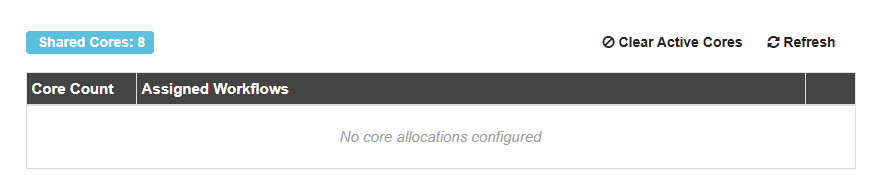
The current number of Shared Cores is displayed in the blue box above the list of allocated cores.
Add Dedicated Cores
-
Click the Add Icon (
-
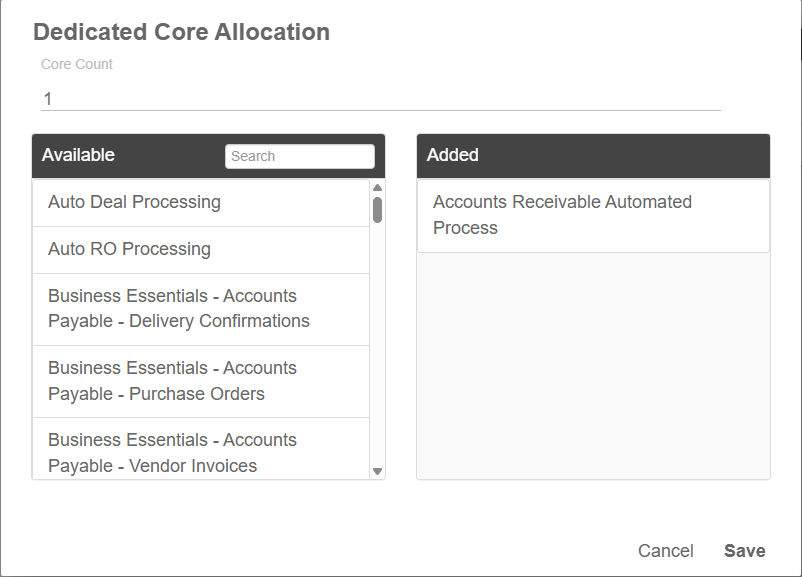
Double click or drag the workflow to allocate a dedicated core from the Available window to the Added window.
-
Click Save to allocate the dedicated core or cancel to discard changes.

Note: When a workflow is assigned to a dedicated core group, it no longer
uses the shared pool.
If all available cores are assigned to dedicated groups, any published
workflows not included in a group will not be processed.

A warning message will appear in the designer if your configuration leaves no cores for
the shared pool.
Clearing Active Cores will immediately terminate all active work orders. This recovers all core licenses and resets the Dedicated Core Group configuration.
This action cannot be undone, and in-progress work may be lost.
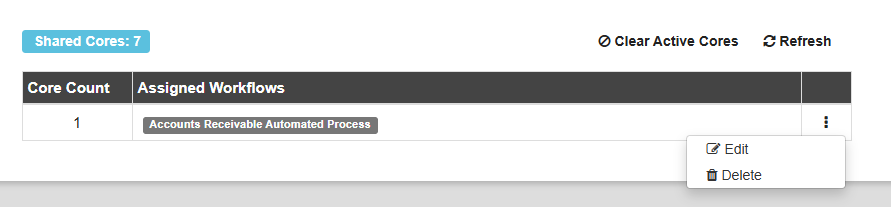
The Ellipsis will open a menu where a workflow can be replaced by another or the dedicated core will be removed from the added workflow.
Select to Edit or select another Workflow to be assigned to the dedicated engine core or Delete to delete the allocated engine core assigned to the workflow in the list.