Importing Components
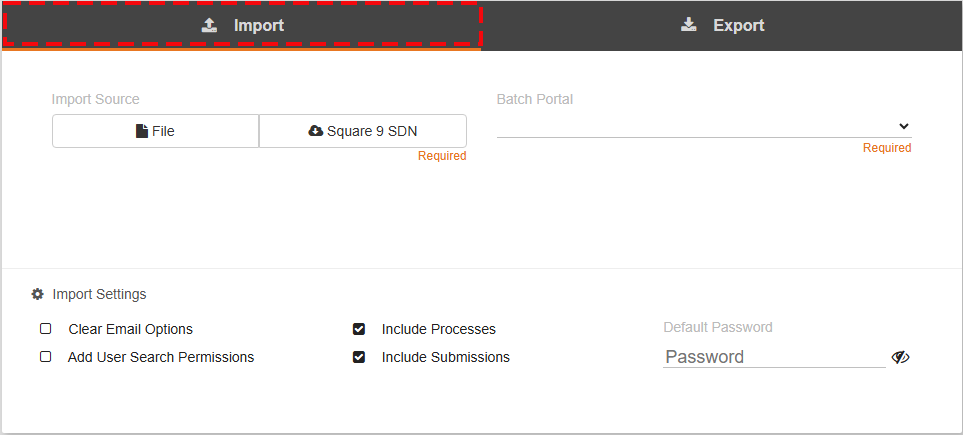
The Import Tab is selected automatically when navigating to Migration.
Import can be used to import any components. This includes Entire Workflows, Custom Nodes, GlobalForms, GlobalForms Mappings, Extraction Templates, Fields and Square 9 Users (no passwords). Any component type available for Export is also available for Import into GlobalCapture.
Components can be imported from a File or from the Square 9 SDN.
Importing from the Square 9 SDN
-
Select the Square 9 SDN to download a component from the Square 9 Solutions Delivery Network.
-
A categorized list of available workflows appear. Expand the relevant section to see the workflow available for download.
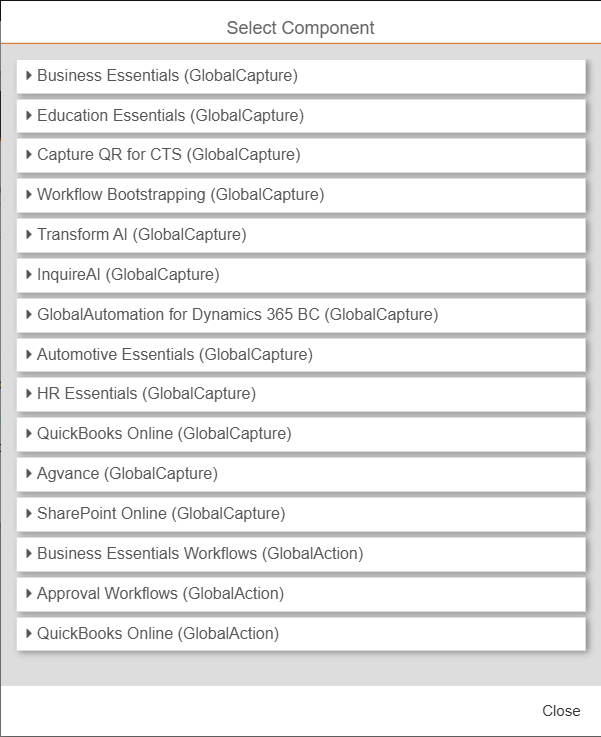
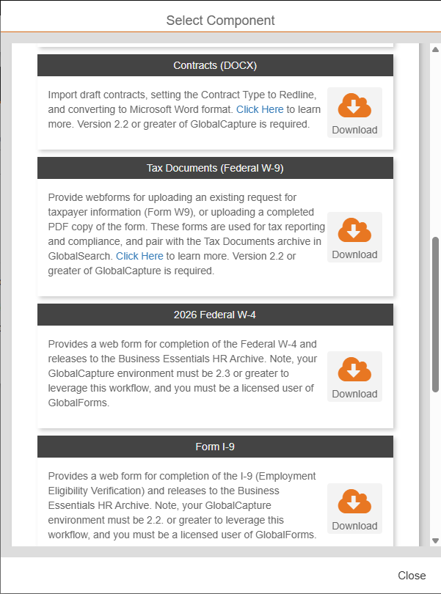
The Workflows within the Square 9 SDN are designed to seamlessly work with GlobalSearch preconfigured databases but can easily be modified to meet individual needs.
Importing from File
-
To import components exported from another solution, select File.
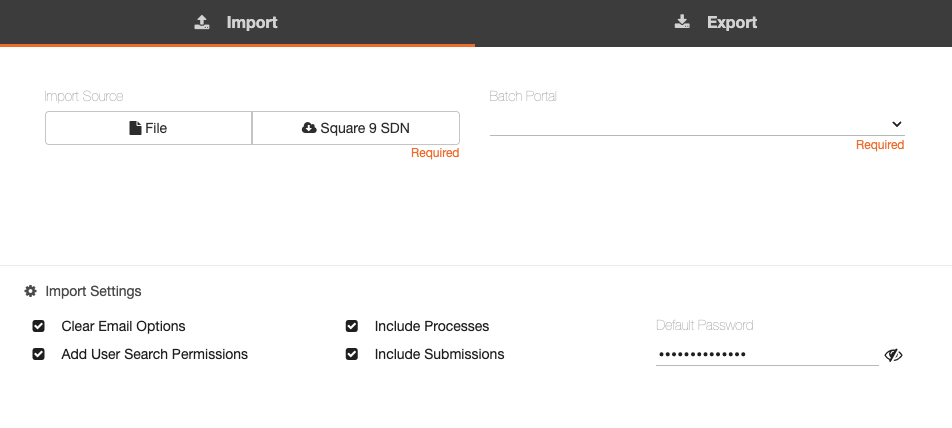
-
Navigate to your file and select Open.
Components can only be imported into the same or a newer version of GlobalCapture from which they were exported.
-
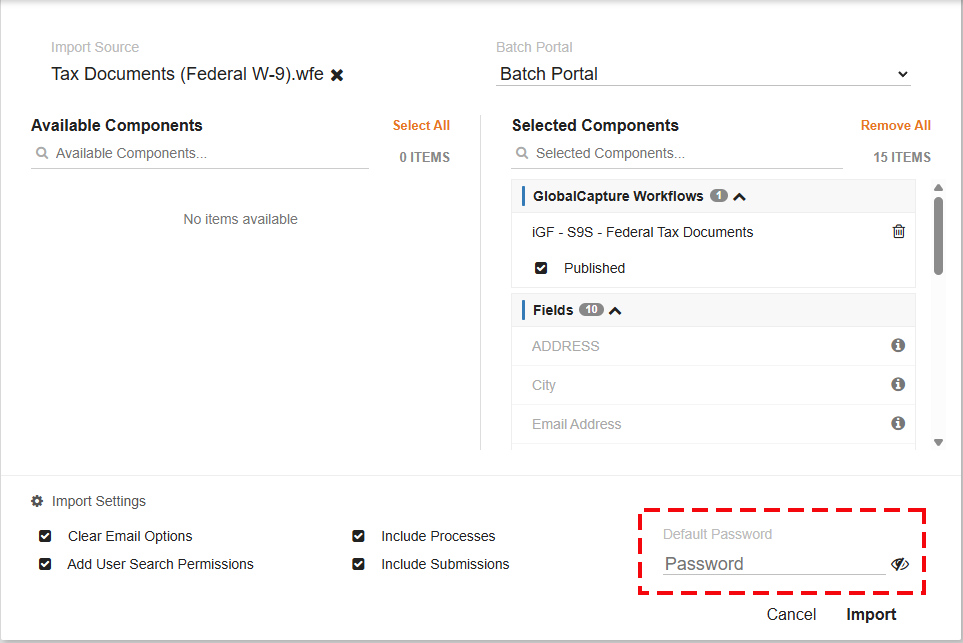
Select the Batch Portal to which you would like to associate the imported workflow.
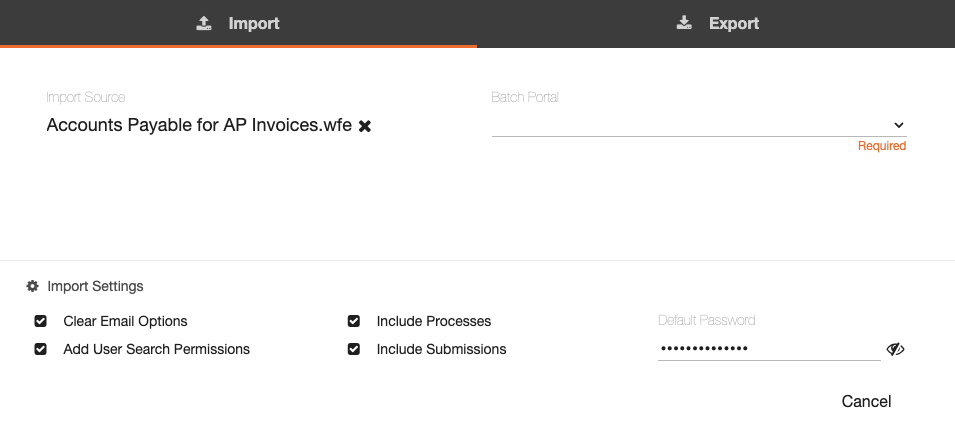
-
Displayed within the Selected Components section is the list of components to be imported. This includes the required components that will be imported along with the workflow. Any component with a trash can icon can be removed from the import.
-
Removing a workflow will remove all its components.
-
The components are added to the Available Components side and can be added back as a whole or as individual parts.
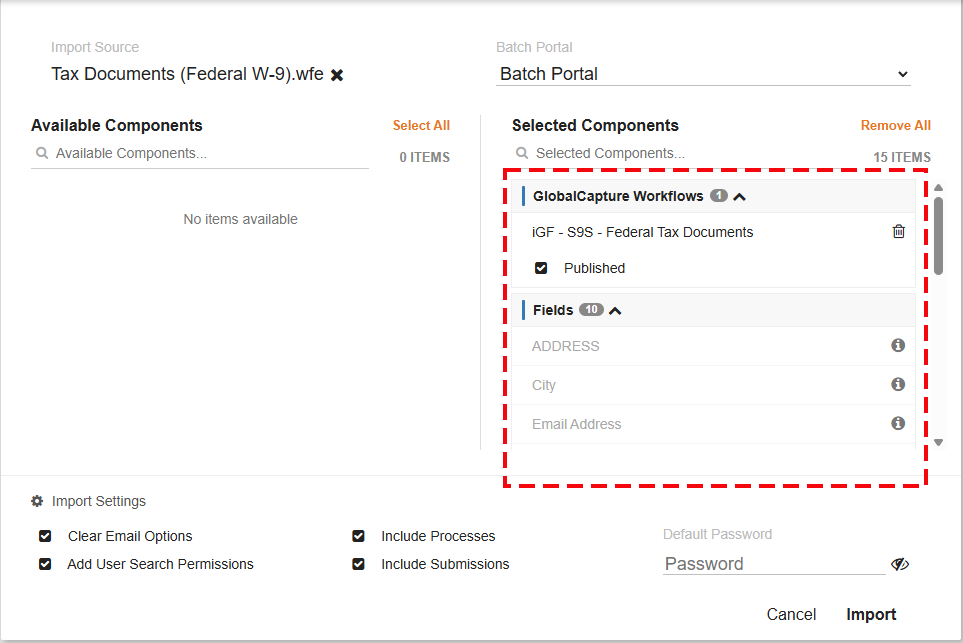
-
Configure your Import Settings.
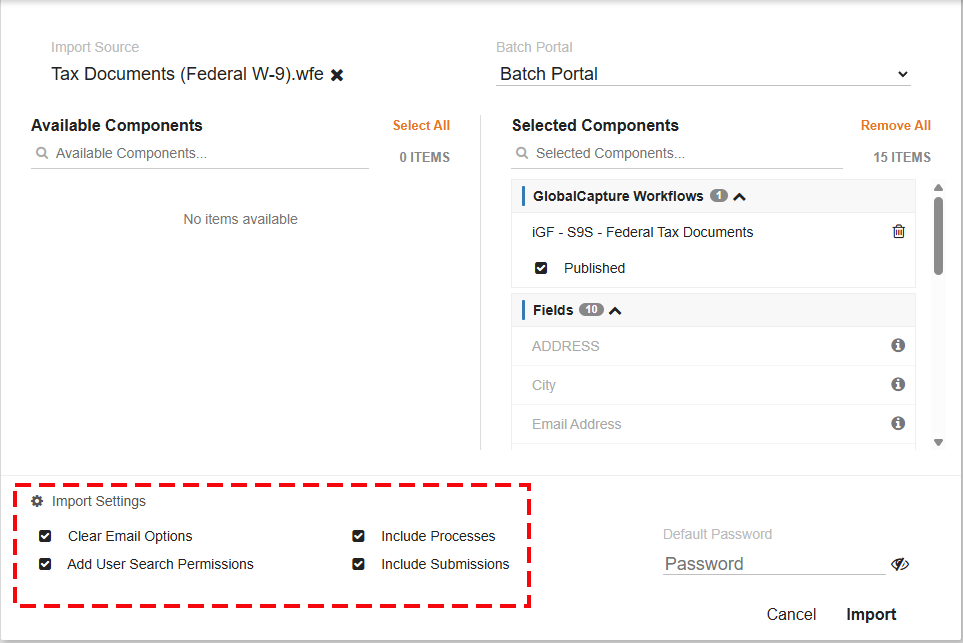
Import Settings include:
Clear Email Options: Clears all the email references from the workflow.
Include Processes: This will include all process data for the selected workflows if present in the workflow being imported.
Add User Search Permissions: Adds user search permissions to the imported workflow.
Include Submissions: Includes all submissions from GlobalForms previously submitted if present in the workflow being imported.
All settings are enabled by default. This ensures any data that was included in the file is uploaded and emails are cleared out to avoid sending emails to incorrect recipients.
-
While Square 9 Users can be migrated with workflows, their passwords are not. Set a password here for those Square 9 Users. Users can later change their password when they log in.
-
Click Import.
Resolving Conflicts
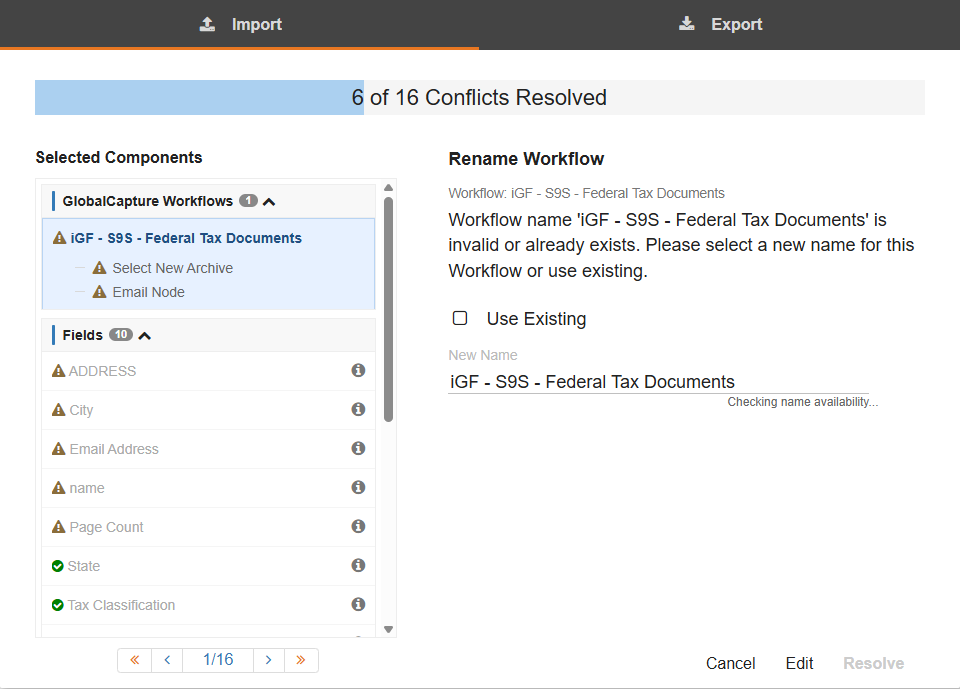
When importing, you will often need to resolve Conflicts.
Conflicts can arise for several different reasons such as: Duplicate fields, templates, form, or workflow names, assigning a release location, or missing email information.
Resolve each conflict to import your workflow.
Conflicts are also notated with alert icons ( 
Example Conflicts:
Rename Workflow: For a duplicate workflow name, either rename the workflow or keep the existing workflow by selecting Use Existing.
Rename Field - For a duplicate field, either rename the field or keep the existing field (Use Existing). Make your choice and click Resolve.
Rename GlobalForms - For a duplicate GlobalForm, you must assign a new name for your form. This name cannot contain any spaces. Click Resolve.
Select New Archive - If releasing documents to GlobalSearch, select the GlobalSearch Portal, Database, and Archive to release to, to resolve this conflict.
Update Email - If the email is cleared on import, a new email address needs to be added to the node. Enter an Email Address or enable Set Unpublished to resolved this conflict.
-
Once all the conflicts have been resolved, click Import to finish importing your workflow.
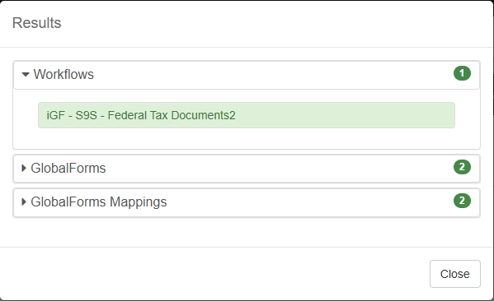
A Results panel displays all workflows, forms, templates, etc that were imported.
-
Click Close to finish. The imported workflow is now ready for use.
Illegal Nodes
An illegal node is a node that has not been approved for the Square 9 Cloud.
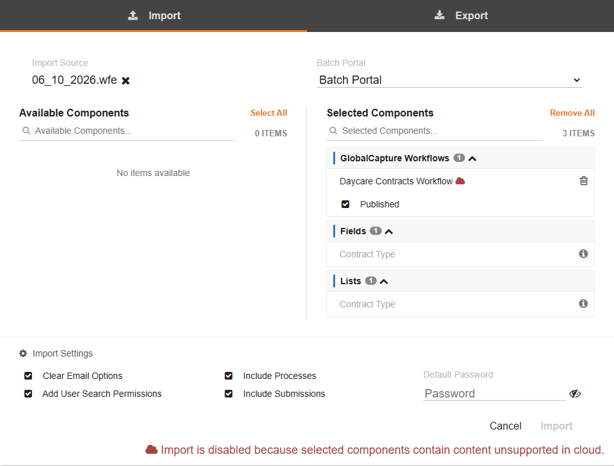
When a workflow containing an illegal node is uploaded into the cloud instance, it will return an import is disabled message along with a red cloud icon.