Exported workflows contain everything associated with the workflow. This includes Custom Nodes, GlobalForms, GlobalForm Mappings, Extraction Templates, Fields, and Square 9 Users (without passwords).
-
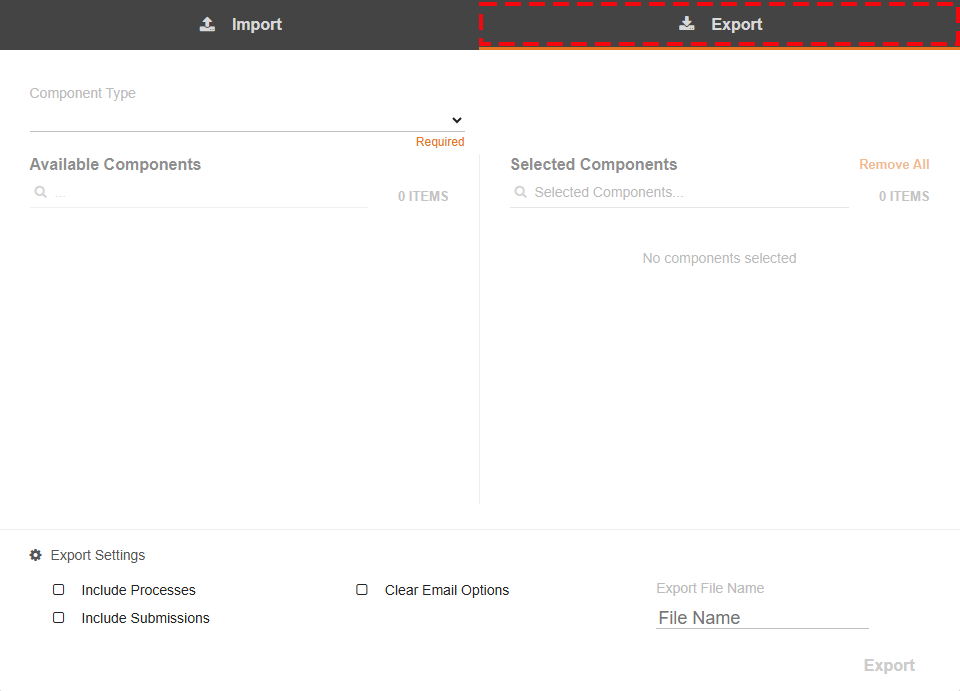
Click the Export Tab to Export Components to your computer.
-
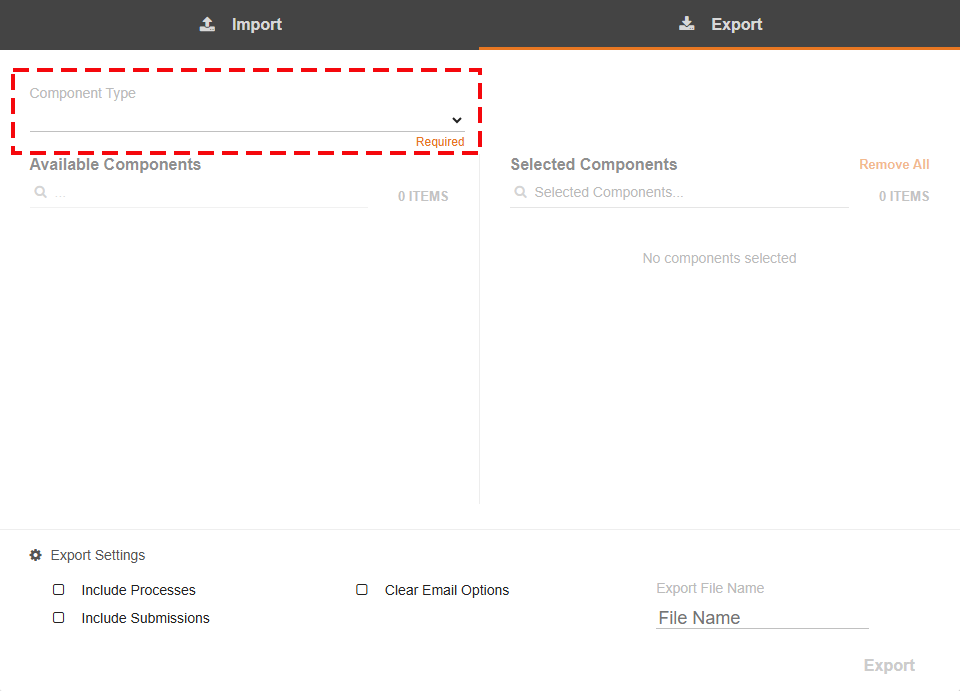
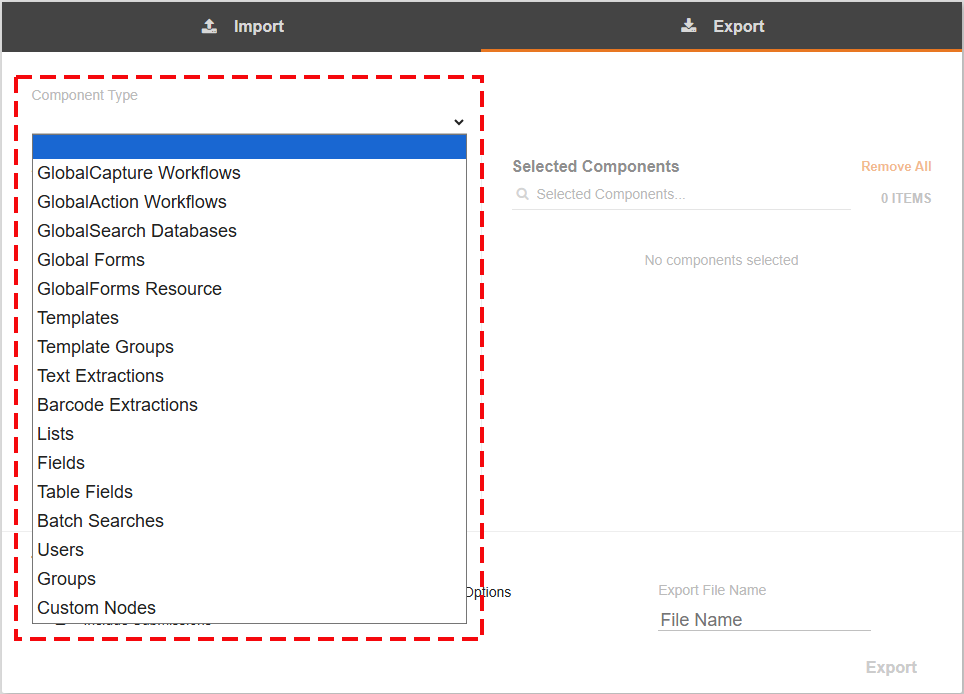
From the Component Type Menu, select the component type to export.
-
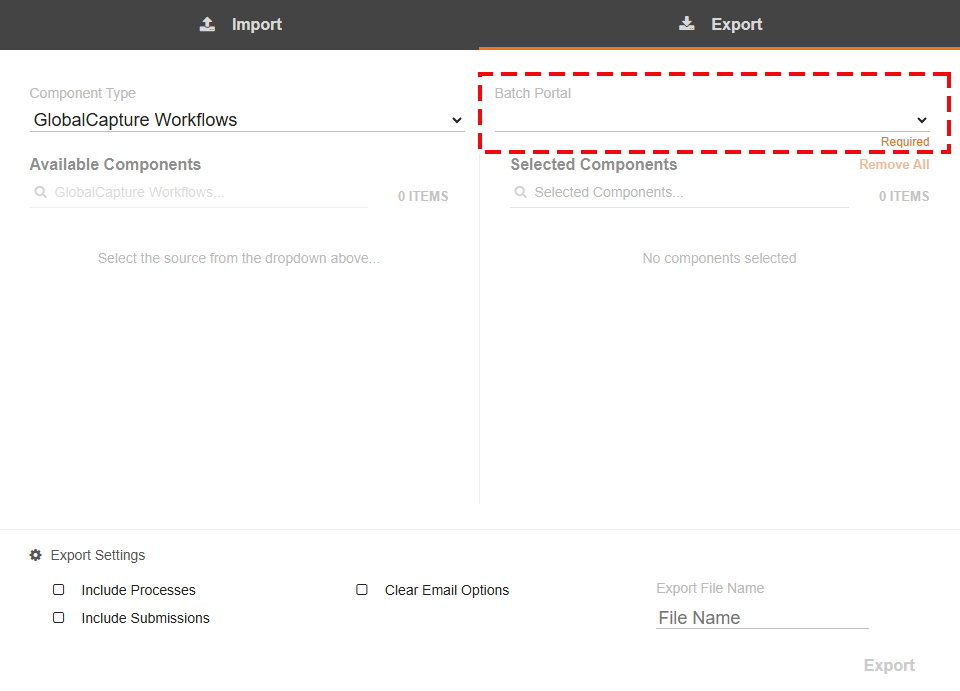
Select the Batch Portal from the Batch Portal dropdown Menu.
-
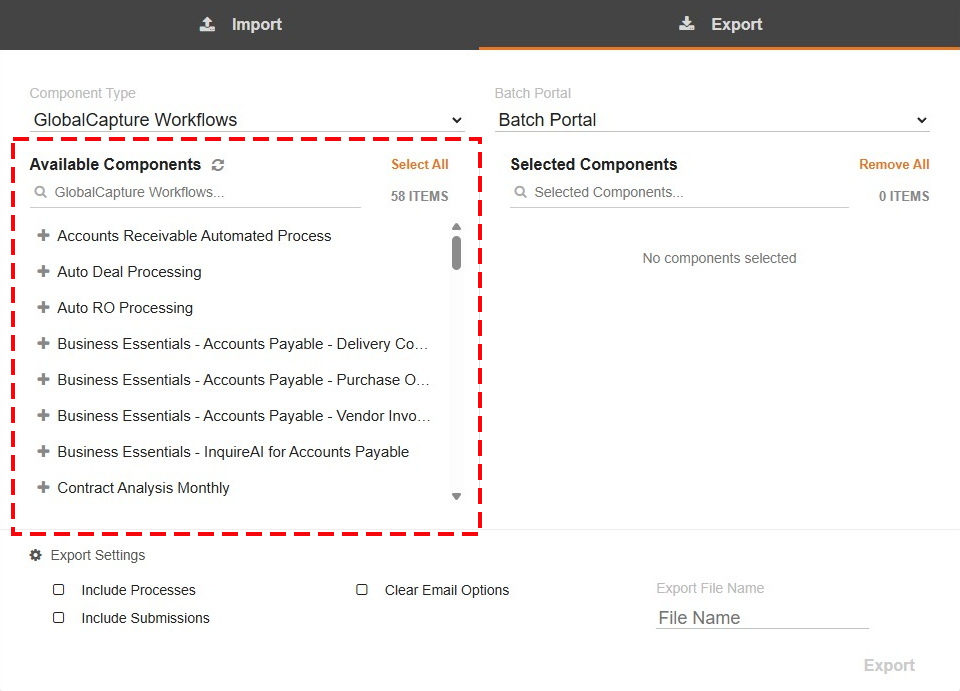
All the components of the selected type associated with the Batch Portal will be available.
-
You can select individual components by click the plus sign ( + ) next to individual components, or click Select All to export all the components in the list.
-
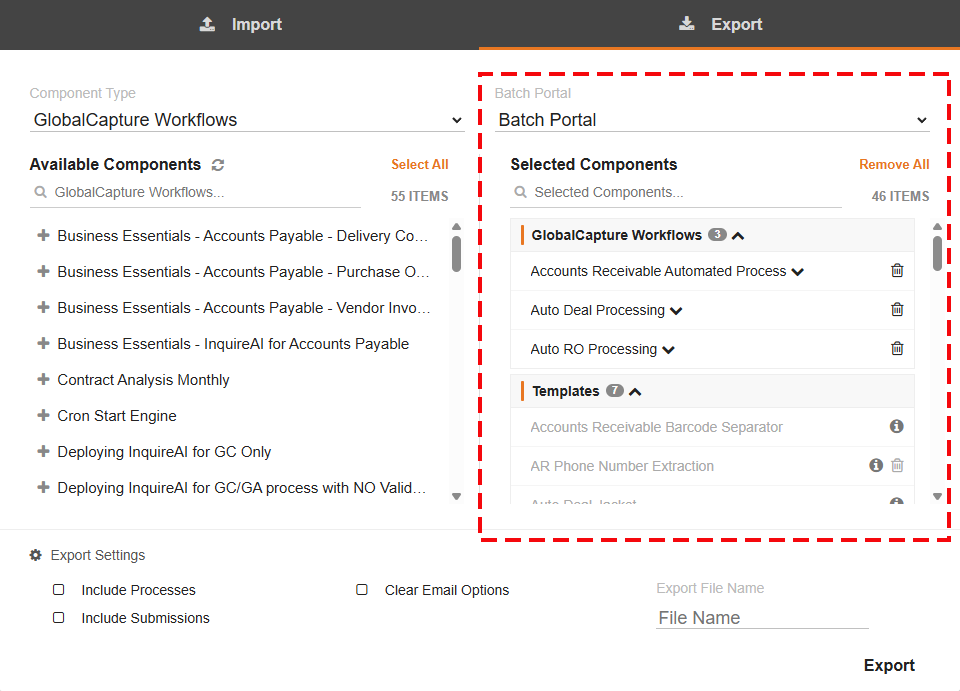
Selected components are moved to the Selected Components column.
-
When exporting workflows, all components of the workflow, nodes, templates, secured users, etc, will be included in the export.
-
Different types of components can be exported as a single export. Change the Component Type and add the additional components to the selected components list.
-
-
You can remove the Selected Components by selecting Remove All or individually by selecting the Trash Bin Icon beside each component.
-
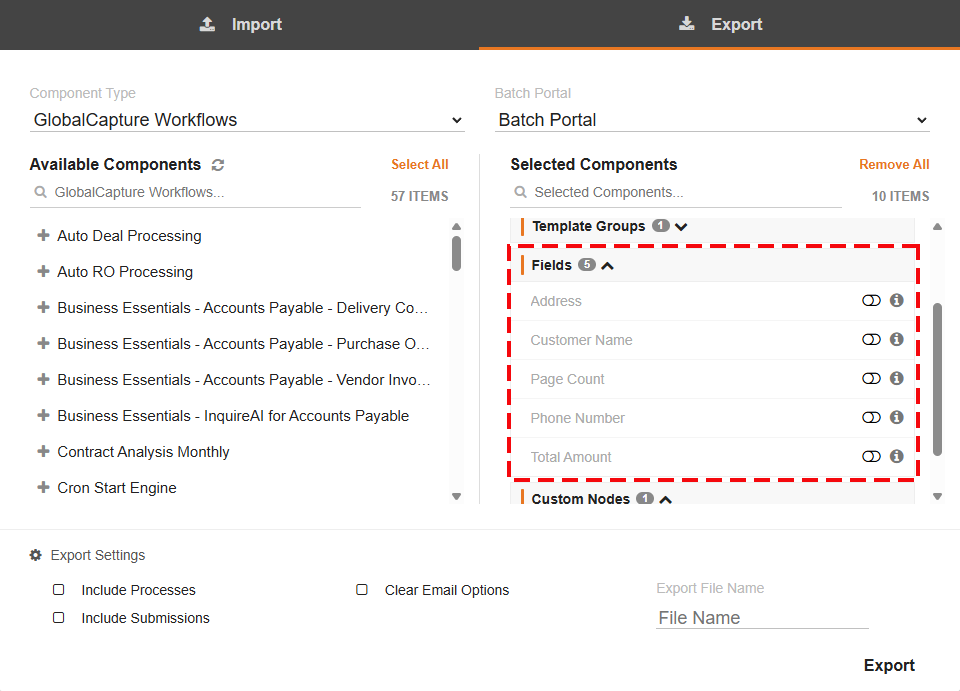
Components like Fields can be toggled to require new default values at import.
-
Configure your Export Settings.
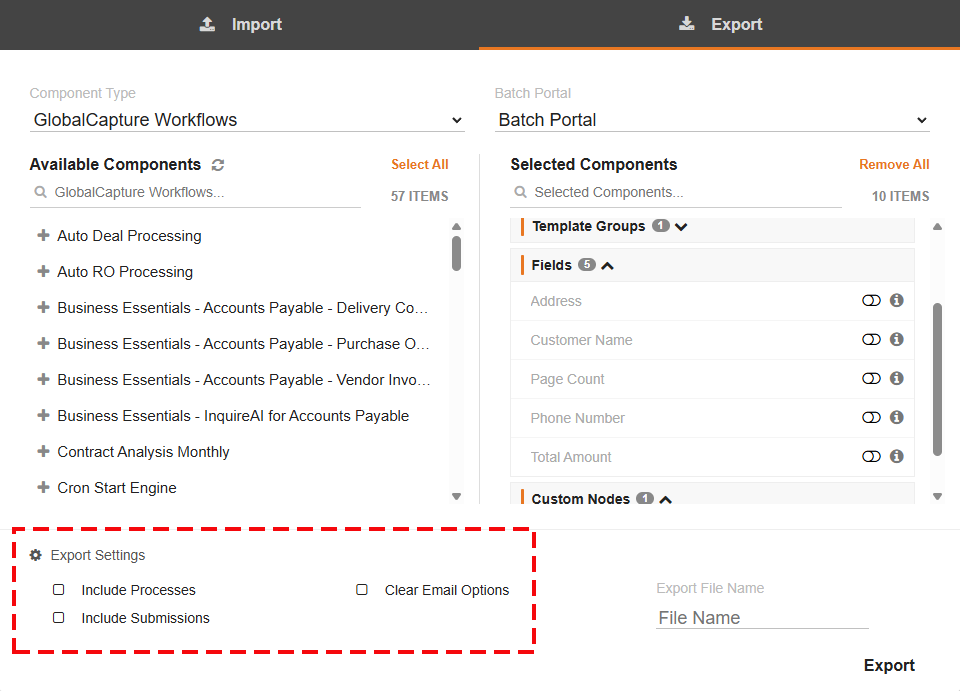
Include Processes: This will include all process data for the selected workflows.
Clear Email Options: Clears all the email references from the selected components. This includes the Import Node and Email Node.
Include Submissions: Includes all submissions from GlobalForms included in workflow Import Nodes.
Use Caution when exporting resource forms that may contain sensitive data.
All settings are disabled by default. This ensures no data is transported with the workflow and all settings are maintained unless specifically acted upon.
-
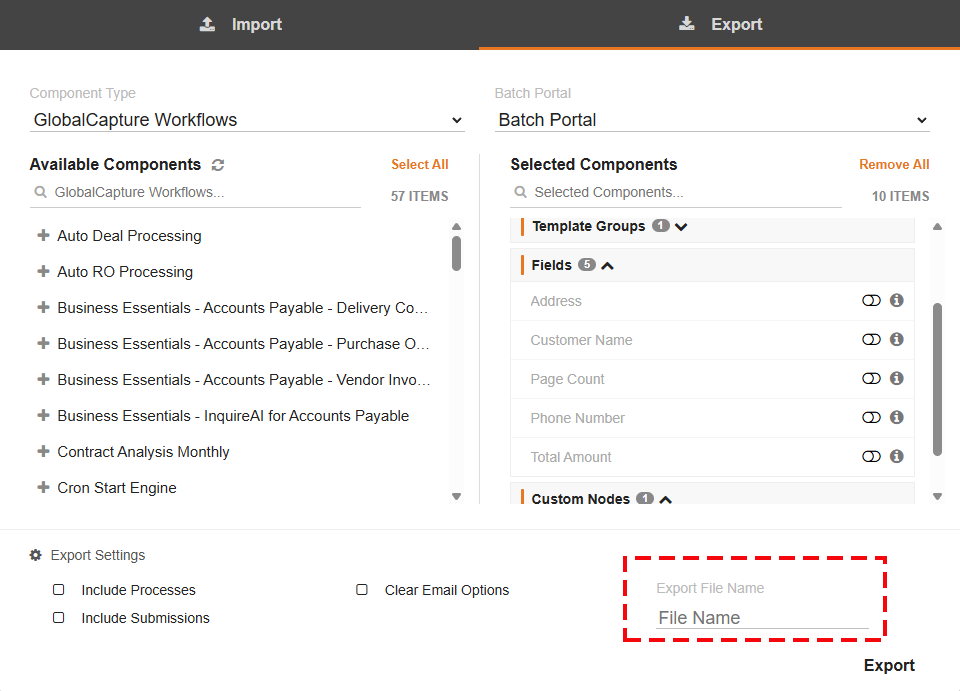
Name your Export.
-
Click Export.
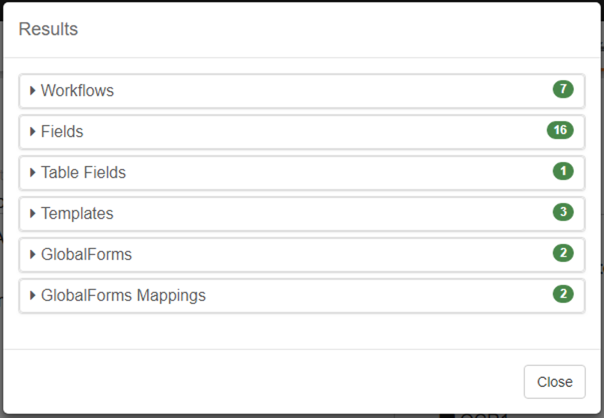
When the export completes, the Results dialog will display a status of every object exported in the package. You can click each section to see more granular detail.