
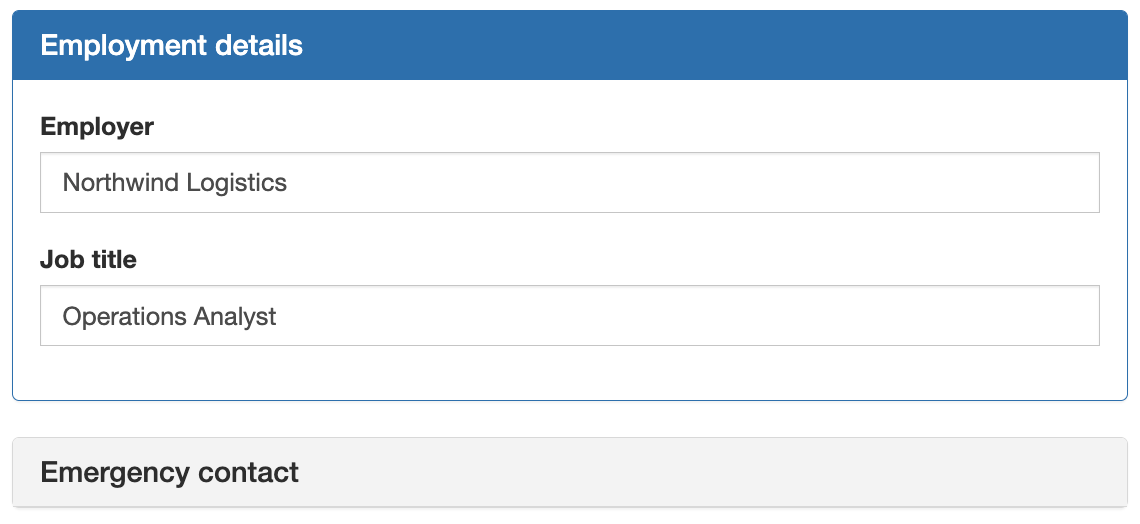
A Panel groups related components in a box with a title bar. Use panels to divide a long form into clear sections, to show or hide a whole section at once, to let users collapse sections, and to clear a section's answers when it no longer applies.
Settings
|
Setting (Display tab) |
Description |
|---|---|
|
Title |
Text shown in the panel's title bar |
|
Tooltip |
Help text shown when users hover over the title |
|
Theme |
A preset color style for the border and title bar |
|
Background Color |
A custom background color. See Component Colors. |
|
Collapsible |
Users can select the title bar to collapse and expand the panel. See Expand / Collapse A Panel. |
|
Collapsed |
With Collapsible on, the panel starts closed |
|
Clear Subcomponent Values When Hidden |
Clears selected answers inside the panel when the panel is hidden. See below. |
|
Show Breadcrumb |
Wizard forms only. Controls whether this page is listed in the page navigation at the top of the wizard. See Wizard Forms. |
Show or hide a section
On the panel's Conditional tab, set when the panel is shown. Everything inside the panel is shown or hidden with it. For example, show an Employment Details panel only when Employed is Yes.
Clear answers when a panel is hidden
If a user fills in a section and then changes an answer so the section is hidden, the hidden answers normally stay in the submission. To remove them:
-
Open the panel's settings and, on the Display tab, turn on Clear Subcomponent Values When Hidden.
-
For each component inside the panel that should be cleared, open its settings and make sure Clear Value When Hidden is on.
-
Set the panel's visibility on its Conditional tab.
When the panel is hidden, the values of those components are removed from the submission. Components without Clear Value When Hidden keep their values. This also applies to components in containers and repeating rows inside the panel.
Using an advanced (JavaScript) condition? Set the show variable to control visibility, for example:
show = (data.employed === 'yes');
Setting component.hidden in the script does not count as hiding the panel, so values are not cleared.
Values are not cleared on read-only forms. Collapsing a panel doesn't clear anything; only hiding it does.
Clearing values when a panel is hidden requires GlobalForms version 10.18.1 or greater.