
A wizard form shows one page at a time, with Next and Previous buttons, instead of one long page. Use wizards for long forms, applications and step-by-step processes.
Make a form a wizard
-
Open the form in the form builder.
-
In the form settings at the top, set Display as to Wizard.
-
Add a Panel for each page of the wizard, and put that page's components inside it. The panel's title is used as the page title.
-
Save the form.
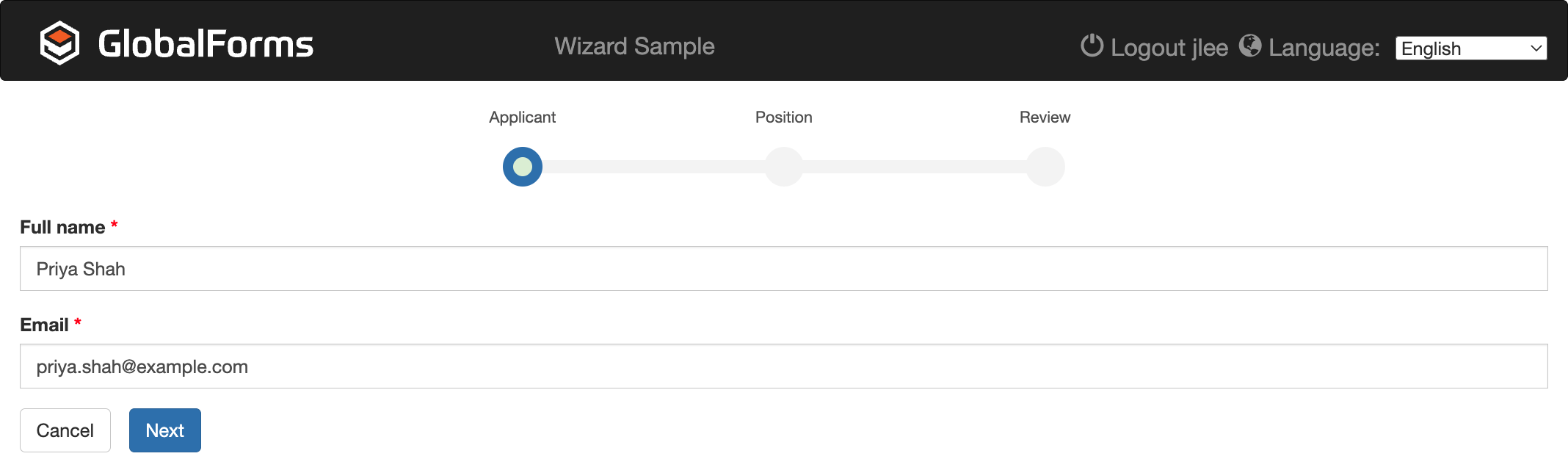
A step indicator at the top shows the page titles and where the user is. Users move between pages with Next and Previous, and submit on the last page with Submit Form. Each page is checked before users can move on.
Run JavaScript before a wizard is submitted
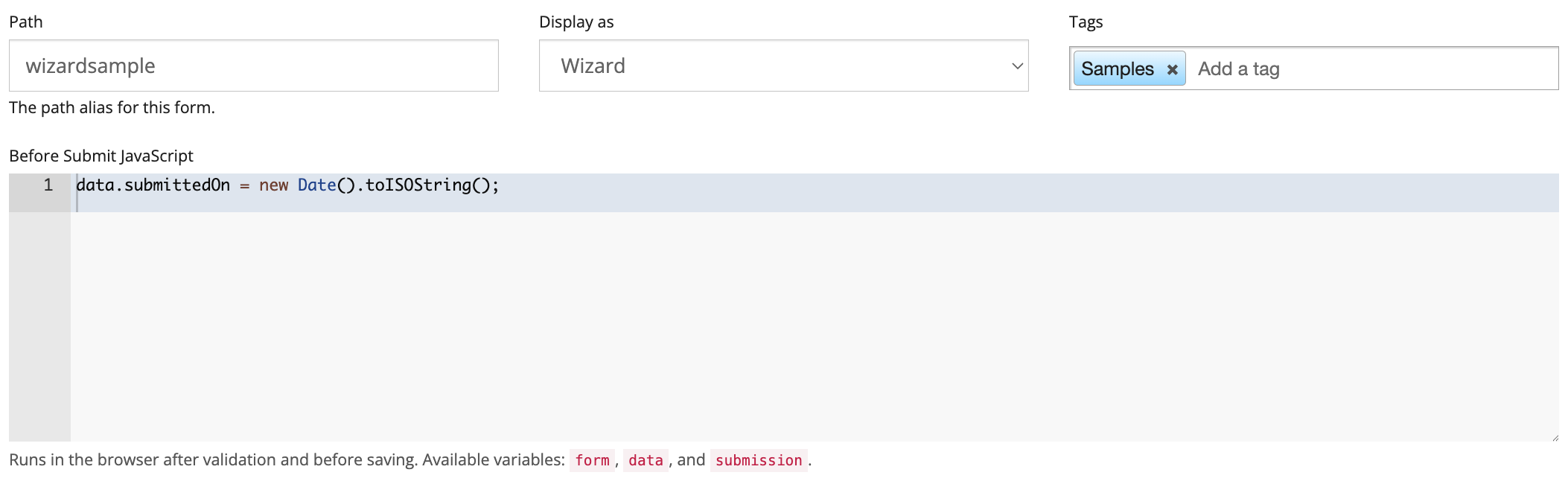
Wizard forms have a Before Submit JavaScript box in the form settings. Your script runs in the user's browser when they submit, after the form passes validation and before the submission is saved. Use it to set a value or choose where users go after submitting.
Your script can use:
|
Variable |
Contains |
|---|---|
|
|
The form's current values, by field key, for example |
|
|
The form. Set |
|
|
The submission about to be saved |
Example: choose the page users go to after submitting
if (data.applicationType === 'contractor') {
  form.returnUrl = 'https://www.example.com/contractor-next-steps';
} else {
  form.returnUrl = 'https://www.example.com/employee-next-steps';
}
Example: fill in a value before saving
data.submittedOn = new Date().toISOString();
The submittedOn field must exist on the form, for example as a Hidden component.
If the script causes an error, the submission is not saved and the user sees Before Submit JavaScript failed. Please contact the form administrator. Test scripts carefully, and check the browser console (F12) for the error details.
Before Submit JavaScript requires GlobalForms version 10.21 or greater.