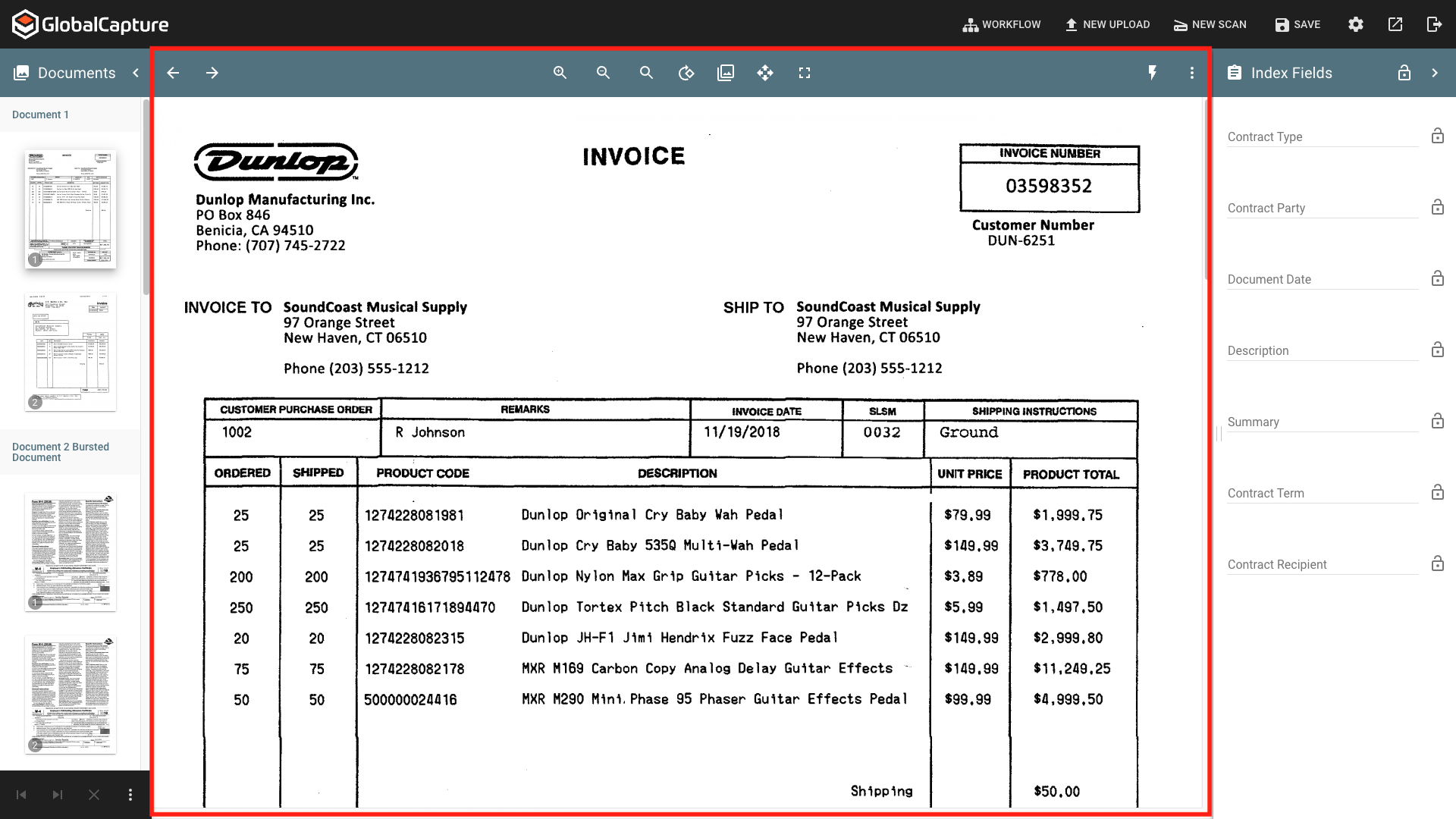
Page Viewer - Upload Viewer


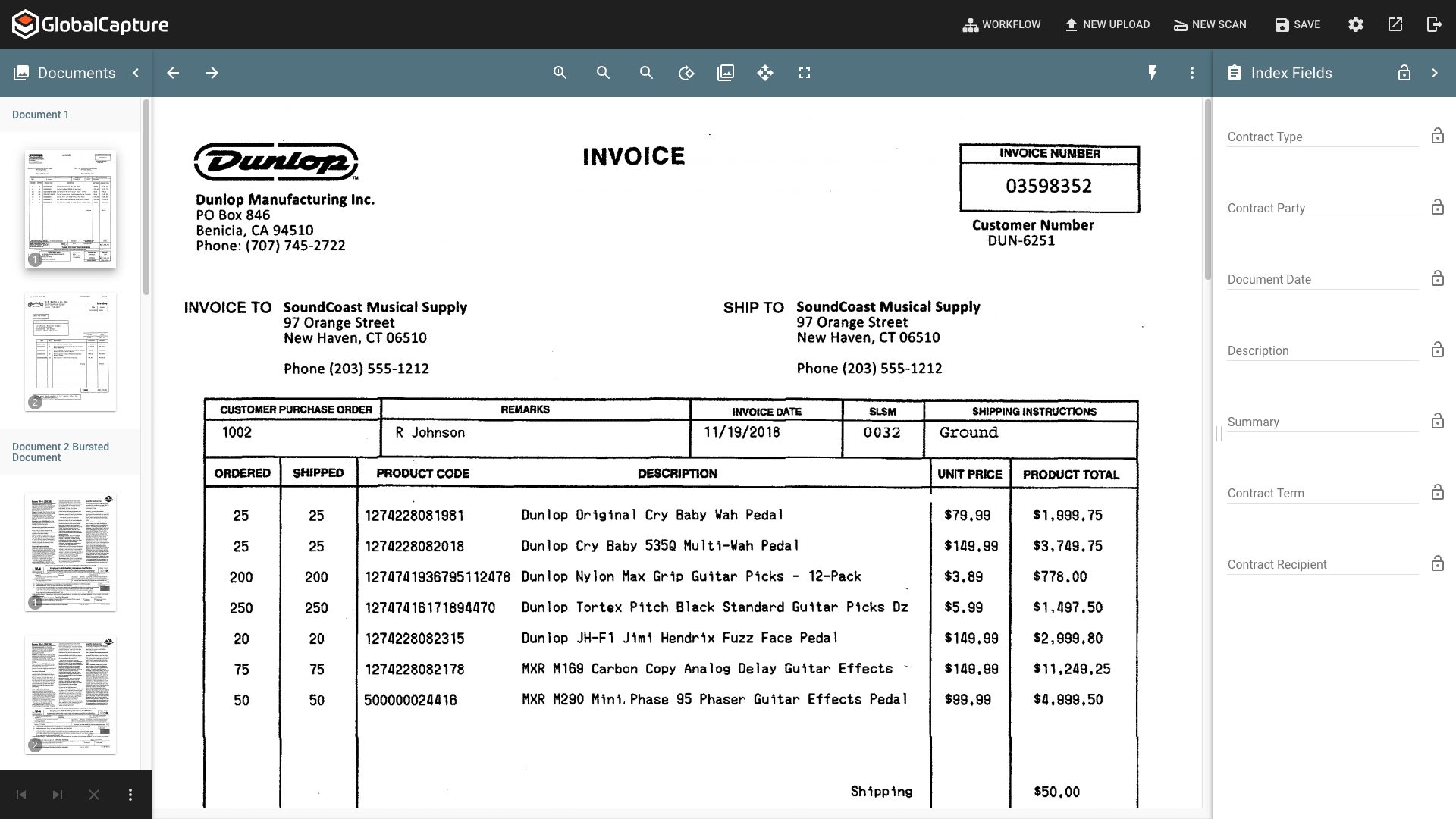
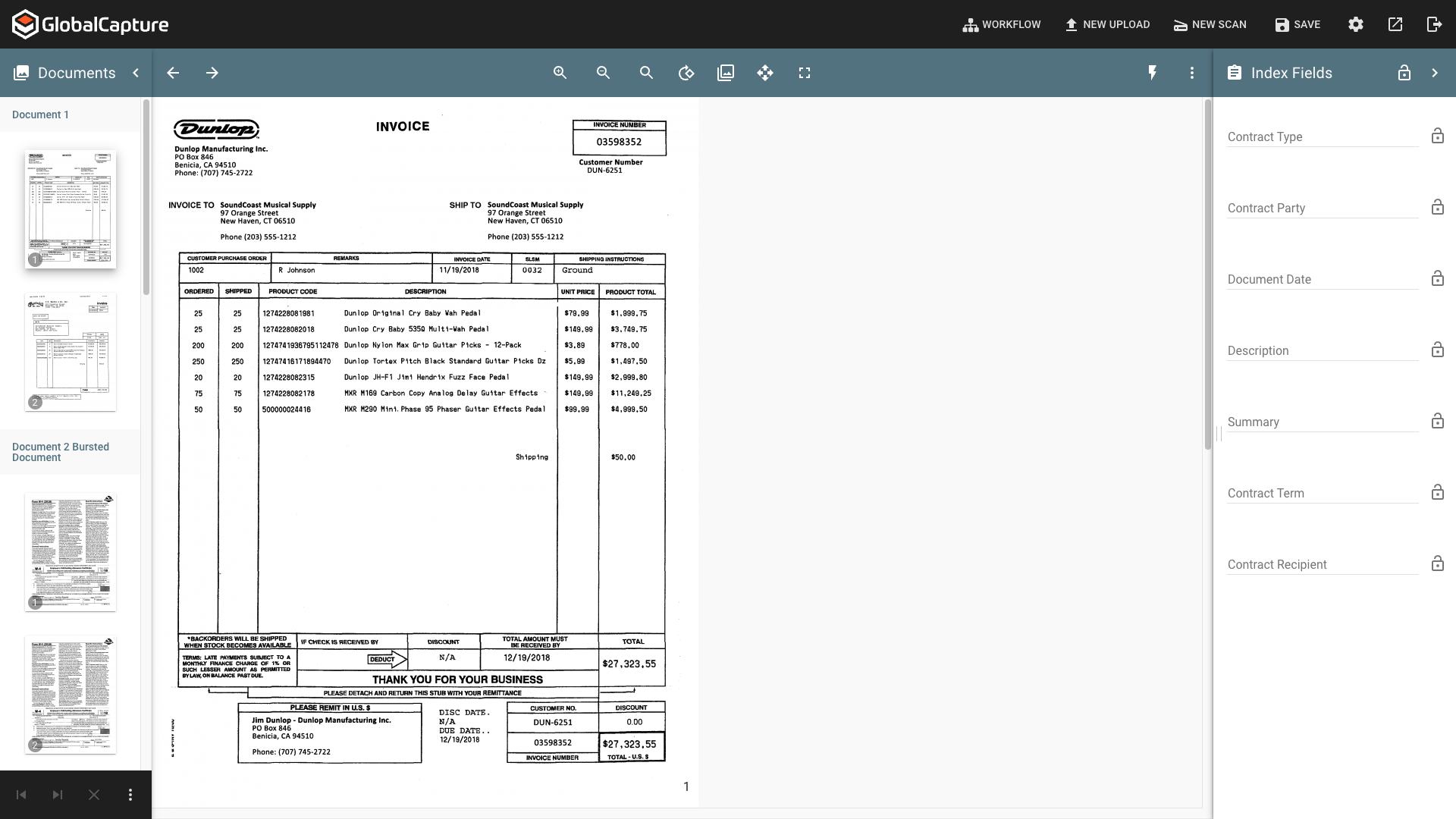
The Page Viewer displays the currently selected page in the Thumbnailer. You can scroll through the pages of the currently selected document and perform some basic image clean up.
Screenshot 2026-08-14 at 10.38.49 AM.png
Upload Page Viewer

The Page Viewer Toolbar

The Page View Toolbar contains the actions that can be taken on the currently selected page of the document.

Action are only take on the selected page unless Enable Multiple Selection is enabled and multiple pages are selected in the Thumbnailer.

Zoom

  • Zoom In ( zoom-in.png ) - Click to zoom into the page.

  • Zoom Out ( magnifying-glass.png ) - Click to zoom out of the page.

  • Fixed Zoom ( search.png ) - Select Fit to Width ( Fit to width.png ) to make the page as wide as the page viewer area. Select Fit to Page ( Fit to page.png ) to make the entire page fit within the page viewer.

Screenshot 2026-08-14 at 10.41.11 AM.png
Fit to Width
Screenshot 2026-08-14 at 10.41.16 AM.png
Fit to Page

Rotate

Rotate ( Rotate.png ) the selected page(s) through 90, 180, or 270 degrees.

Transform

Transform ( Thumbnail.png ) performs image clean up on a poor quality document.

  • Despeckle ( Despeckle.png ) - Removes speckles (grainy noise or small stray pixels) from the image.

  • Deskew ( Deskew.png ) -Straighten out crooked pages. This can improve readability OCR accuracy.

  • Color Dropout ( color dropout.png ) - Drops all color from the document, creating a black and white document.

  • Crop White ( Crop White.png ) - Remove white borders around an image.

  • Crop Black ( Crop Black.png ) - Remove black borders around an image.

Pan

When selected, the Pan ( Pan.png ) icon turns yellow. You can now drag, move, or shift the visible area of a document across the screen. This works well when zoomed in or for very large format documents.

Full Screen

Click Full Screen ( Full Screen.png ) to expand the browser window to fill the screen. Clicking it a second time returns the browser window to is pervious size.

KeyFree

Click the KeyFree ( Keyfree.png ) icon to initiate KeyFree Indexing. Depending on your settings, the icon will turn blue or yellow.

Blue Icon ( Keyfree blue.png )- KeyFree will use the existing text layer for the document, if one is available, for data extraction. An OCR ( OCR.png ) icon will appear. If the text layer is not available or inaccurate, GlobalSearch can OCR the document and use the new OCR layer for KeyFree Indexing by clicking the OCR icon.

Yellow Icon ( Keyfree Yellow.png ) - The OCR is run automatically and the new OCR layer is used for KeyFree Indexing.

Ellipsis Menu

The Ellipsis Menu ( ellipsis.png ) contains additional document options.

  • Information ( info.png ) - Display document information: File Type, File Size, Resolution, Dimensions, and Pixel Format.

  • Export ( share.png ) - Exports the document to the local device. This does not have any impact on the workflow.

  • Print ( printer.png ) - Print a physical copy of the document. This does not have any impact on the workflow.