The Upload Station provides the flexibility to scan documents directly into any import node within the workflow of your choice. This is especially useful for one-off documents received through methods outside of the standard automated processes.
Uploading a Document
-
Login to GlobalCapture and select Upload (

-
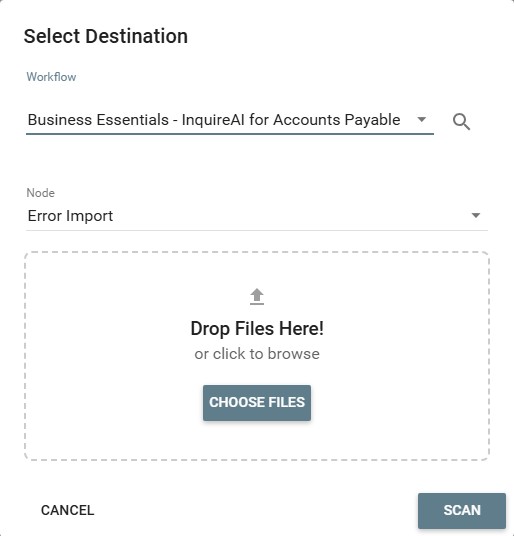
From the Workflow dropdown, select the workflow to process the uploaded document. Click the Search (

If you are unsure which workflow to use to, reach out to your GlobalCapture Administrator.
If the workflow has multiple Import nodes, you will be presented with a list of available nodes from which the scan will enter the workflow.
There are multiple types of Import nodes. Some examples of nodes that import documents into a workflow are: CTS DirectConnect, Error Import, SFTP Import, etc. You can insert the scanned document to begin the workflow at ANY of the available Import nodes in the workflow.
From File
-
If uploading an exisitng file from your local disk, Drag and Drop the file into the Drop Files Here window or click Choose Files to open the file explorer.
From a Scanner
-
If scanning a document directly from a desktop computer, click Scan.
-
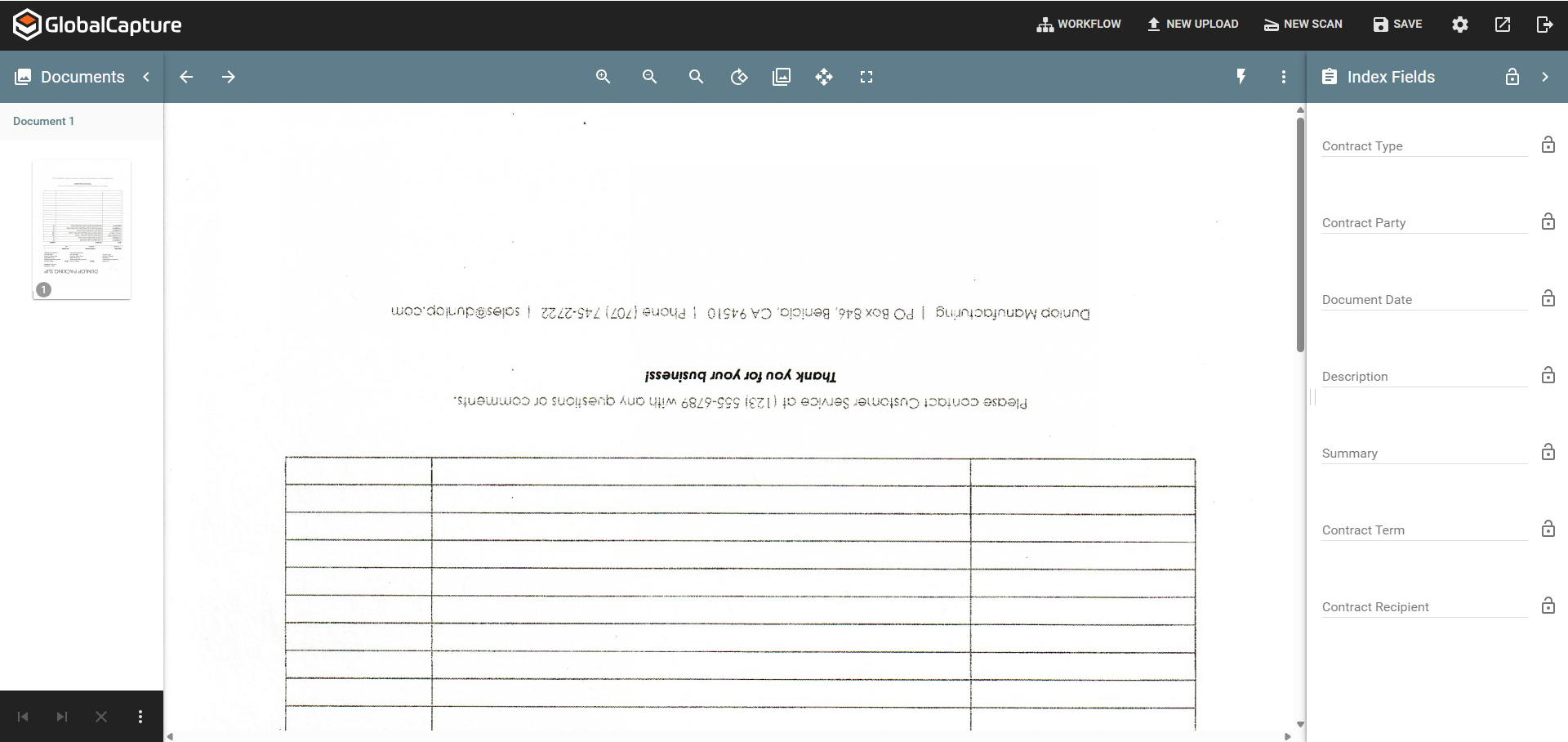
The document will open in the Upload Document Viewer. From here you can add data, modify the pages, add additional pages, etc.
-
If you are happy with the scan, click Save in the GlobalCapture Toolbar and the document will enter the workflow at the selected Import node and continue through the process.
It is important to note that the document will always appear without extracted data as the document has NOT moved though any automation within the workflow at this point. Once the scan is confirmed and saved, the document will then begin moving through the selected workflow and all applicable workflow rules and processes will be applied.
Scanning Additional Documents
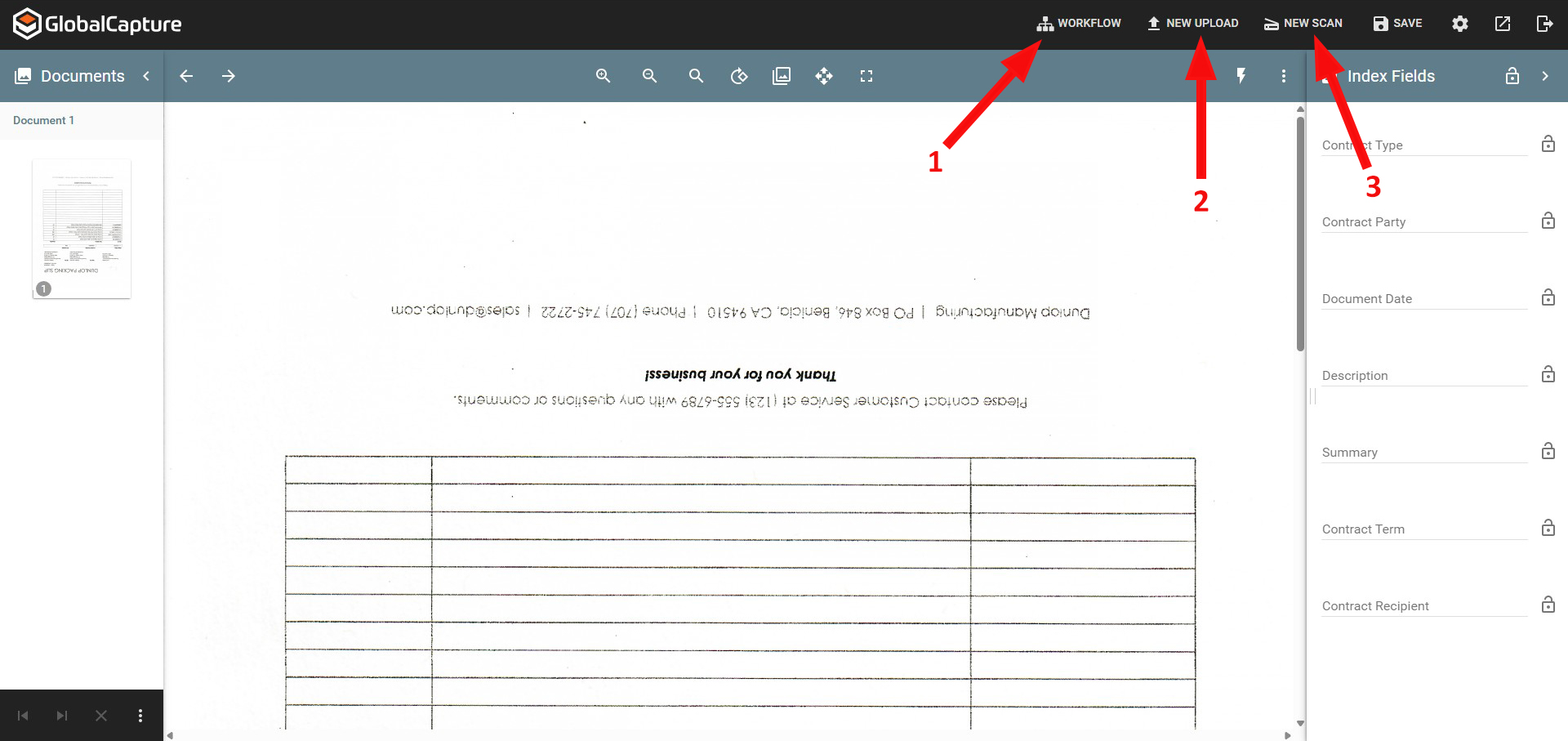
To continue adding documents using the upload station:
-
Workflow - Select workflow to open the Select Destination popup and select a new workflow and starting node for the next document.
-
New Upload - This will trigger the open document window from your desktop computer where you can select a document to upload into the same workflow and starting node as the previous scan.
-
New Scan - This will trigger the scanner to scan the next document into the same workflow and starting node as the previous scan.