The GlobalCapture Toolbar in the Document Viewer differs from the one in the Batch Manager. From here, you can save or close your document, navigate to other areas of GlobalCapture, and customize your Document Viewer settings.

Save ( 
Close ( 
Settings ( 
Navigate ( 
Logout ( 
Save Options
|
SAVE AND MOVE |
Saves any changes to the document and data and allows the document to be moved to a different node in the workflow process. Select the node to which to move the document and the process will continue from that point. |
|
SAVE AND SET TO READY |
Saves any current changes to the document and data and resumes the workflow process with the node in which it was stopped. |
|
SAVE AND STOP PROCESSING |
Saves any current changes to the document and data stops the document from processing. The status is changed to Stopped and workflow specific actions are no longer available. |
|
SAVE WITHOUT ACTION |
Saves any current changes to the document and data but does NOT progress the document in the process. The document remains in the current node until further action is taken. |
|
DELETE PROCESS |
Deletes the workflow process. The document and data will be deleted and the process removed from the Batch Portal. Click Cancel to choose another option or Delete to delete the process. Once you confirm the deletion, it cannot be undone. |
User Settings
Anytime a user setting is adjusted, the page will need to be refreshed for those changes to take effect.
Language
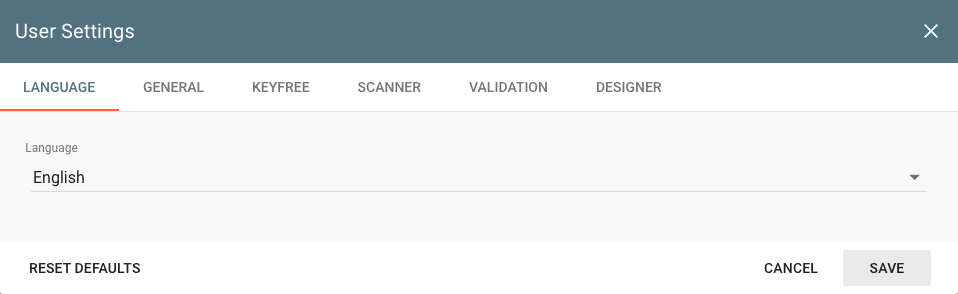
Adjust the language used in the GlobalCapture menus. Choose the language from the list of supported languages.
Changing the language setting has no impact on the index field name or their data. Index field names and data will always remain in the language in which they are entered.
General
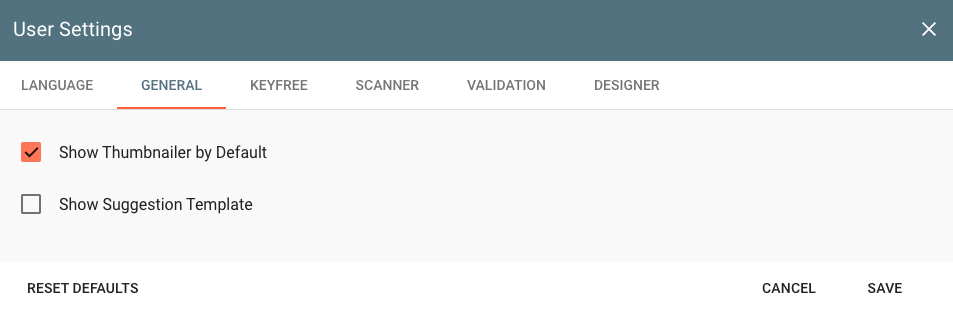
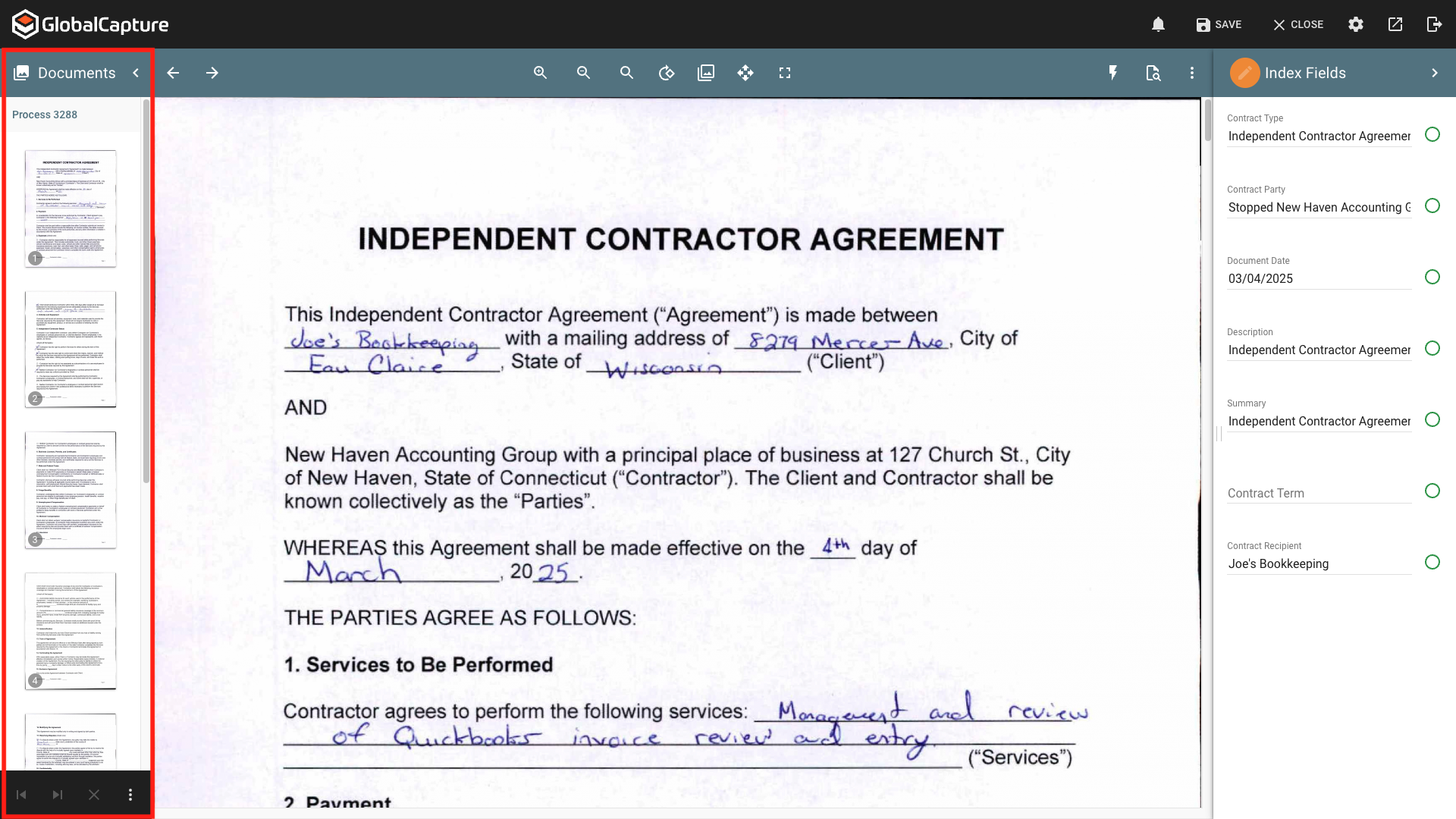
Show Thumbnailer by Default - The Thumbnailer is the pane located on the left. This displays a thumbnail view of all the pages of the document(s) that are open in the Document Viewer and provides additional options to Select, Delete, and Burst pages. When Enabled, this pane will display open when opening the Document Viewer.
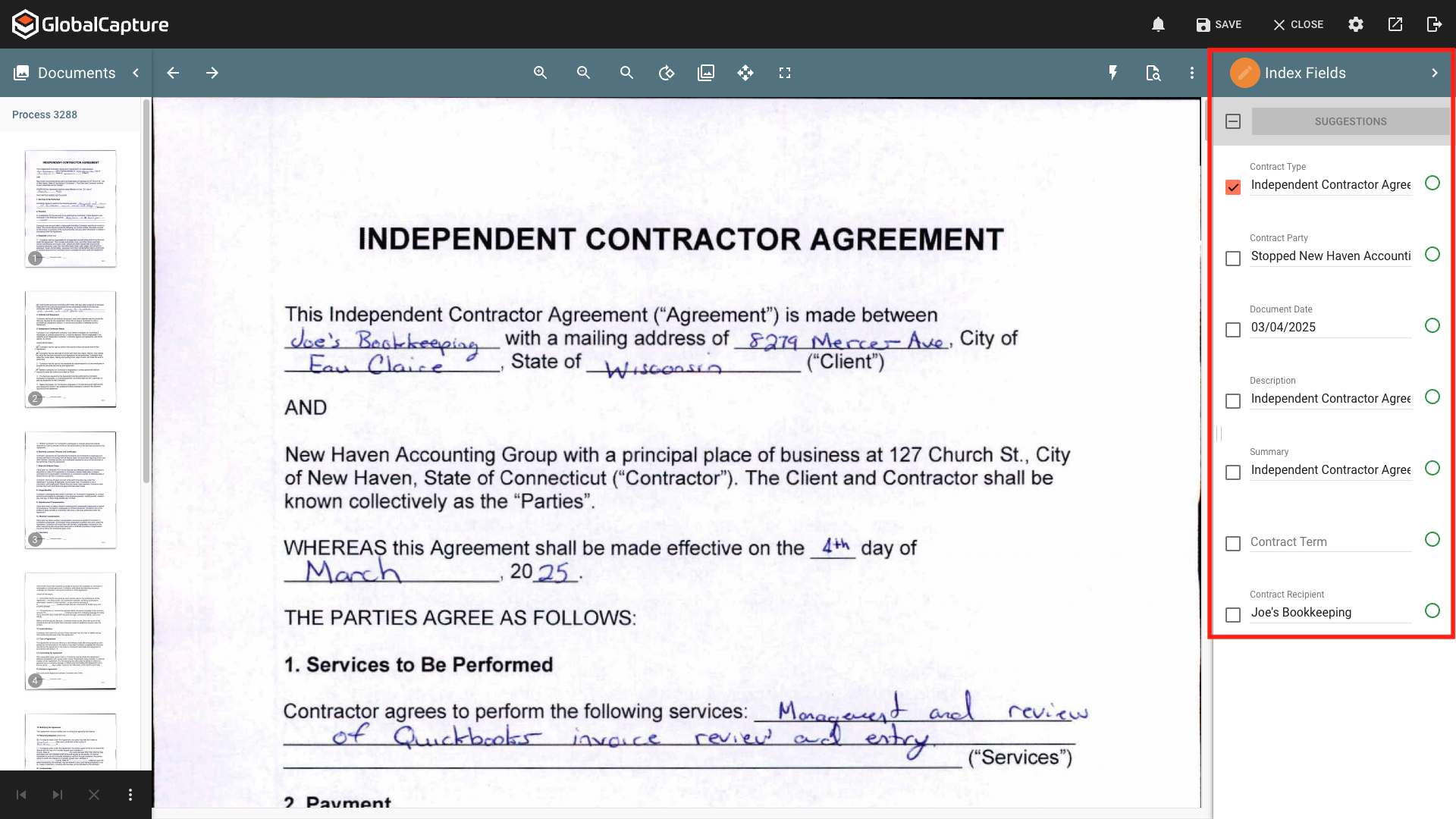
Show Suggestion Template - When enabled, data from the document can be saved to a suggestions list to be reused when indexing documents in the future.
This setting is not available when in the Upload Document Viewer.
KeyFree
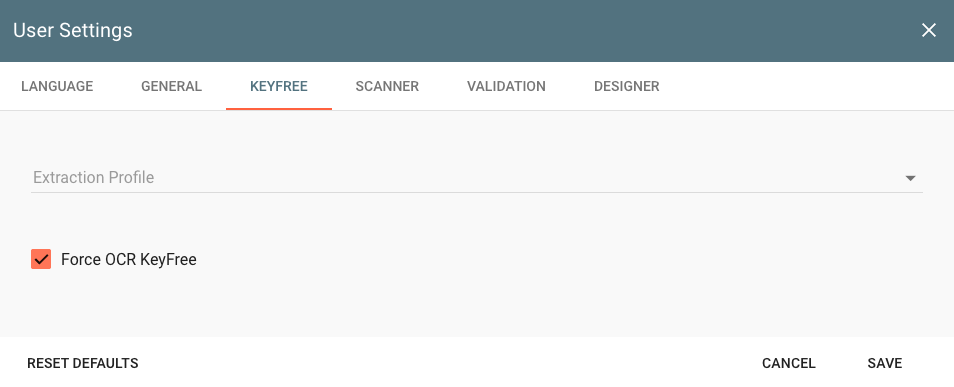
Extraction Profile - Select an Extraction Profile from the list of available profiles to apply the selected profile when KeyFree is run. If no profile is selected, the default profile will be used.
Force OCR KeyFree - Determines if OCR runs immediately when selecting the KeyFree ( 

Scanner
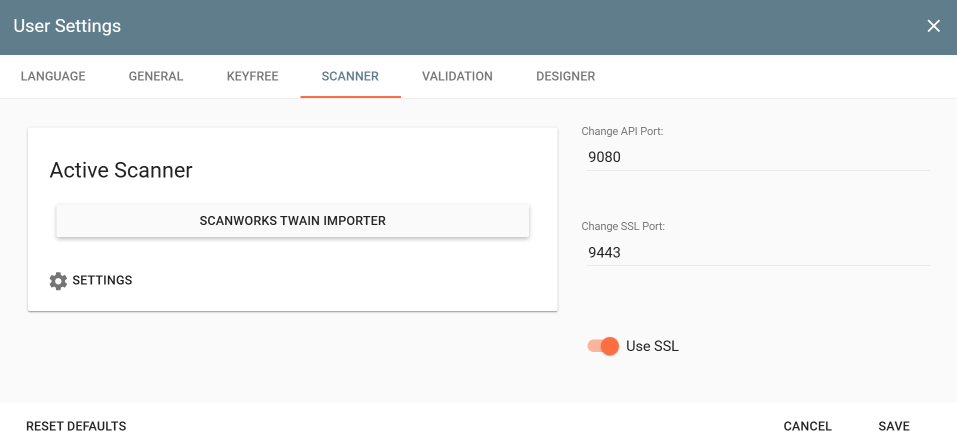
Select the scanner to be used in the Scan Station of GlobalCapture when scanning new documents into a process or when adding pages to an existing document moving through a process, configure your Ports if not using the default (Non SSL - 9080, SSL 9443), and enable or disable SSL.
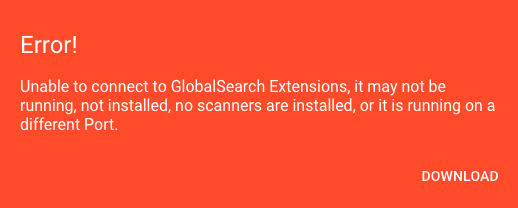
If Extensions is not installed, a Error box appears. Click Download to download and install Extensions.
Validaiton
Zoom to zone functionality improves the data validation process anytime data is automatically extracted by the system. Especially in cases where a data element's location might change with each document (Invoice Number on an Invoice), or in cases where extracted text might appear on any page of a document, it can be helpful to see where in the document data was pulled from. There is no configuration required for zoom to zone behavior. The feature is on by default and works automatically.
To experience Zoom to Zone features, open a document in validation that has been OCR'd using any Zonal, Unstructured, or Table extraction rules. In the Validation viewer, place the mouse cursor in a field and the viewer will automatically snap you to the text that was extracted as in the example below.
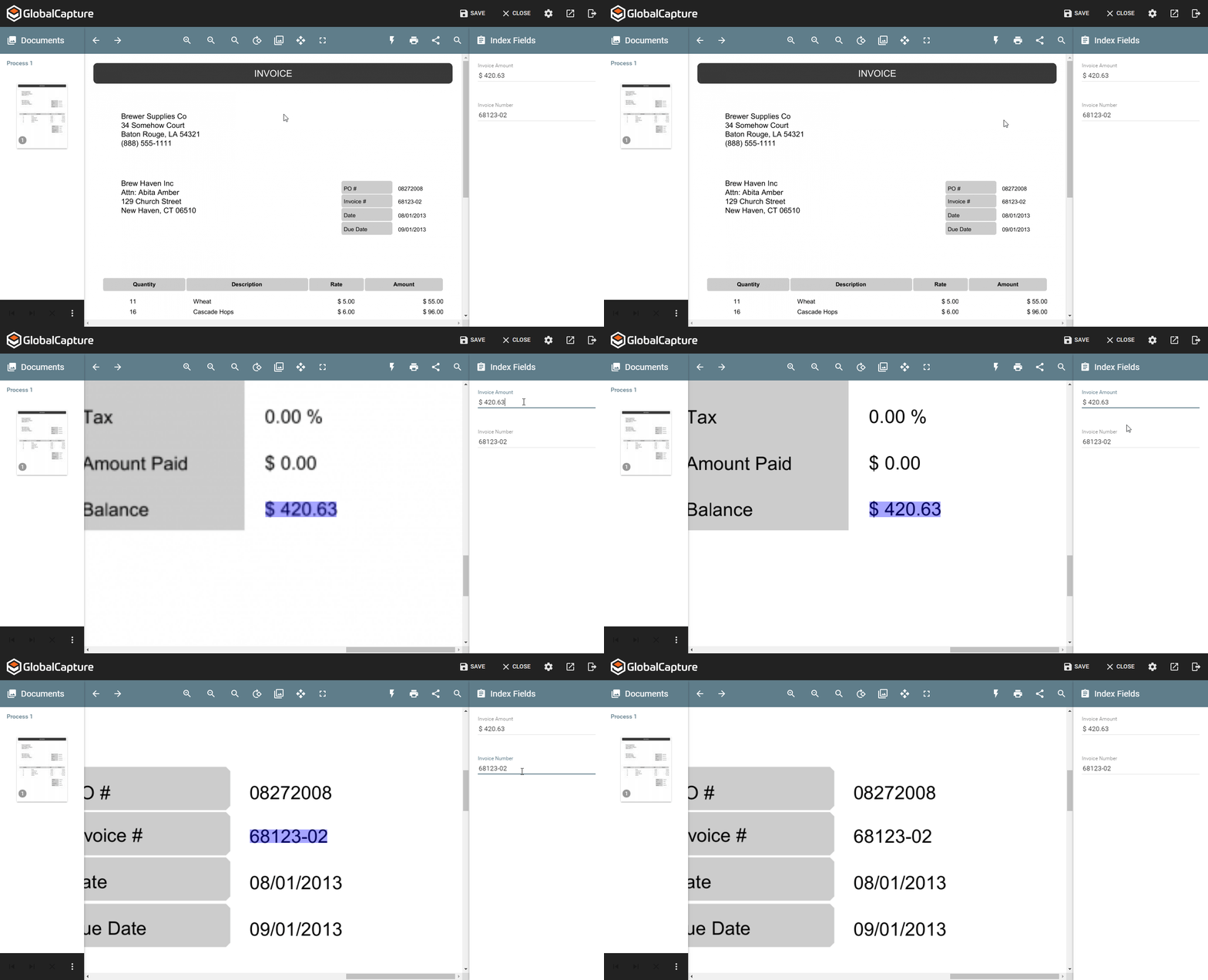
Zoom to Zone works with any field type, including Multi Value and Table Fields. You can zoom to the extract area by clicking, or if the indexer already has mouse focus, by using the Tab key.
Editing Field Data
-
In unstructured extraction scenarios, it may be beneficial for Zoom to Zone behaviors to be disabled after fields are edited. It is possible to configure the validation viewer to operate in this manner, but it is a system wide setting that would impact all users. System administrators can click here to learn how to disable Zoom to Zone on field changes.
-
Document transformations, whether performed in the GlobalCapture engine, or by page in the viewer, have the potential to alter or remove extraction highlight data on a process. The following document transformations will completely clear any extraction highlight data: Crop White, Crop Black, Deskew.
-
Rotating a document will correctly translate extraction data to the proper location on any rotated pages.
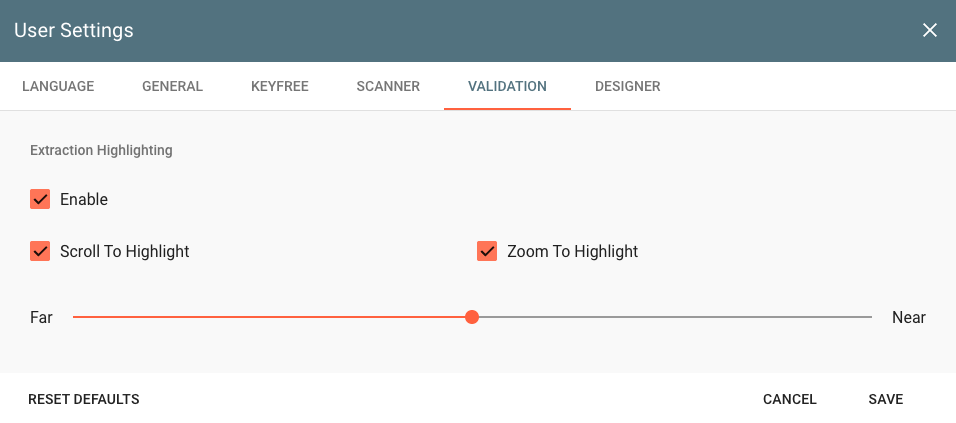
Default behaviors for Zoom to Zone can be modified to suit the user's individual preference. In the settings menu of the Validation Viewer (the Gear icon), select the Validation tab.
Enable - Allows you to turn the feature completely off. By default, Zoom to Zone is enabled for all users. When enabled, anytime a field is selected that has been OCR'd, it will be highlighted.
Scroll To Highlight - This feature causes the viewer to automatically scroll when a field is focused (selected) in the indexer. It is enabled by default. If disabled, highlights will still render visible on the document, but no automatic navigation will occur.
Zoom To Highlight - Available after “Scroll to Highlight” is turned on and enabled by default, this setting causes the viewer to automatically zoom in to an extraction highlight. This zoom scale can be configured with a slider below the “Zoom to Highlight” checkbox. There are five settings between “Far” and “Near”. These five zoom settings will zoom the viewer to where the extraction highlight consumes between 10% and 50% of the viewer area. The default value for this setting lies in the middle of the slider, equal to 30%. Note that the viewer will never zoom out further than the fitting width of the page. Also, in the cases of extremely small extraction highlights, the viewer may not be able to zoom to the desired percentage of real estate. In these cases, the viewer will zoom to the max amount allowable.
Designer
The Designer tab is only relevant to GlobalCapture Administrators and impacts the Template Designer. Validation users will not see any impact in the Document Viewer and should NOT click DELETE TEST DATA unless instructed to do so by your GlobalCapture Administrator.
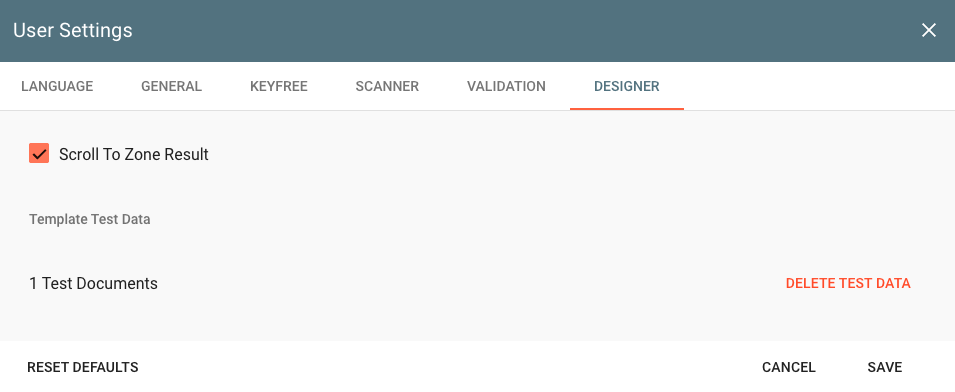
Scroll To Zone Result - When enabled, if a template zone is selected, the document will scroll to that part of the document. This is useful for finding zones on a page when zones span multiple pages.
DELETE TEST DATA - When Template Validation is enabled on a Validation Action, the information extracted is saved. This data is then used to understand how changes to the template will impact pervious results and allow for prediction of future results. If DELETE TEST DATA is selected, pervious data about zone is deleted.
Exercise caution when deleting test data as this cannot be undone.