The Index Fields Pane is located on the right and displays the index fields associated with the workflow. Here you can add/edit/delete data or apply KeyFree indexing.
It is important to note, this document has not been process by the workflow yet so any automated data extraction has not occured. Any data manually added may be overwritten by automated extraction processes depending on the construction of the workflow.
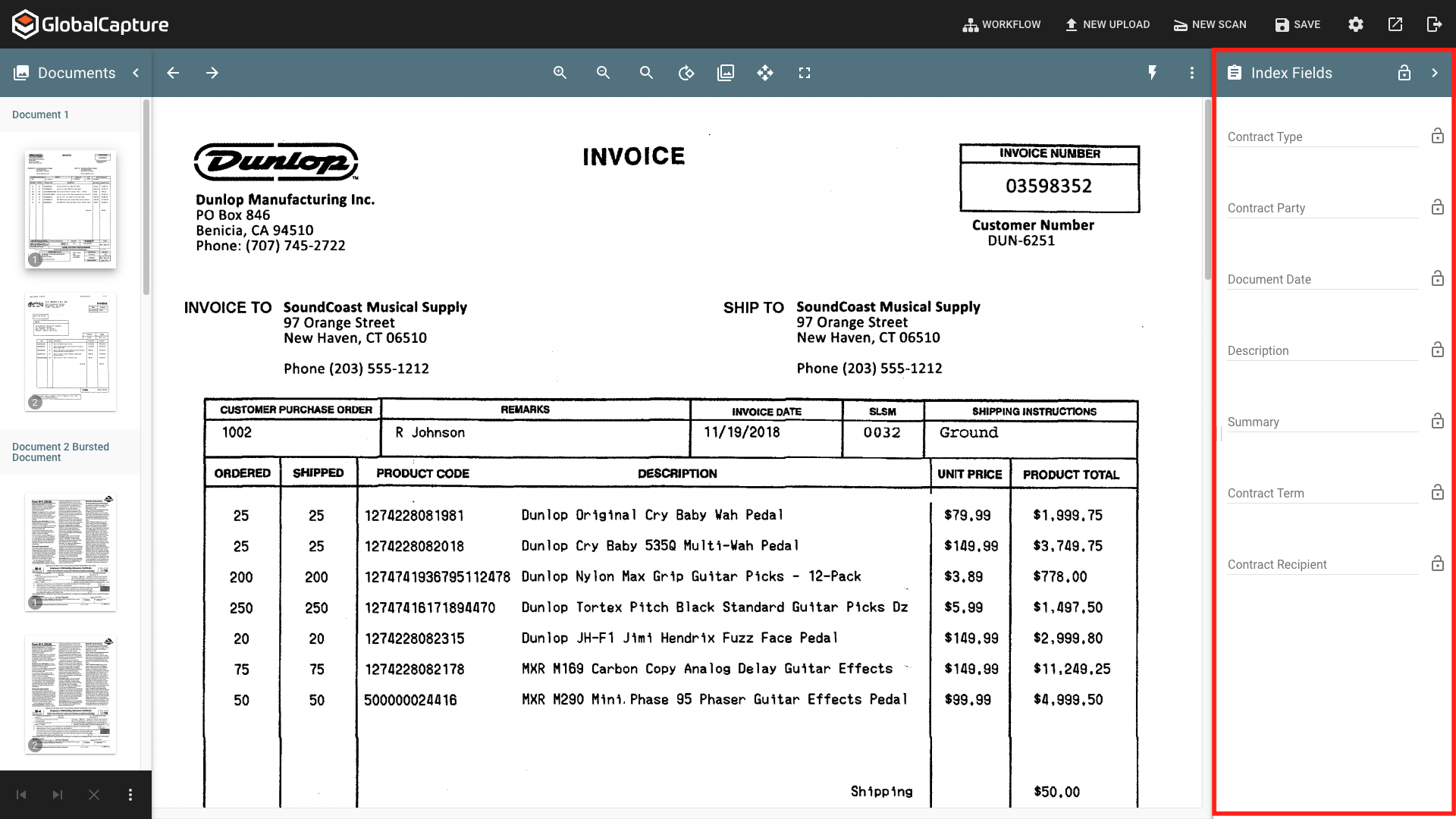
Index Field Pane Header
Lock/Unlock Fields ( 

Collapse ( 
Show Pane ( 

Index Fields
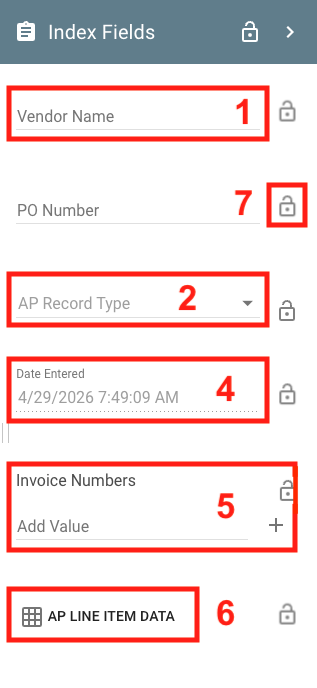
Each of the index fields associated to the workflow is displayed. Any blank fields are displayed with the Index Field Name as placeholder text. Once data is entered, the Index Field name appears above the entered data. If left blank, the placeholder text is NOT submitted as data.
Types of Index Fields
-
Standard Field - A standard field could be of any type (character, date, decimal, numeric) and are indicated with a solid line. Enter any data the conforms to the field type. A messsage will display if the data is invalid based on the type of field or administrator configuraton.
-
Dropdown List Field - Indicated with a down arrow (

-
Type Ahead List Field - Looks like a standard field but when you begin entering a value, a pop up of matching values appears. Select from the list or continue to enter your own value. All values are accepted.
-
System Field - A field automatically populated by GlobalCapture. These are indicated with a dotted line and cannot be modified.
-
Multi-Value Field - Indicated by a solid line with a + symbol, enter a value and click the + to add additional values. Each value entered is stored as a distinct value in the database.
-
Table Data - Indicated by a grid (

-
Lock/Unlock Field (
Ex. If you lock the Vendor Name field with the value SoundCoast. Any document scanned to any workflow that uses the Vendor Name field will have the Vendor Name field populated with SoundCoast.