
Overview
The Square 9 Migration Analyzer is an utility to gather and report details of On Premises Square 9 systems running GlobalSearch, GlobalAction, GlobalCapture or GlobalForms as well as Workflows, Assembly Bound Lists and Scripts. This tool also gathers information from MongoDB and Microsoft SQL databases; therefore, it requires access to all components.
You will need the password from Square9 to run this tool. If you get an error message that says “unable to validate check your internet connection.” Then an offline password can be generated.
Required Permissions
The Square 9 System Analyzer requires several specific permissions to run, if these permissions are not present on the account running the Analyzer, the tool will not run properly.
For best results, log on to your environment as the Square 9 service account or Administrator, typically “SSAdministrator” tends to resolve most permissions issues.
However, if you have another account you are using, the following permissions are required:
-
Access and Ownership of the Square 9 System and Document Databases
-
Access to MongoDB
-
Access to the location where images are stored
-
Read rights to the Square 9 Application directory.
Obtaining the Utility
Typically, an email is provided from Square 9 upon request with a link to download the utility.
The utility should be downloaded from the Square 9 server as a Square 9 Service Account or Administrator (often one in the same). It should not be run from an end-user’s desktop.
Download the Square 9 migration analyzer to the server from here: https://www.square-9.com/analyzer
Depending on your security settings, you may see this warning, Choose Keep.
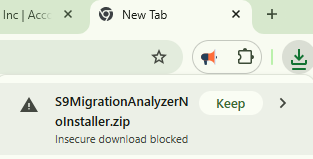
Once downloaded on the server, Extract the Media
Running the Utility
After extracting the zip file, open the folder from the extracted location on the Square 9 server.
IMPORTANT NOTES:
The Analyzer must be run upon the Square 9 Application Server or if Square 9 Applications are running on different servers, the utility will need to be ran on each Square 9 server.
Ensure that you are logged into the server(s) as the Square 9 Service Account or Administrator, typically "ssAdministrator".
Find the S9MigrationAnalyzer.Wpf.exe
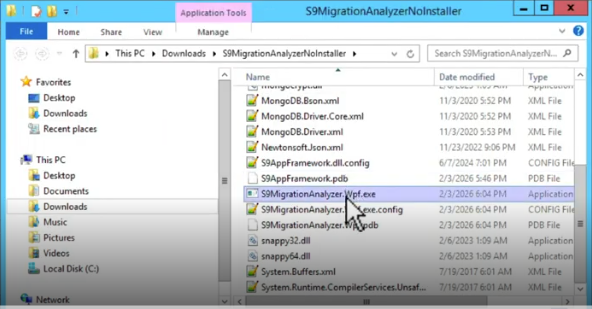
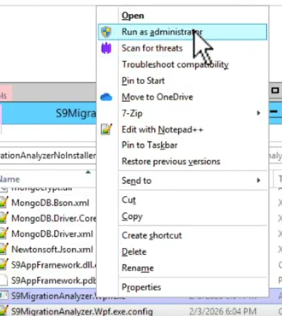
Right click and run S9MigrationAnalyzerWpf.exe as Administrator (Run as Administrator)
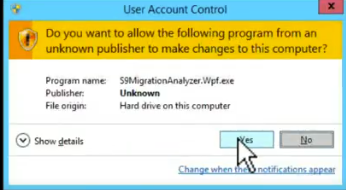
You may receive this warning, Choose Yes.
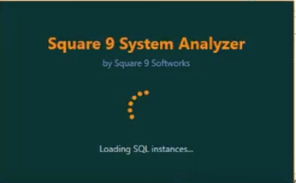
The Square 9 Analyzer Utility will begin to load:
Enter your company's name, your email address
Click the box for “I am working with a Square 9 Engineer” and fill in the email address of the Square 9 person you are working with. This should send them a copy. Click Next in the lower right corner.
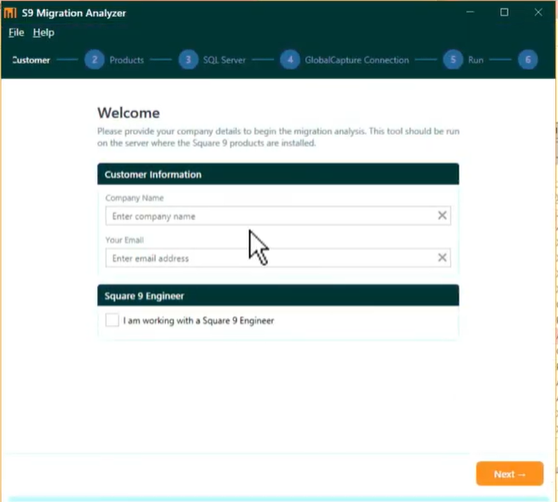
NOTE: Auto emailing is dependent upon the configuration. If you do not get an automated email, then you will need to manually send the report on to the Square 9 contact.
The Analyzer should find the appropriate Square 9 products and verify permissions.
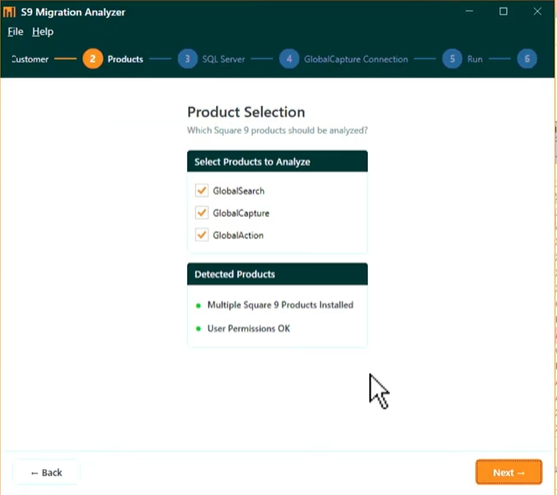
Select Square 9's database instance. Typically, this instance is labeled as "GetSmart". Click Next in the lower right corner.
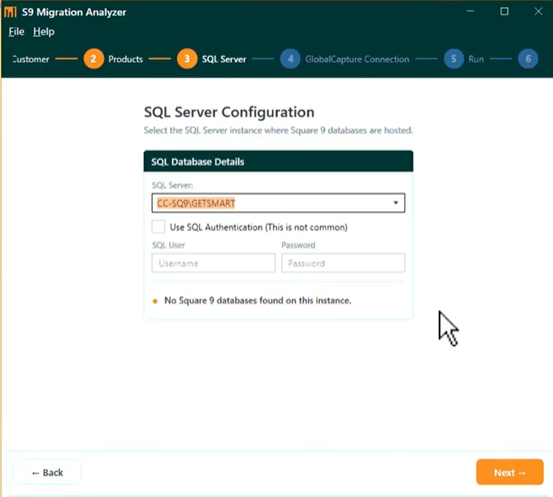
If the Square 9 database is different, you will need to point at the Square 9 database instance as seen below, for example.
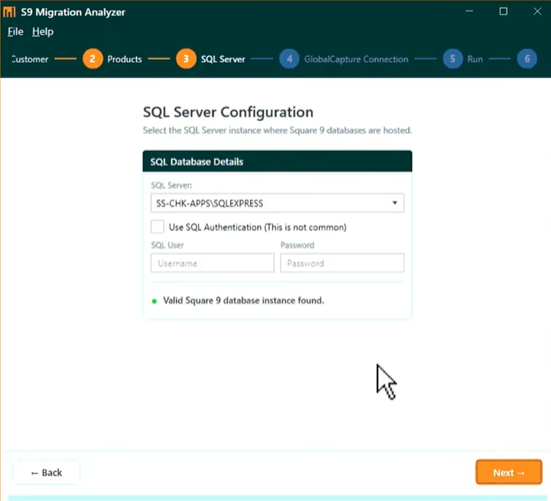
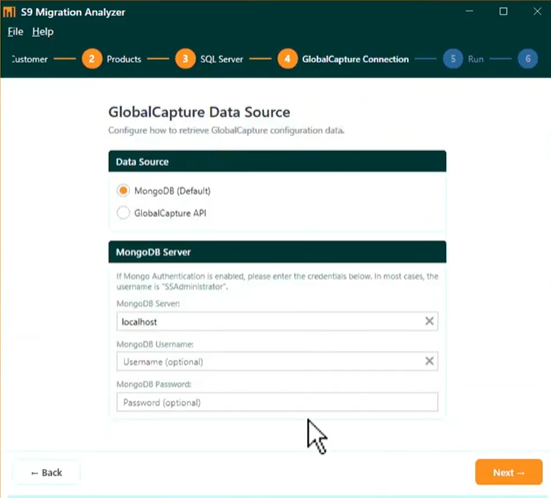
For most customers, you can leave the remaining options as their default.
Review the ready to Analyze screen and choose Run Anlayzer.
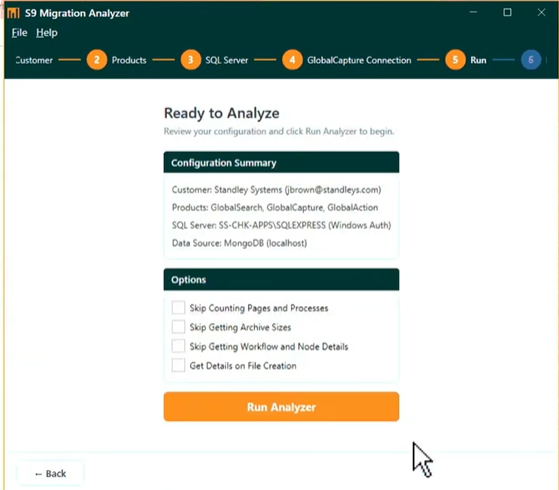
The analyzer can take several minutes to gather the data.
While the analyzer is running, here are a couple of questions that our analyzer doesn't capture and are required to scope the project properly.
How do users authenticate to Square 9 application(s)?
Does the customer use the Desktop (fat) Client, Web Client or GlobalSearch Go?
What is your company's ERP system?
The Report
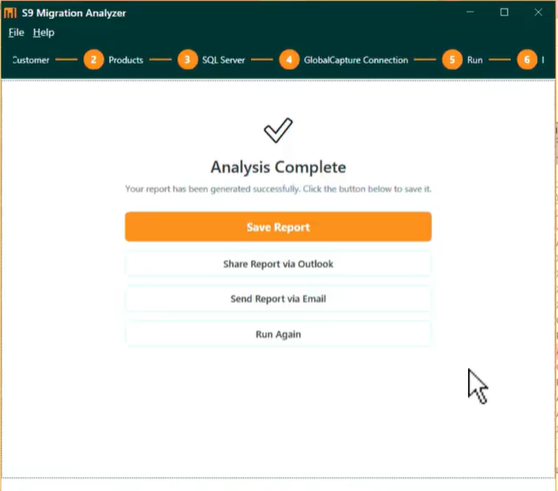
When completed, Save the Report and email a copy to the Square 9 person you are working with or share the report with your Square 9 representative.
Please reach out to Square 9 support or your Square 9 representative if you have any issues.