
To utilize table data extraction, you must be licensed for Unstructured Data capture.
Using Directional zones, a template can be constructed that extracts repeating table data from a document. That data can exist on a single page or across multiple pages.
Before You Begin
Before you begin construction of your table data extraction:
-
Prepare a GlobalCapture Table Field that contains all necessary Process Fields.
-
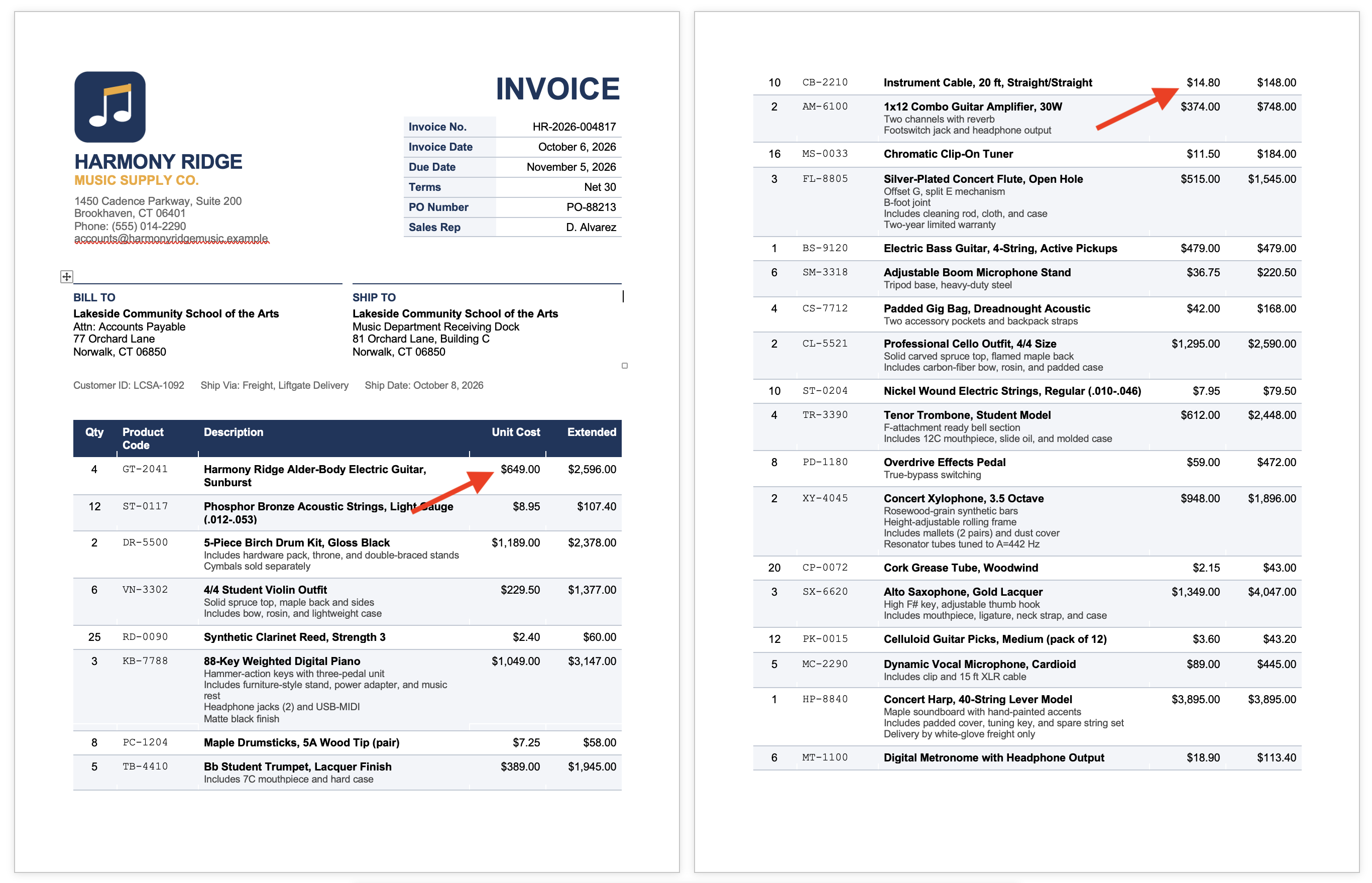
Identify a Header for your table. This is a unique identifier that signals the top of the table and will indicate where to start the extraciton. Your table header must appear on each page of the document that contains the table data.
Tip: If the column headers don’t appear on each page, use a value that appears in the first row of the line items.
In this example, the column headers only appear on the first page so I will use a character from the first row of line items that appears at the top of each page, the $.
-
Idenifity a Footer for your table. This is a unique identifier that signals the end of the table and where extraction should end.
-
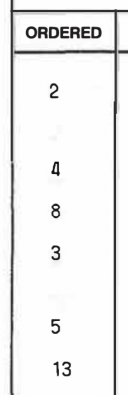
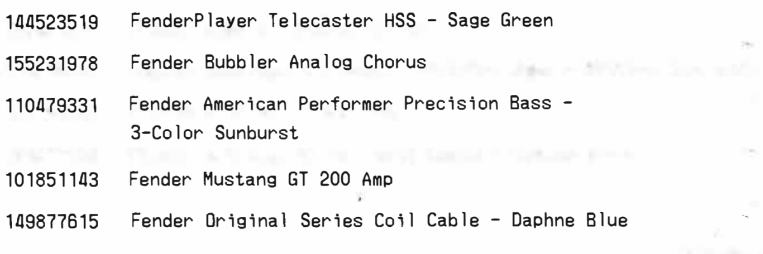
Collect multiple samples of the document that account for variations of the table data. Look for things like spacing between line items and data that continues on multiple lines.
Header Configuration
The Header is the zone that signals the start of the data table.
-
Create a New Zone for the header.
-
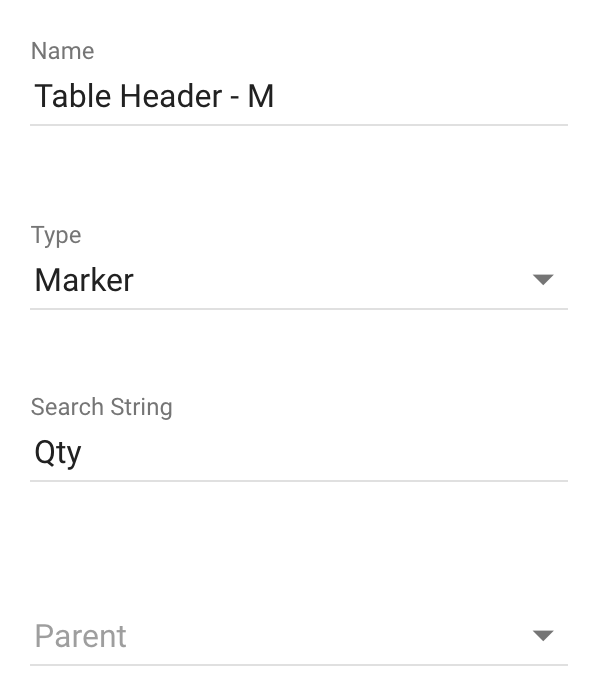
Give your zone a Name, assign either a Marker or Pattern Match type, and enter the Search String.
-
Assign a Parent if needed.
-
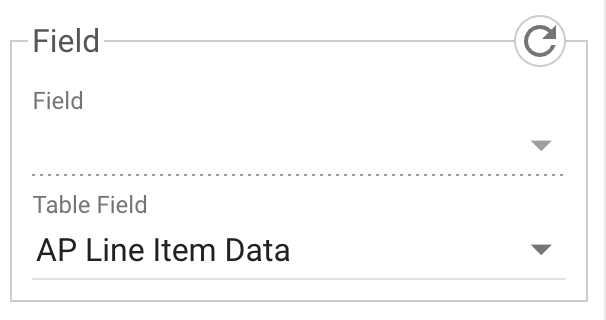
In the Field Zone Properties panel, set the Table Field value to the name of your GlobalCapture table field.
-
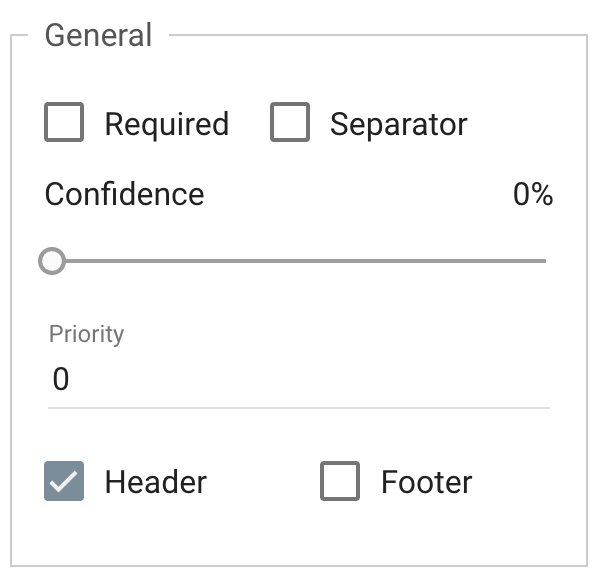
In the General Zone Properties, enable Header.
-
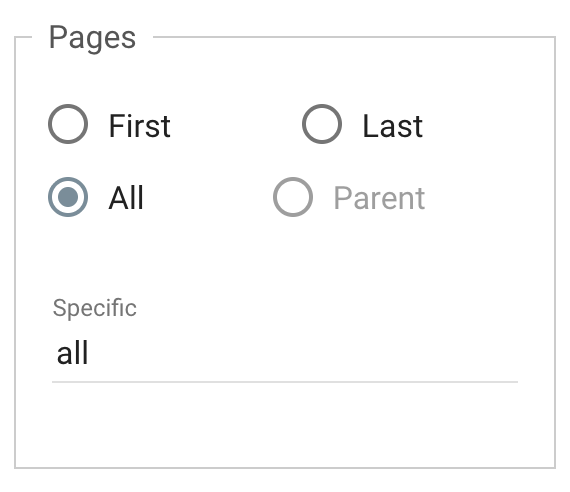
In the Position Zone Properties panel, under Pages, select All.
-
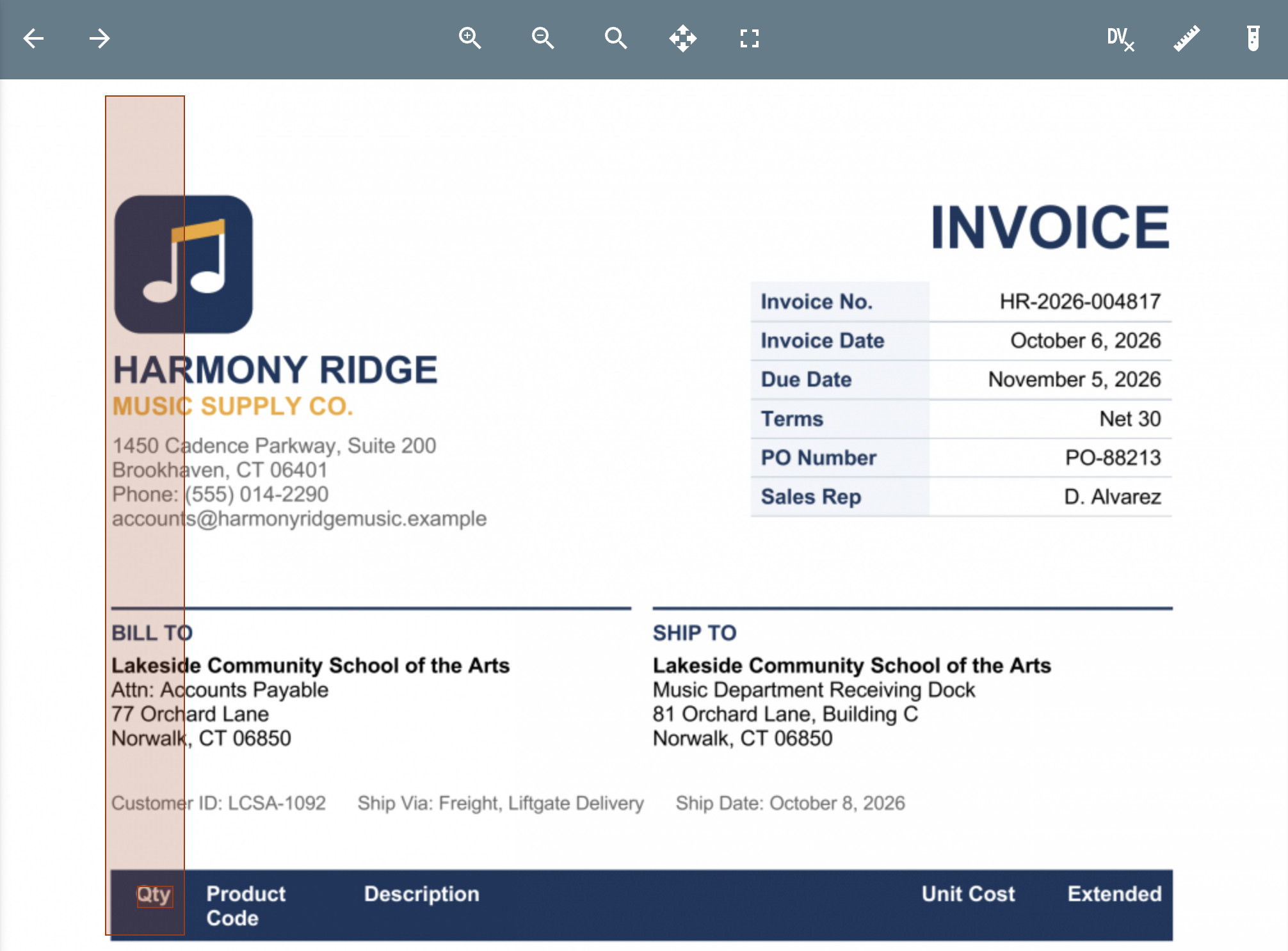
If the Search String only appears once on each page, drawing a zone around the search string is not needed. If it may appear in multiple locations on any page, click the Crosshair (

This zone MUST contain the location of the search string on EVERY page so draw your zone accordingly.
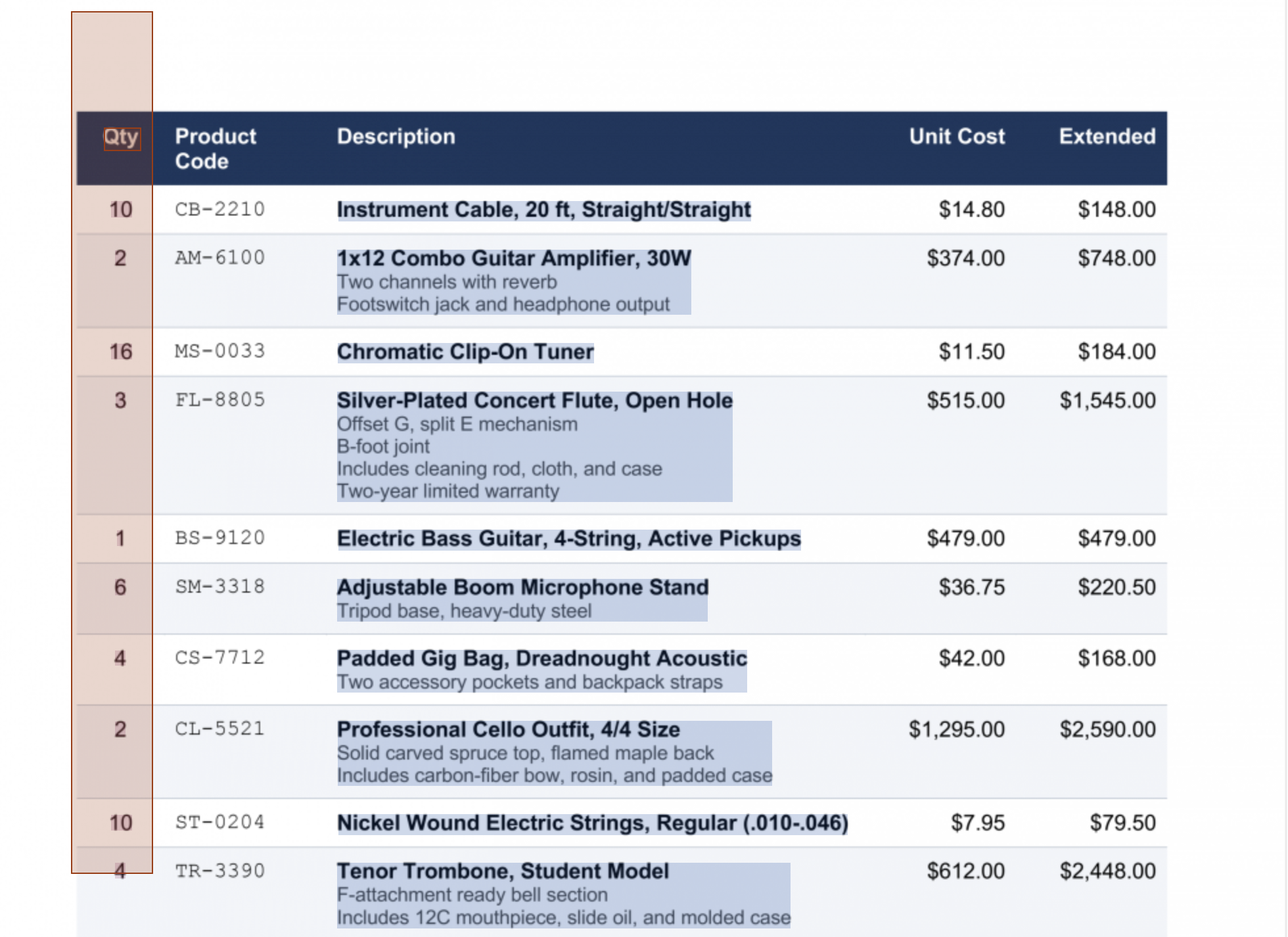
In this example, we will use the value QTY from the header row of the table to identify the start of the table on each page. On page one, the header appears in the middle of the page because that's where the table starts. On page 2, the header appears at the top of the page. The zone we draw to capture the header value, QTY, must be large enough to capture the value on the first page and any additional page.
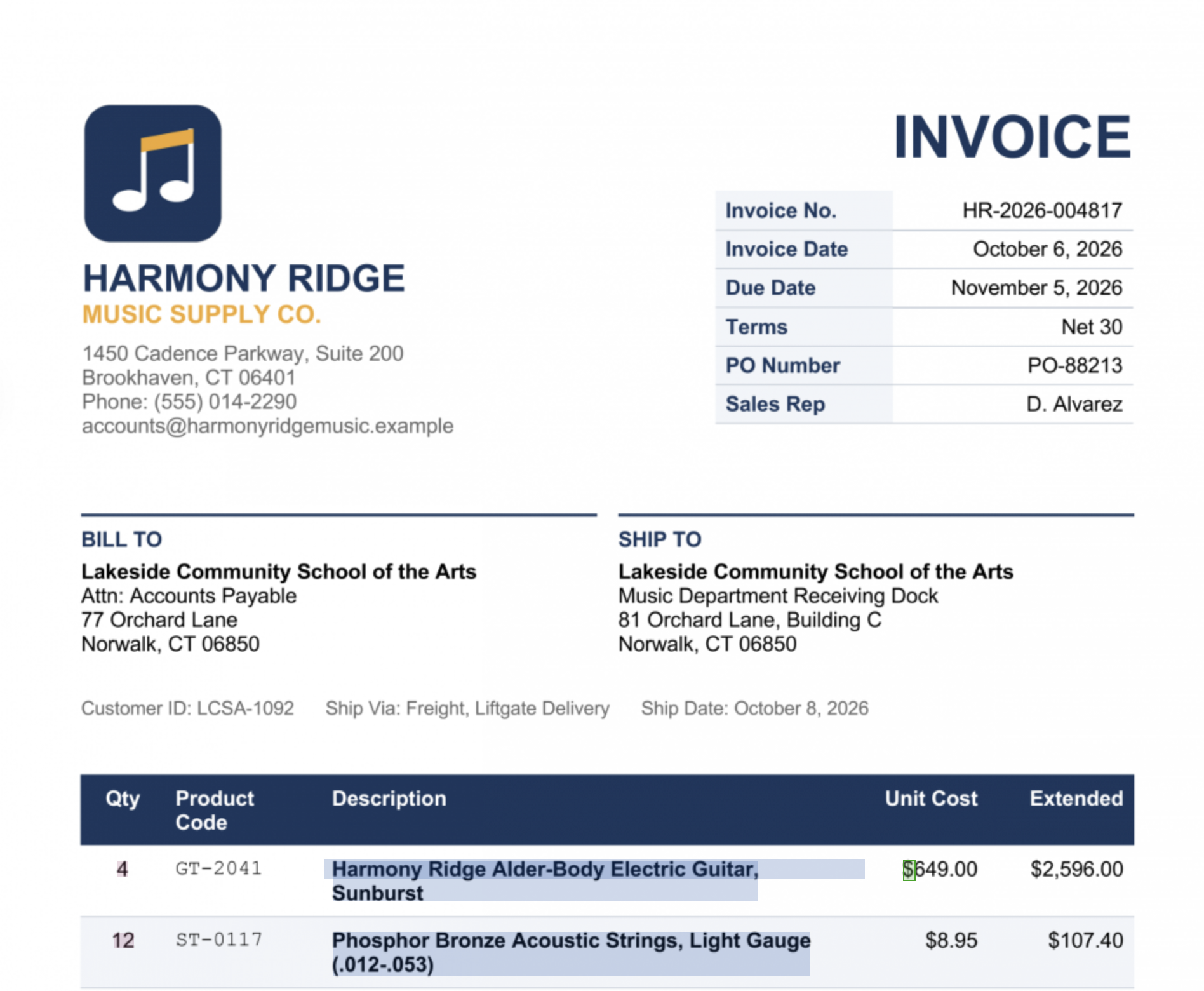
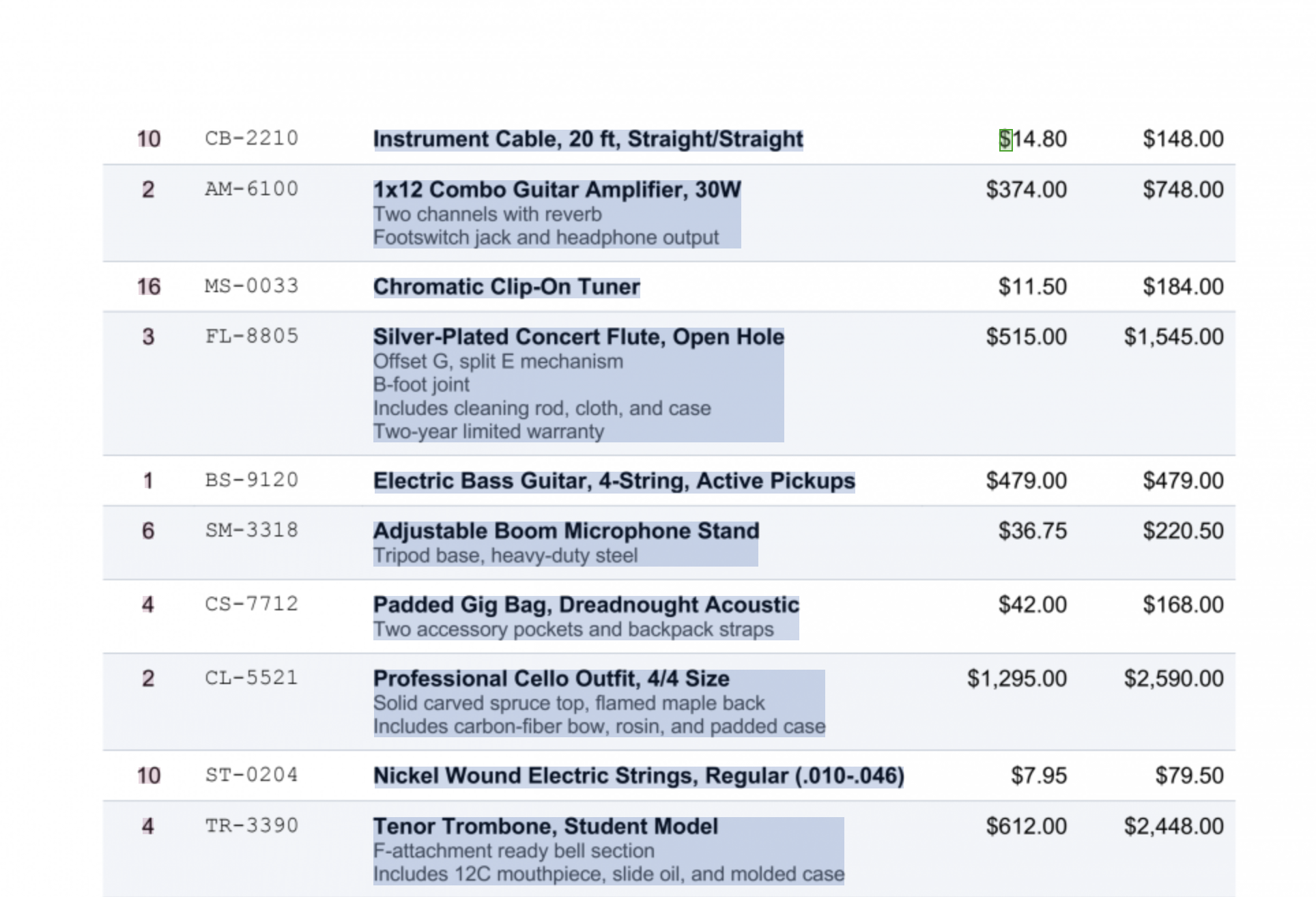
In this example, since the header of the table only appears in the first page so we will use a value in the first row of data as our header. The only value we can reliably count on is the $, but the $ appears in multiple columns multiple times throughout the document. Drawing a zone here will not work. In this case, it is best to use a pattern match. We will use the pattern match \$ to find the first dollar symbol on each page.
-
Click Save (

Repeating Zone Configuration
The first zone to create after our header, is a Directional zone that is going to be used to identify each row of the table. Drawing your Directional zone is very important to correctly identify each row in the table and ensure all rows are collected.
Selecting Your Directional Zone
The zone selected for your directional zone is going to be key in your table data extraction. The selected zone must have an entry for each row that must be collected.
Using the QTY value as the directional zone is a good choice because the value of quantity appears in every row and is spaced appropriately to accommodate different lengths of descriptions.
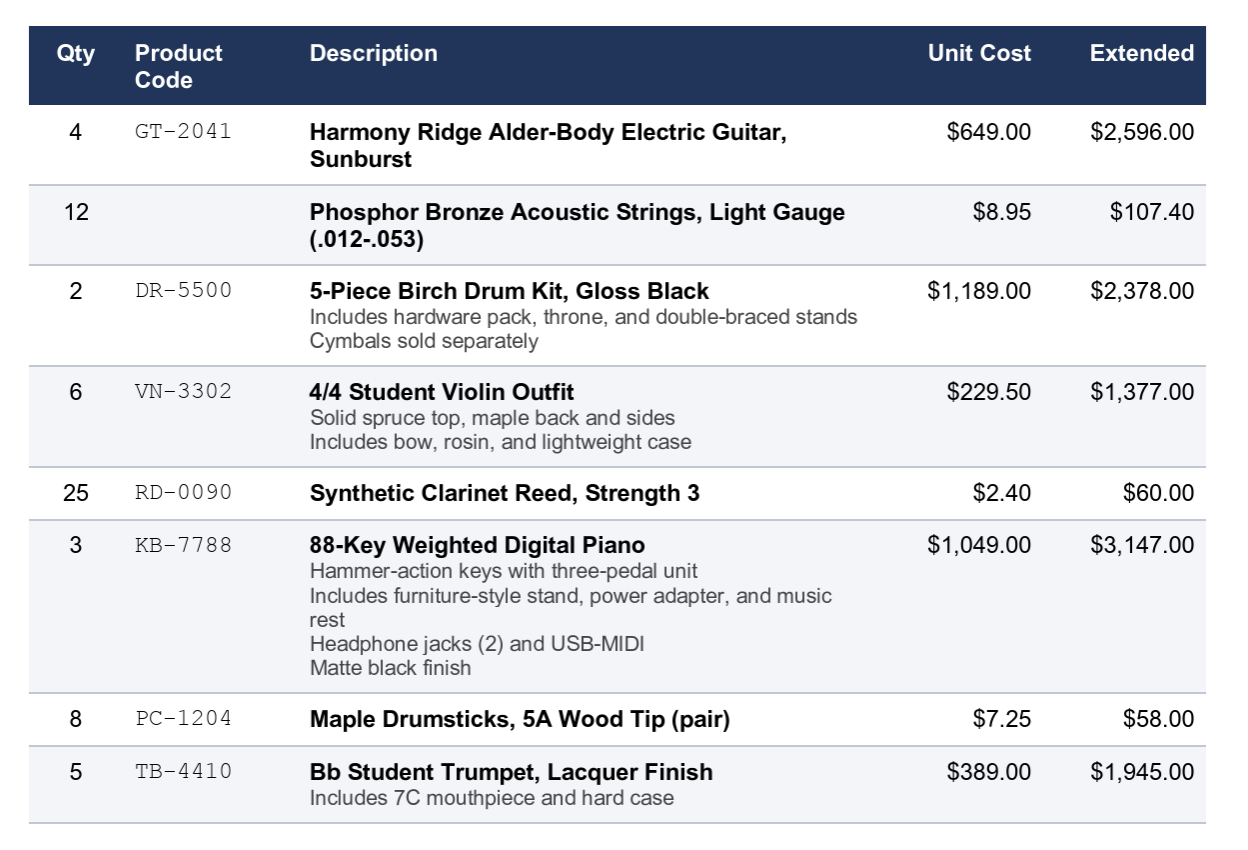
Using the product code is not a good choice because not every row has a product code. Using the product code would cause items to be skipped.
Drawing Your Zone Guidlines
The the size of the zone must be drawn such that it stretches the largest gap between rows, even if this means the zone covers multiple rows of data. Ensure your zone covers the largest gap possible.
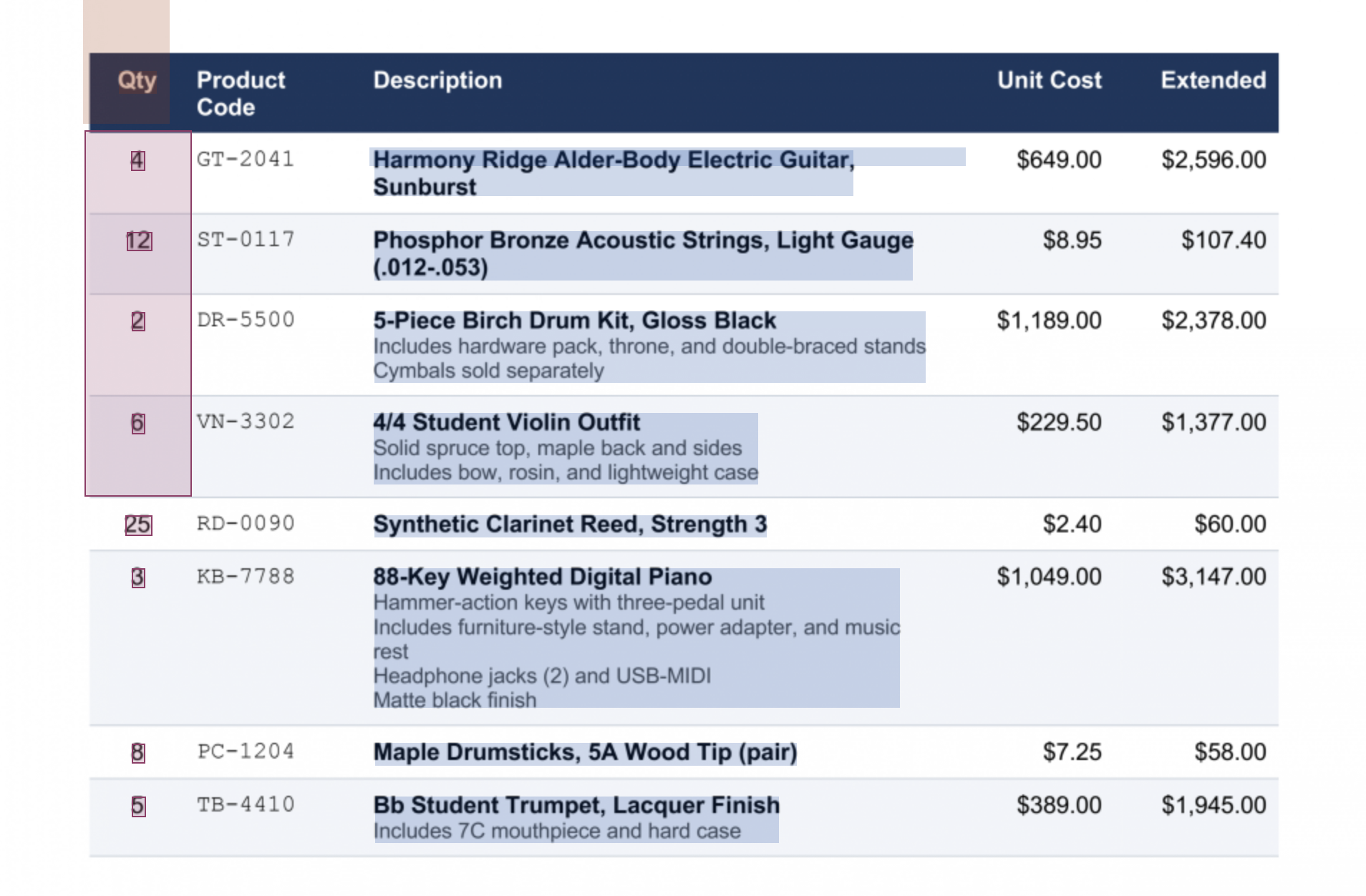
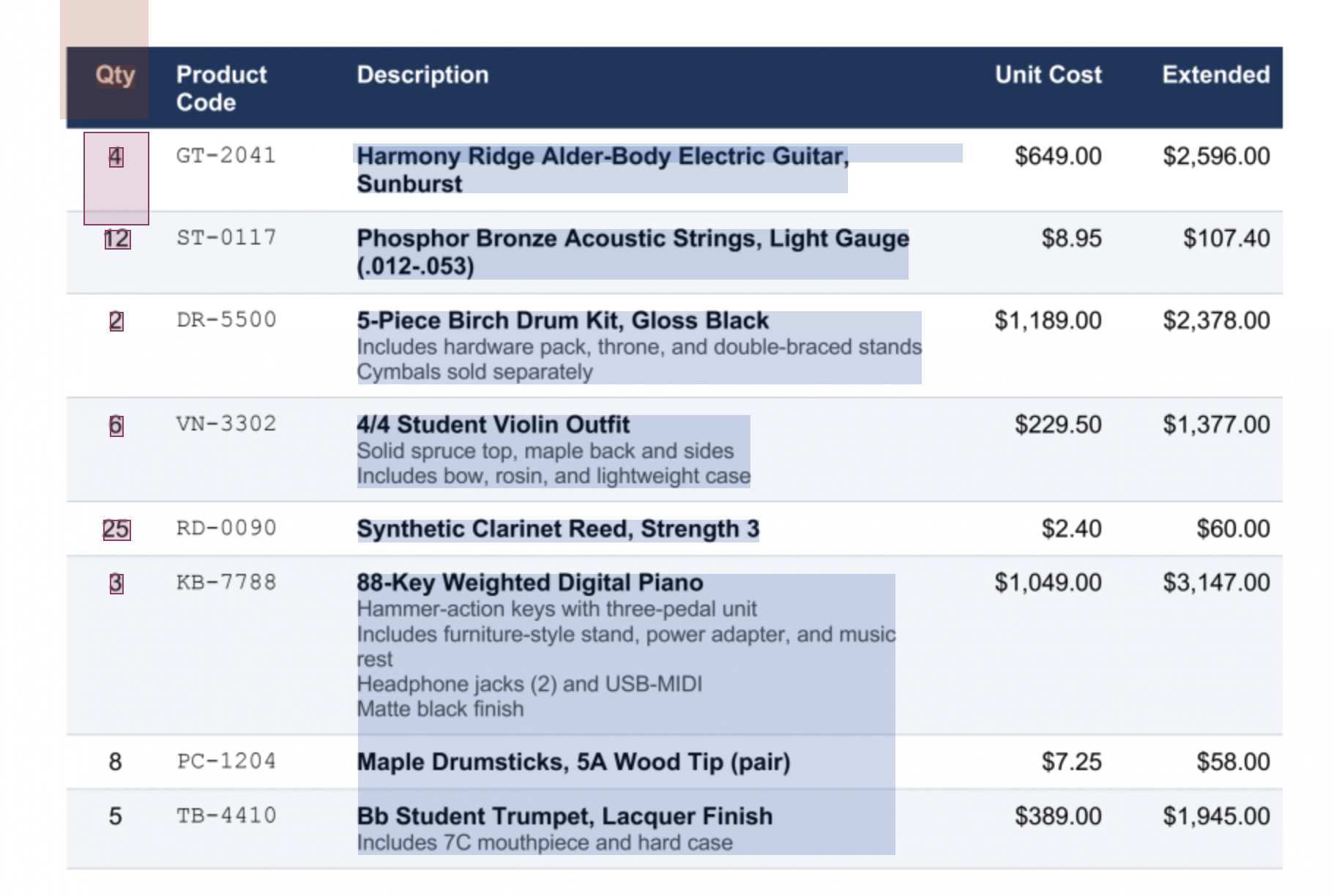
In the Properly Drawn Zone example, we can see the zone stretches to cover the largest gap that exists between any of the values.
In the Insufficient Zone example, we can see the zone will only reach the next line item as long as the description doesn't create too large a gap. Once it hits the sixth item in the list, where the description is much larger, creates a gap that is larger than the zone, the directional stops, repeating and collecting values assuming the table has ended.
Use Limits to limit the number of rows, words, or characters to ensure that each line is read.
-
Create a New Zone to be used to identify each row of the data table.
-
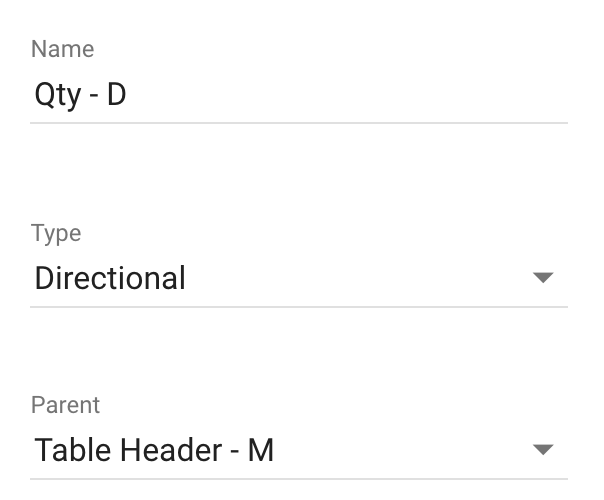
Give your zone a Name and select Directional at the Type.
-
Assign the Table Header zone as the Parent of this zone.
-
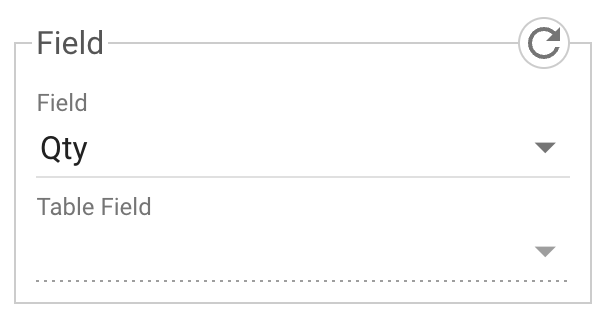
In the Field Zone Properties panel, set the Field value to the name of the GlobalCapture Process Field that is part of the table assigned in the Header Zone for the data being collected.
-
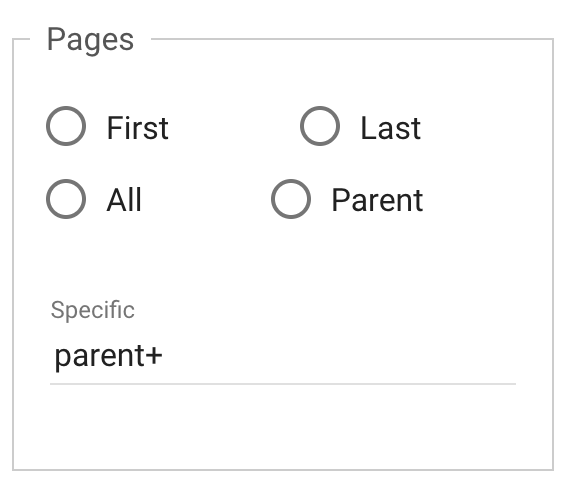
If the table can extent across multiple pages, in the Position Zone Properties panel, under Pages > Specific, enter parent+. This ensure the directional zone stretches across any pages the header (parent value) appeats on.
-
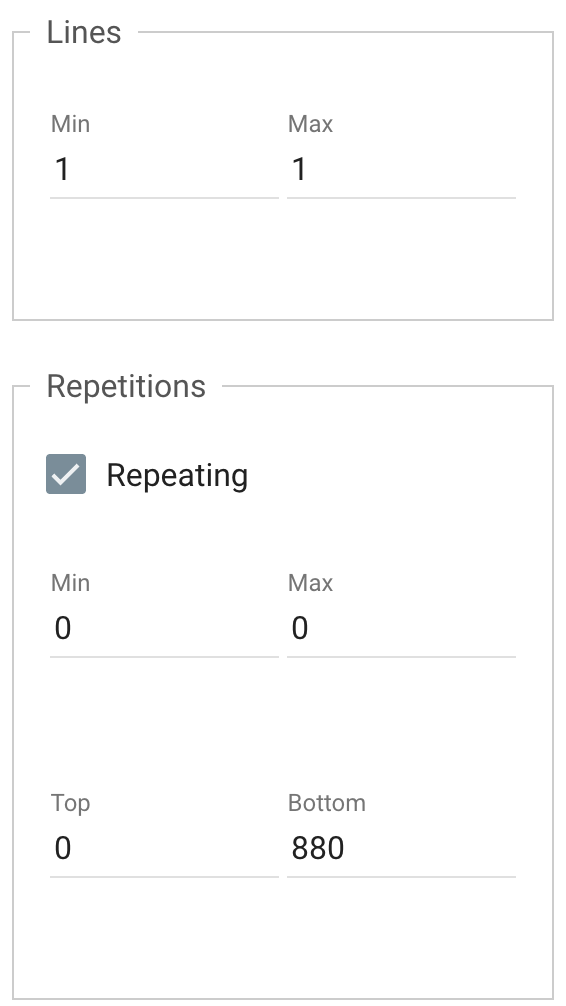
In the Limits Zone Properties panel, under Repetitions, enable Repeating.
-
Click the Crosshair (
-
Click Save (
Configuring Additional Zones
Additional zones are going to be based on the directional zone created. Additional zones can be of any type, will have the directional zone as the parent, and will repeat as often as the directional zone repeats. This is why it is important that your directional zone has an entry for every row in the table.
-
Create a New Zone.
-
Give your zone a Name and select the appropriate zone Type.
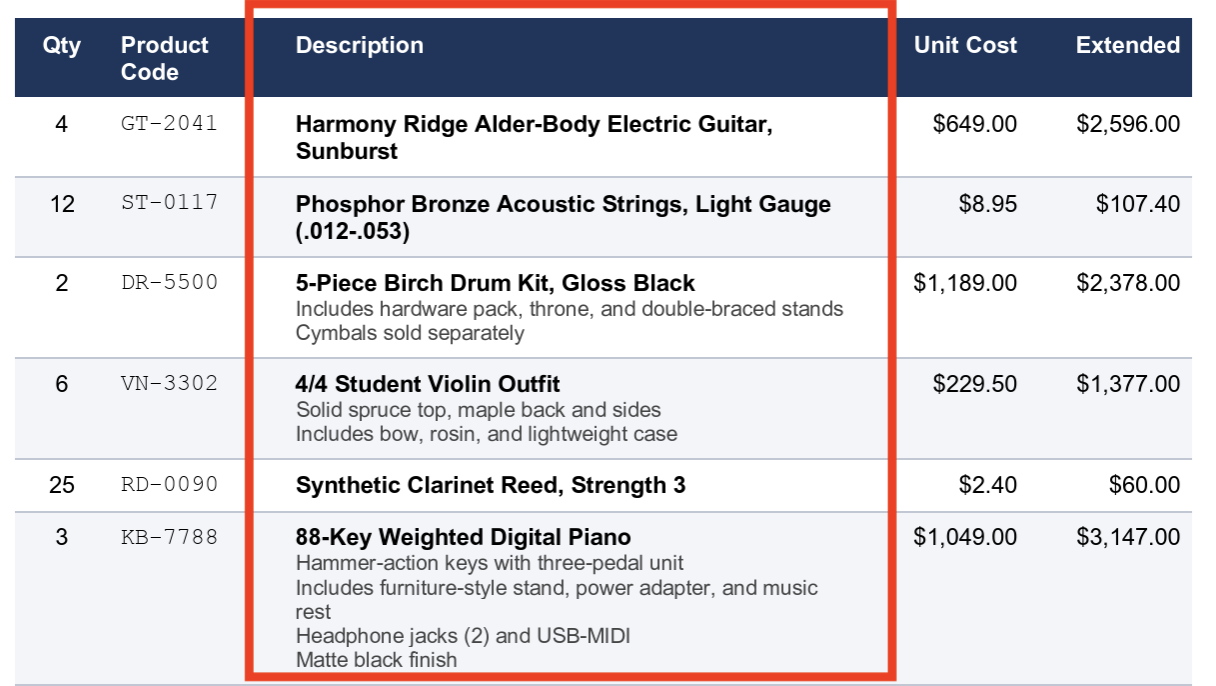
For values where the number of lines will vary such as in a description below, use a Positional type zone and Dynamic Line Extraction.
-
Assign the Repeating Directional zone as the Parent of this zone.
-
In the Field Zone Properties panel, set the Field value to the name of the GlobalCapture Process Field that is part of the table assigned in the Header Zone for the data being collected.
-
Optionally, assign any limits on characters, words, or lines in the Limits Zone Properties panel.
-
Click the Crosshair (
-
The size of the zone will determine the location of the data checked/collected.
-
All data within the zone will be checked/collected for each of the parent directional zone values.
-
The size of the drawn zone will remain unchanged regardless of the size of the directional zone.
-
Click Save (
Dynamic Line Extraction
Use the Dynamic Line Extraction property for variable-height line extraction. This checkbox is contextual and only appears when a Positional zone is assigned a repeating Directional zone as a parent zone. It is used most often for extracting repeating rows of table data where the number of lines of text in the row might vary (such as the description field of a line-item invoice where the text may wrap to multiple lines) and can be found in the Limits Zone Properties panel below lines.
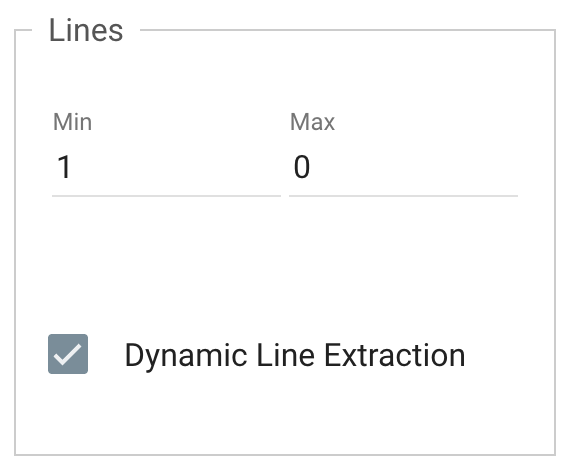
Using the Dynamic Line Extraction, Positional Zones can be of variable heights, with their Search Regions drawn dynamically based on the coordinates of their parent Directional Zones and the next repeating instance of that Directional Zone. This allows for far greater accuracy in cases where a Zone’s height or width may dynamically change based on the data in it.
-
Each repeating Positional Zone will continue to extract text until the next repeating Positional Zone is found. Since the last repeating area has no following Positional Zone, it will continue until it reaches a footer Zone, a Zone Anchor, or the end of the page. Dynamic Line Extraction is possible on multi-page documents; it simply follows the parent Directional Zone on the next page.
-
If the Positional Zone is not in the same plane as its parent Directional Zone but is instead offset by some amount, that offset continues with the following repeating Zones, for the amount set for that first offset.
Example: Extract Line-Item Data
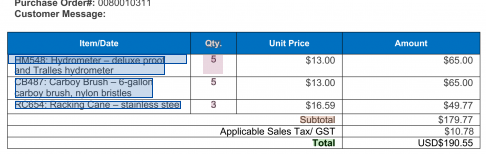
Use Dynamic Line Extraction when you wish to extract line-item data from an invoice where details may be a single or multiple lines long. Create a Zone Search Region which is one line high, for example, and extract from one, two, or more lines of text. The line extraction resizes automatically relative to other elements on the page.

Note how my search box (the long, skinny one) is only one line in height but stretches the lenght of the description box but the tempaltes reads all lines for the item.
In most cases, you should dynamically size a Positional Zone with a repeating Directional Zone parent so it's height is one pixel less than the top position of the next repeating Directional Zone. For this to work as expected, the Directional Zone's From Parent Edge property should be set to Bottom.
Footer Configuration
The footer zone tells the extraction where the data table ends. This zone should be a marker or pattern match zone that appears at the end of the table. The footer must be assigned the directional repeating zone as the parent.
Create a New Zone for the footer.
-
Give your zone a Name, assign either a Marker or Pattern Match type, and enter the Search String.
-
Assign the Repeating Directional zone as the Parent of this zone.
-
In the General Zone Properties, enable Footer.
-
In the Position Zone Properties panel, under Pages > Specific, enter parent+. This ensures the footer is checked for on each page.
-
Click the Crosshair (
-
Click Save (
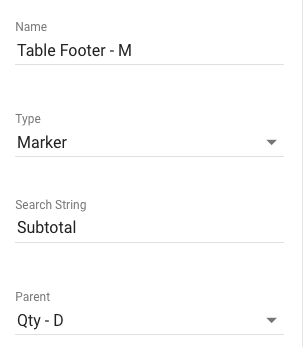
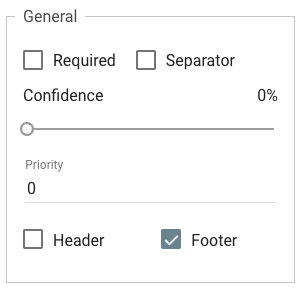
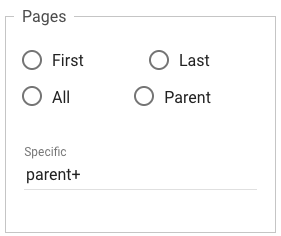
You may see a red message in the Zones pane indicated the marker was not found in the zone. This will appear if you footer is not found on each page. It the marker is found on the last page, then your template will correctly extract data.
