
In some cases, you may wish to host “data only” data sources in Square 9’s cloud. There are a number of use cases where hosting data in Square 9’s cloud is advantageous to the overall application flow.
-
You are producing structured data output (CSV, JSON) that you would like to leverage in Square 9’s hosted applications.
-
This might be in the form of a Data XChange, or an Action/Capture driven data update/look-up process.
-
-
You are averse to or unable to provide a local data source for accessibility over a CloudBridge tunnel.
-
You may not have on premise resources, or may not have an internet connection considered stable enough or fast enough.
-
Acceptable Use
-
Your use of any cloud hosted data sources is expected to be used in conjunction with Square 9’s core service offerings and is not offered as a standalone database hosting service.
-
Your cloud hosted database may host, at most, 5GB of data in total and can have a maximum of 5 tables. If you need more than 5GB of hosted data and/or more than 5 tables, additional cloud hosted database licensing is required.
-
Square 9 reserves the right to limit or otherwise throttle your read or write operations into hosted data sources. This service is offered to simplify hosting of data sources required for business processes operating within Square 9’s core application offerings.
-
You should not deploy data operations that cause excessive I/O operations.
-
Production operations should not ingest / load complete data sets more than 4 times per day.
-
Operations involving complete table scans should be avoided.
-
Cloud Hosted Datasource
-
Customers who purchase the Cloud-Hosted Datasource (CHD) feature will be provisioned a siloed cloud database and provisioned a username/password for access to it.
-
In the CHD, you will have create, read, update, and delete permissions to the data tables, but will not have privileges to create or modify any other objects of the data source.
-
You can not provision your own tables in the data source. Square 9’s cloud team will provision the requisite table(s) on request.
-
-
Cloud-Hosted Datasource provisioning includes:
-
You are, by default, provisioned a single user account for access to all data tables.
-
You may request a single user account for each distinct data table in the environment.
-
If desired, you may also request a READ ONLY user for data source access.
-
-
-
By default, only your Square 9 hosted cloud resources will have the ability to connect to any cloud data source.
-
You may request direct access from your environment to the cloud data source and may request up to five static ip address to access the data sources.
-
If you are requesting direct access, you MUST HAVE A STATIC IP ADDRESS.
-
-
A single cloud hosted database will be accessible from all requested IP addresses.
-
If you wishe to restrict data sources by IP address then multiple cloud hosted databases will need to be purchased.
-
What Can I do With GlobalData?
GlobalData provides a secure, cloud hosted datasource that can be accessed by the Square 9 suite of products. Use GlobalData to cache list data or store data from 3rd party applications that can be accessed by the GlobalSearch, GlobalCapture, and GlobalForms to perform actions such as data lookups.
Getting Started with GlobalData
Before you Begin
Before you can use GlobalData, you will need to be licensed for GlobalData and the Square 9 Support team will need to configure the necessary tables.
-
Ensure you are licensed for GlobalData.
-
Submit a Support Ticket that includes:
-
A description of how you plan to use GlobalData.
-
A detailed list of table names and columns within each table or sample of CSV file(s) that will be uploaded.
-
When deploying GlobalData we use best practices for PostgreSQL. This includes: using lowercase, descriptive naming, the use of snake_case if needed as well as avoiding the use of reserved words in the names (user, order, table, select, etc).
Support Response
Support will respond with the follwing details:
-
Name of tables and columns.
-
Any necessary connecton strings. There will be different connection strings for using your GlobalData as an Assembly Bound List and for accessing your data in GlobalCapture and GlobalAction nodes.
Uploading Data to GlobalData Via CSV
To populate your GlobalData table with data you will need to create a GlobalCapture workflow that uses the SQL node to write data to your data table.
Configuraton of SQL node for CSV Import
-
Add a Process Field to your workflow to store returned data from the SQL node.
-
Configure the SQL node to add the data to the GlobalData table.
-
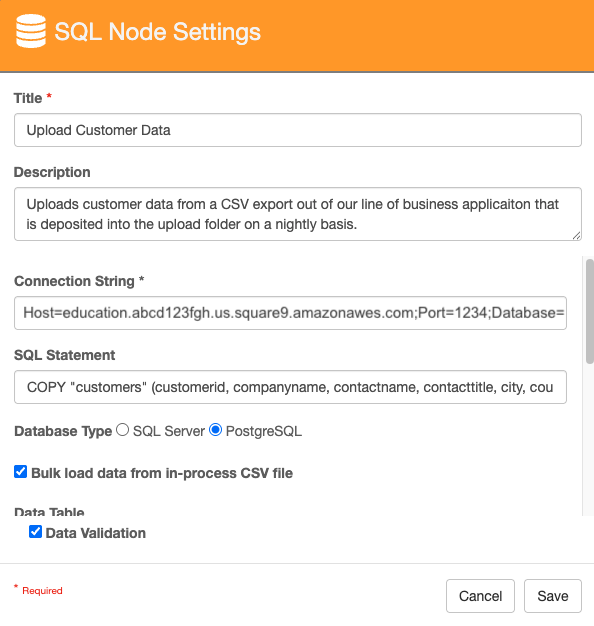
Give your node a Title and Description.
-
For Connection String, use the connection string for nodes provided by Square 9 support.
-
In the SQL Statement, enter a valid PostgreSQL statement.
-
COPY "customers" (customerid, companyname, contactname, contacttitle, city, country) FROM STDIN WITH (FORMAT csv, DELIMITER ',', HEADER);
In the above PostgreSQL script, the data from the CSV will be copied to the customers table. The data in the first column of the CSV file will be added to the customerid column in the table, the second column to the companyname column and so on. FORMAT csv speciifies the input file format, DELIMITER ',' specifices the character that separates each column, and HEADER tells PostgreSQL to ignore the first line of data because they are column headers.
d. Select PostgreSQL for Database Type.
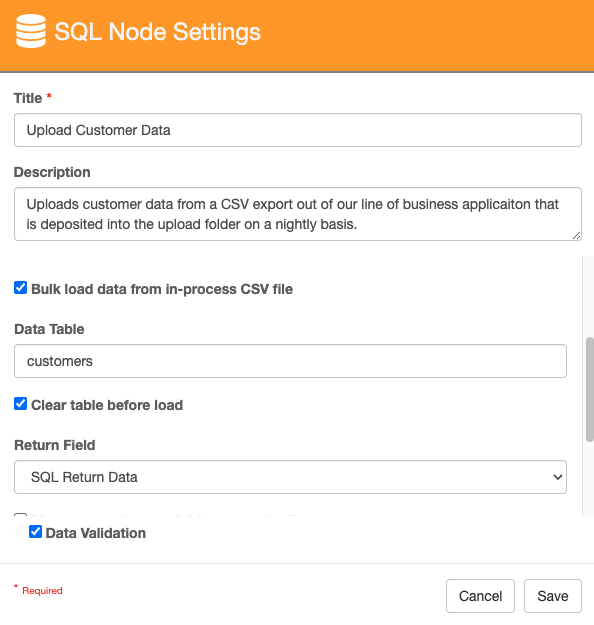
e. Enable Bulk load data from in-process CSV file.
f. Enter the name of the SQL table in Data Table.
g. Enabling Clear table before load will remove all data in the table and replace it with the data in the CSV file. Leaving it disabled will append the data in the CSV file to the current data in the table.
h. A Return Field is required for CSV uploads. Use a Process Field to store this data. This will be the number of rows written to the table.
i. Click Save.
-
Configure a process to handle the ingested file when the query is successful.
-
Example: If you don’t need the CSV file after the data is uploaded, you may delete the file before ending the successful process.
-
-
Configure a process to handle the ingested file when the query is not successful.
-
Example: If the upload fails, you may want to notify someone via Email that the upload has failed before holding the document in Validation for someone to take action on.
-
Simple CSV Upload Workflow
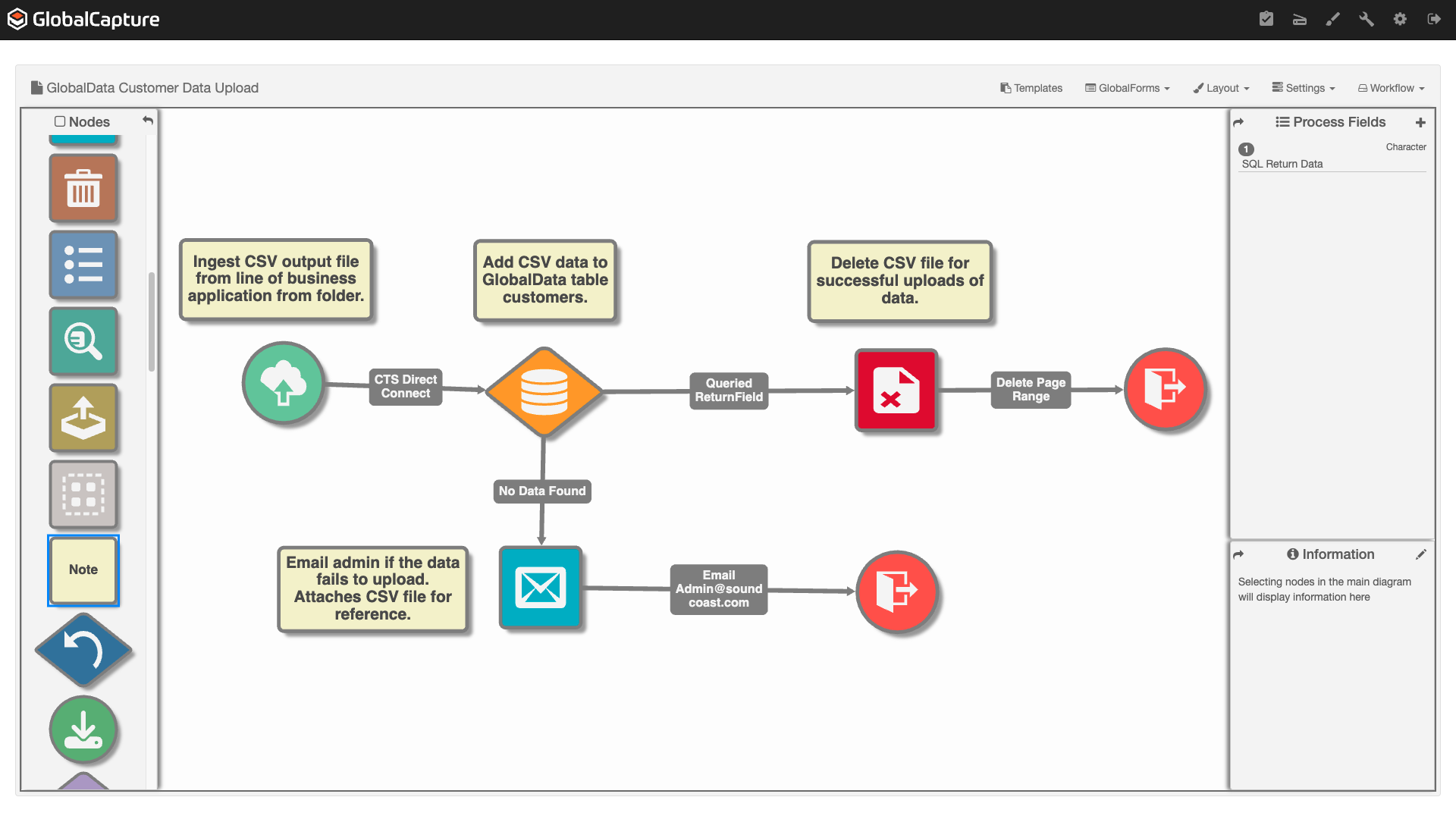
In this workflow, a CSV file is ingested from a local folder using CTS DirectConect (Legacy version here), the data is uploaded to the customers table in GlobalData. If the upload is successful, the CSV file is deleted and the process is ended. If the upload is unsuccessful, an email is generated with the CSV file attached to notify an administrator of the failed upload.
Creating an Assembly Bound List (ABL) with GlobalData
This process is the same for GlobalSearch and GlobalCapture.
Assembly Bound Lists are useful for pulling list data for a GlobalSearch/GlobalCapture field from a data table. As the data table gets updated, the list in GlobalSearch/GlobalCapture is updated. This is very useful for things like Vendor Names or GL Codes from accounting systems.
-
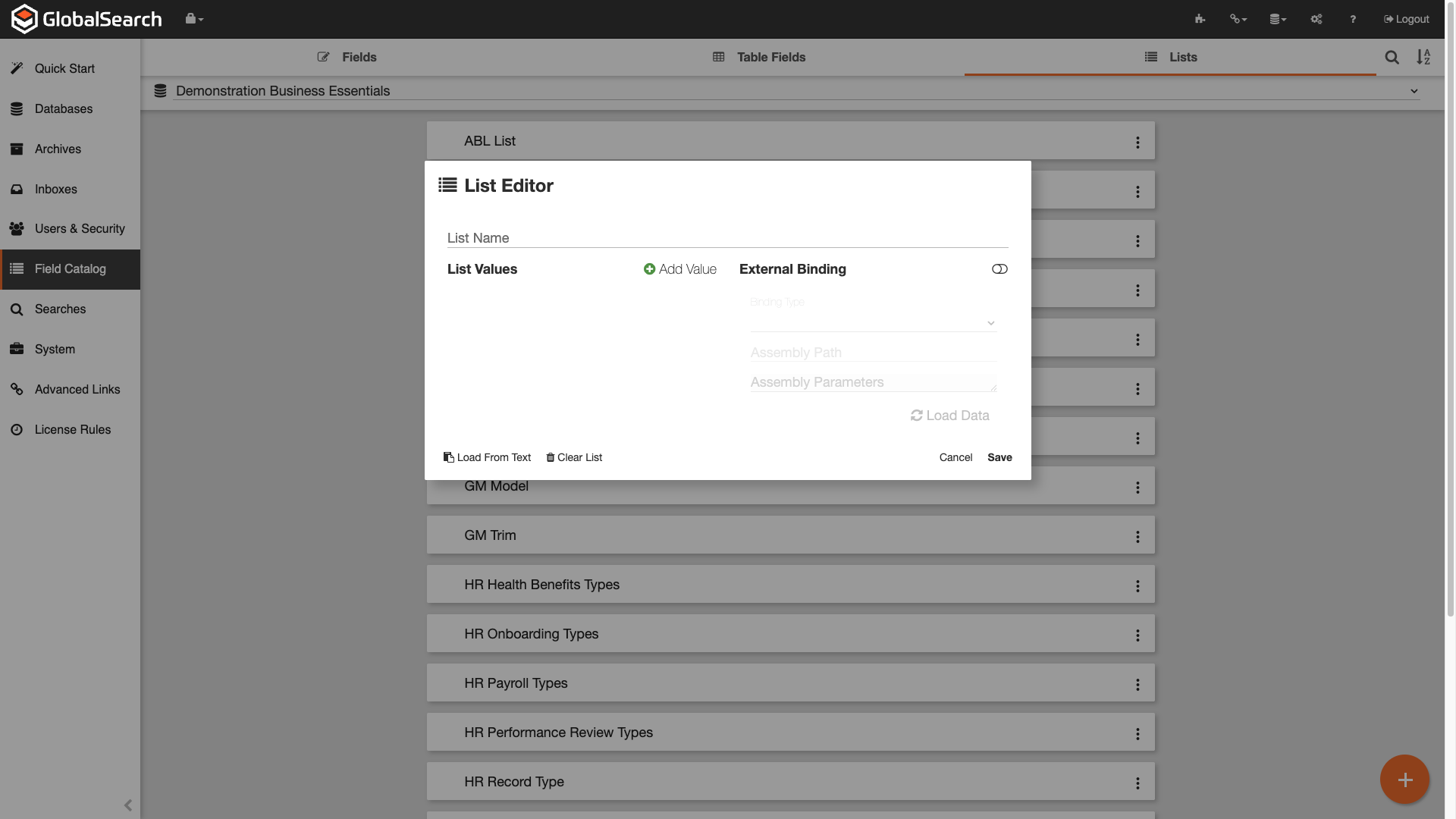
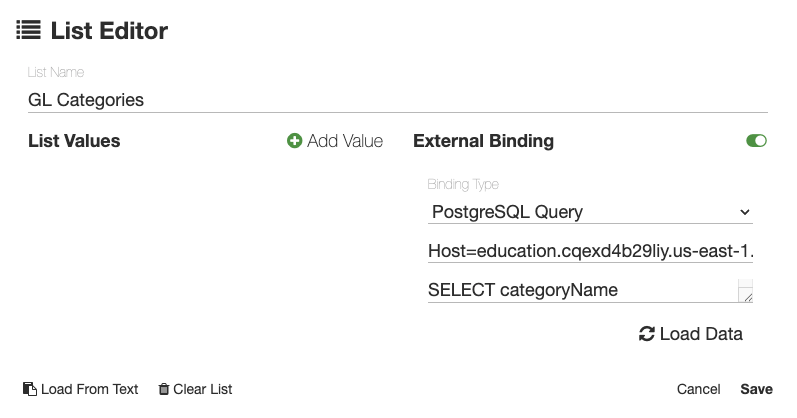
Navigation to the GlobalSearch/GlobalCapture Field Catalog and click the Lists tab.
-
Click the Orange + (

-
Provide a List Name.
-
Enable External Binding.
-
From the Binding Type dropdown, select PostgreSQL Query.
-
Add the connection string for ABL’s provided by support to PostgreSQL Connection String.
-
Enter a PostgreSQL Query that returns the desired data.
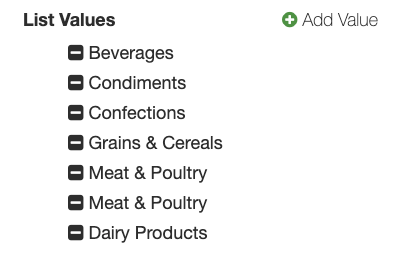
SELECT CategoryName
FROM Categories;
This pulls all the values from the CategoryName column in the Categories table. Duplicate data will appear multiple times and the data will appear in the same order it is presented in the table.
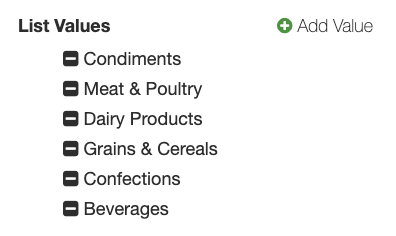
SELECT DISTINCT CategoryName
FROM Categories;
This pulls only distinct values from the CategoryName column in the Categories table. The data will appear in the same order it is presented in the table.
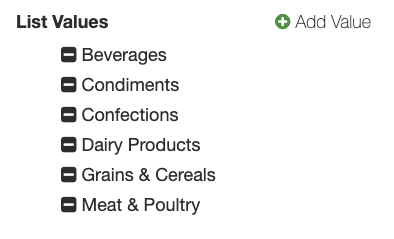
SELECT DISTINCT CategoryName
FROM Categories
WHERE CategoryName IS NOT NULL
ORDER BY CategoryName;
This pulls only distinct values from the CategoryName column in the Categories table, ignores null values, and orders the list alphabetically.
-
Click Load Data. If you connection string and query are valid, the data will populate the list values.
-
Click Save.
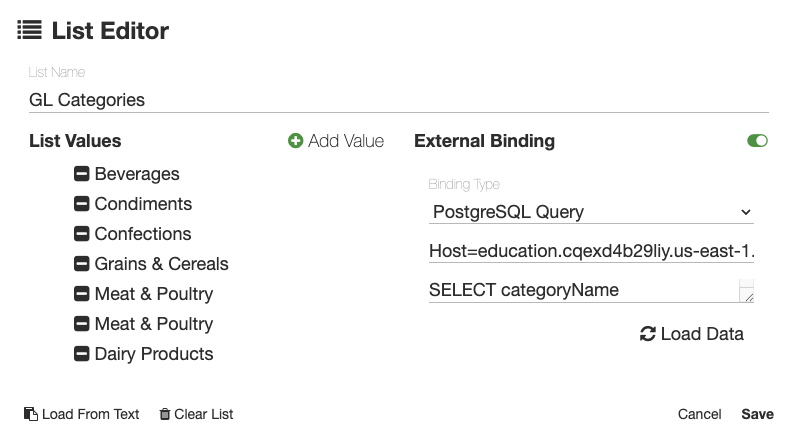
You can now use this list in an index field.
This list updates automatically. When you add or remove data from the GlobalData source from which this list is being pulled, the list in GlobalSearch/GlobalCapture will be automatically updated. You do NOT need to come back into Lists to update the list.
Using GlobalData for a Data Lookup
Data uploaded to a GlobalData table can be used for a data lookup for a document in a workflow. You can use a tool like InquireAI or Tempaltes to extract data from a document and then use that extracted data to retreive know data from the GlobalData source. You might extract a phone number from a document and then use that unique value to return the name, address, email, etc. associated with that phone number to add to the index data for that document.
Configuraiton of SQL node for Data Lookup
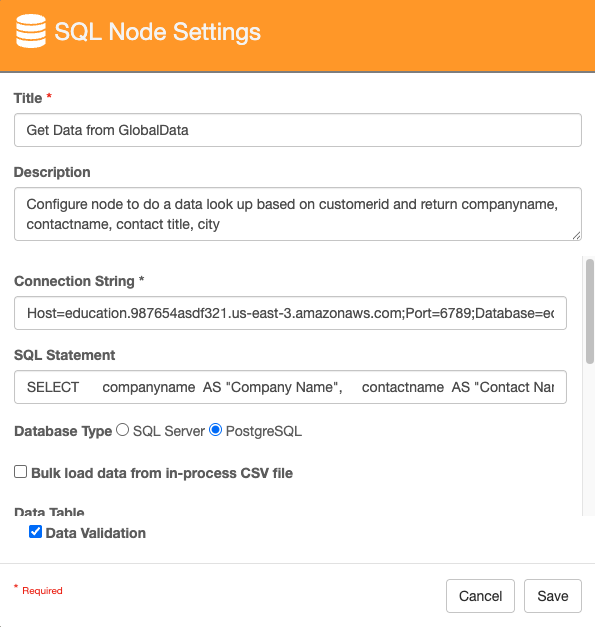
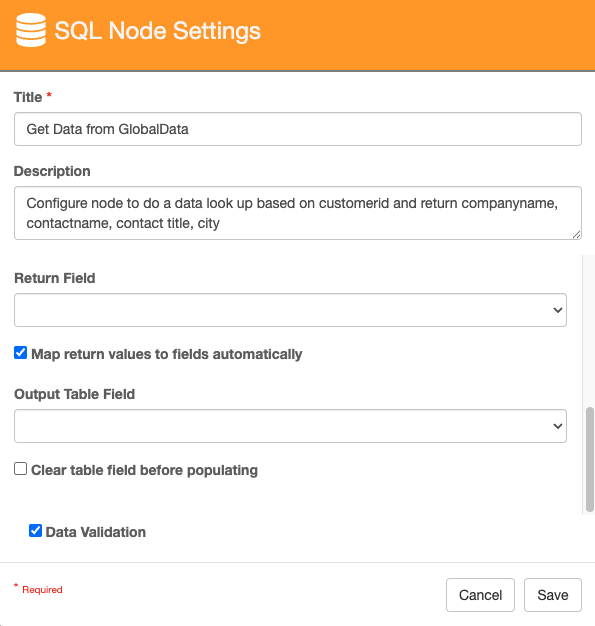
-
Configure the SQL node to add the data to the GlobalData table.
-
Give your node a Title.
-
For Connection String, use the connection string for nodes provided by Square 9 support.
-
In the SQL Statement, enter a valid PostgreSQL statement.
-
SELECT column2  AS "Process Field 2",
column3 AS "Process Field 3",
FROM tablename
WHERE column1 ='{p_Process Field 1}';
In the above PostgreSQL script, we are selecting fields from tablename (line 3). If the column names in the GlobalData table are not identical to the GlobalCapture Fields, we will need to Cast the GlobalData field to the proper GlobalCapture process field (lines 1 and 2). Finaly, the last line (line 4) uses the data in the process field Process Field 1 for the column1 GlobalData table field.
d. Select PostgreSQL for Database Type.
e. Enable Map return values to fields autmatically.
f. Click Save.
Data Lookup Workflow
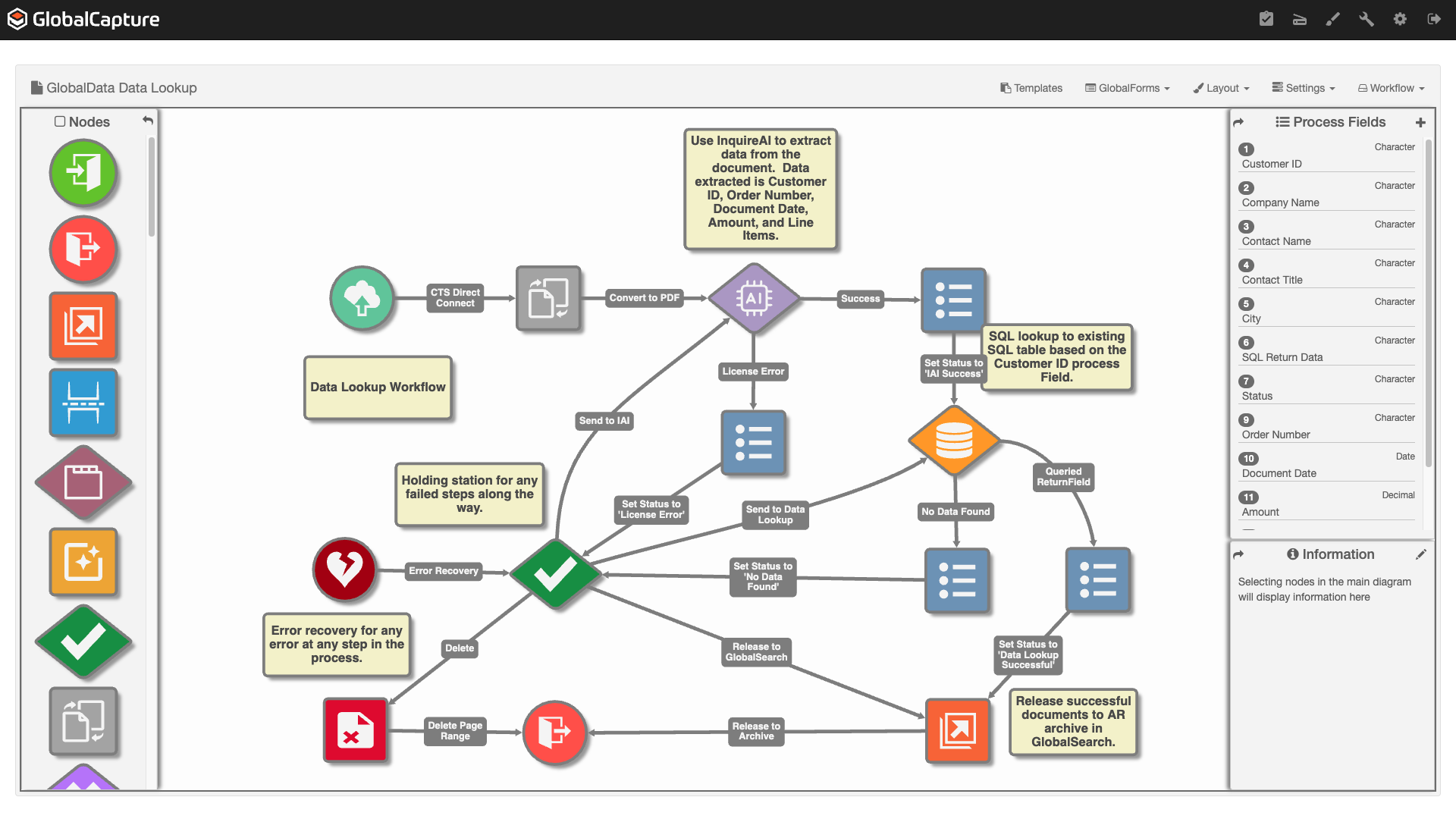
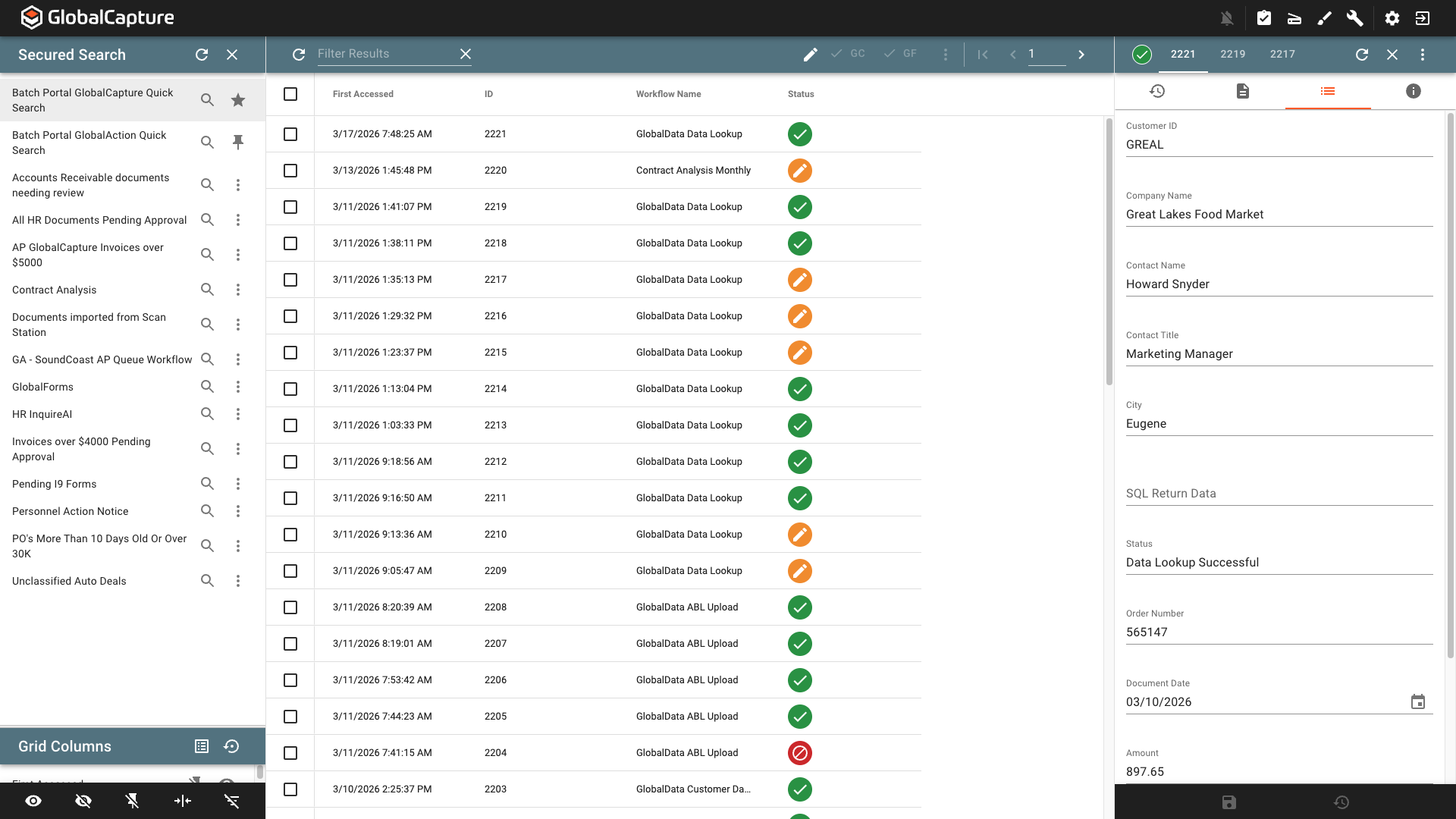
In this workflow, an order is picked up from a local folder using CTS DirectConect (Legacy version here), converted to a PDF and processed by InquireAI to extract relevant header and line item data. One piece of data extracted from the document is the Customer ID. This is then used in the SQL node to do a data lookup to a GlobalData table that contains the relevant customer information such as Contact Name, Company Name, Contant Title, and City. Successfully processed documents are released to GlobalSearch. Errored processes and documents that fail data extraction or data lookup are routed to Validation where intervetion can restart the process with data extraction, data look up, release the document to GlobalSearch, or delete the document from the process.
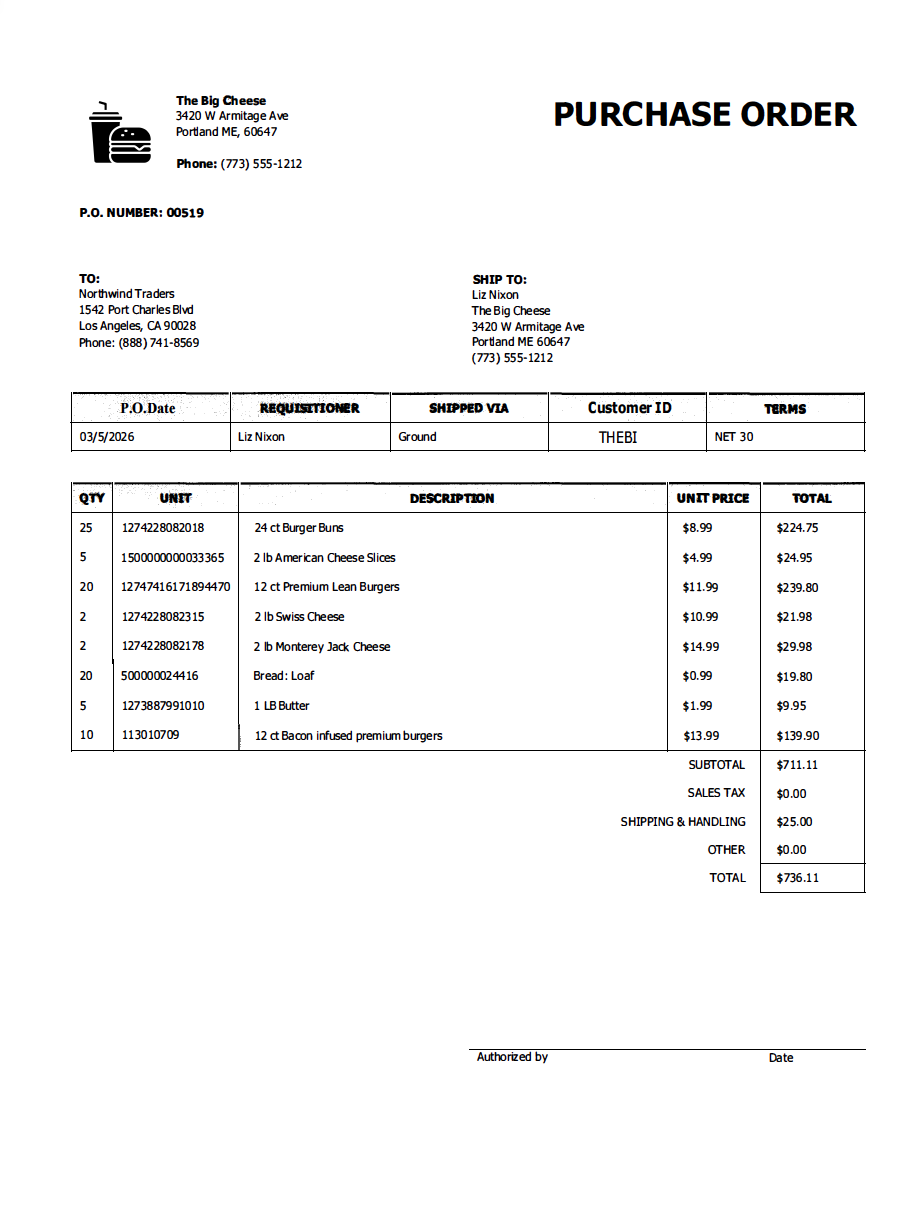
InquireAI Prompt Used:
You are a knowledge worker tasked with understanding purchase orders and sales orders. Carefully read the PDF file and extract header fields that will aid in management of these document types. Extract the following fields:
Customer ID
Order Number
Order Date
Amount
AR Record Type
The following are line item fields:
Item Description
Quantity
Item Number
Description
Unit Cost
Extended Amount
Order Number represents a value that normally has a key or order, order number, po number, or sales order number. Sometimes the value is a derivative of those keys.
Order date represents the date the order was placed. Orders may sometimes be placed by non-us entities, and in those cases, dates may be presented in non-us formats. Always assume dates are to be normalized as US date formats unless there is reasonable suspicion the document originated from a non-us entity. This value should be paired with the Document Date as its key.
Amount is the total amount of the order. If no total amount is found, the amount may be calculated by summing all the amount values of any lines with dollar amounts in a table.
AP Record Type is the type of document: It can only be: Order, Payment, Invoice, or Delivery Receipt. If it is not one of those, leave it blank.
Extract line items for the following fields:
Item Number is a value that represent a unique identifier of an item.
Description is a brier description of the item.
Quantity is a numeric only value indicating the number of items ordered or purchased.
Unit Cost is the dollar amount of a single item
Extended Amount is a dollar amount that is generally specifically expressed, but is a calculation of the quantity multiplied by the unit price.