
Beginning September 30th, 2024, Google will deprecate less secure authentication methods for Workspace accounts. This will impact email imports for some GlobalCapture customers. If you are a Google Workspace customer for email, any email import tasks will need to use the Gmail Import Node.

The Gmail Import node allows you to monitor a Gmail address for incoming documents. Imported emails can have the message and attachments separated, ingested messages can be deleted from the inbox, and attachments can be filtered.

Setup
-
Follow the Google Cloud setup instructions BEFORE attempting to configure the GMail Import node.
-
Add the GMail Import node to your capture environment if it’s not already available from the Square 9 SDN Nodes.
-
Add the GMail Import node to a new or existing workflow.
-
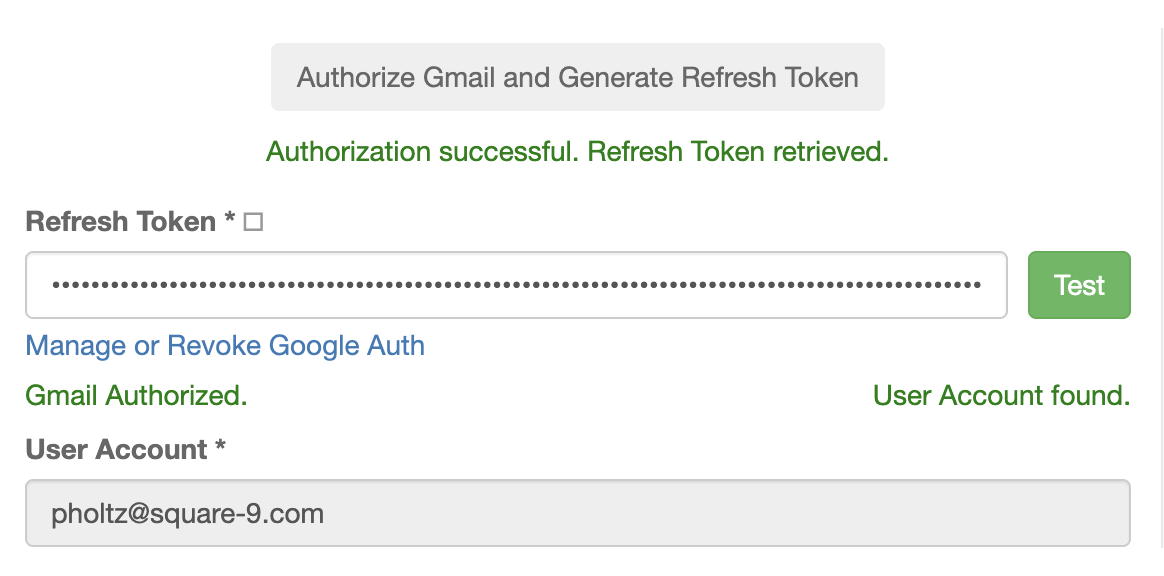
Add the Client ID and Client Secret to the node and click Authorize Gmail and Generate Refresh Token.
-
Upon successful authorization, the Refresh Token and User Account will be populated.
-
Configure any additonal properties as needed and click Save.
Node Properties
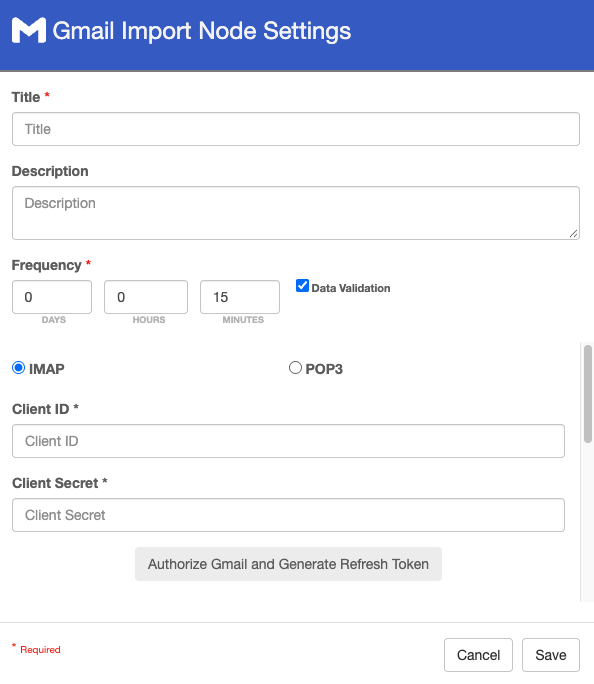
Title
Add a title for this node. Titles are useful when reading the history in the history of a workflow for easier understanding of the overall process.
Description
Provide a synopsis of what this node is doing, or make note of any important details. This is useful for providing additional information such as workflow details and use case information. A good description is helpful when returning to modify the workflow in the future.
Frequency
Includes settings for Days, Hours and Minutes. By default, this is set to 15 minutes. Setting the frequency is important for how often you’d like for this to execute. For example, if there is a nightly upload we’d want this to run once every 24 hours and can set the frequency to do so.
The workflow will run with the scheduled frequency each time the workflow is saved. Ex. If you set the frequency to 1 hour and save the workflow at 2:42 pm, it will run immediately on save and then again at 3:42 pm and so one. If you were to modify the workflow at 3:15 pm and save, it would run immediately and then again at 4:15.
The Data Validation checkbox is enabled by default to enforce Data Types or Length settings for Fields. When enabled, if data does not meet the type or length settings for the field, the process will error on this node.
IMAP/POP3
Select the appropropriate mail type based on your Gmail configruation.
IMAP is more widely used for Gmail.
Client ID & Client Secret
Provide the Client ID and Client Secret from the Setup above and click Authorize Gmail and Generate Refresh Token. You will be prompted to authenticate. You need to authenticate as the mailbox user from which you intend to have capture import.
Refresh Token
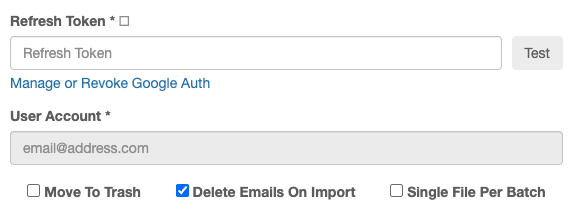
This is a long-lasting security credential that allows the application to request new access tokens from Google without requiring the user to log in and re-grant permission every time. This is automaticlaly populated when authorized and should not be edited.
Manage or Revoke Google Auth
Click the link to be taken to your Google Account Linked apps where you can manage data sharing and discovery.
User Account
The email address of the account to monitor. This is automatically populated when authorized and cannot be manually changed.
Move to Trash
After the message is imported, it is moved to the Trash folder where Gmail trash folder rules apply.
This option is only available for IMAP configurations.
Delete Emails On Import
Deletes emails from the inbox after import and applies Google rules for deleted messages.
If you are not in testing mode, you will likely wish to enable “Delete Emails On Import”.
Single File Per Batch
When enabled, each email is ingested into GlobalCapture with a unique Batch ID.
Separate Message and Attachments
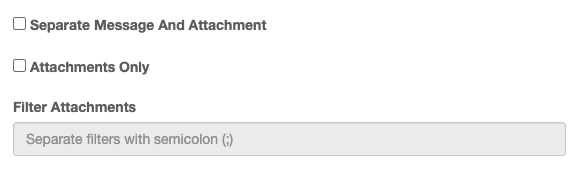
Separates the body of the email from the attachments and imports each as it’s own unique record.
Attachments Only
Separates the body fo the email from the attachments. The body of the email is ignored and only the attachments are imported.
Filter Attachments
This is only enabled when Attachments Only is selected.
-
When blank, ALL file types will be imported.
-
To filter attachments, enter the extension of the file type(s) to import separated by a semicolon(;). ONLY file types with the extension(s) listed in the Filter Attachments box will be imported.