
Translate your forms so users can fill them in in their own language. Translations are shared across forms: translate a label once, and every form that uses the same label shows the translation.
Before you translate
-
Finish and test the form first. If you change a component's label after translating it, that component's translations are discarded. Other forms keep theirs.
-
Translations are matched by label text, not by form. Changing a translation affects every form with that label.
Add translations
Translations are entered in the built-in Form Translation form. It may be hidden from the forms list.
-
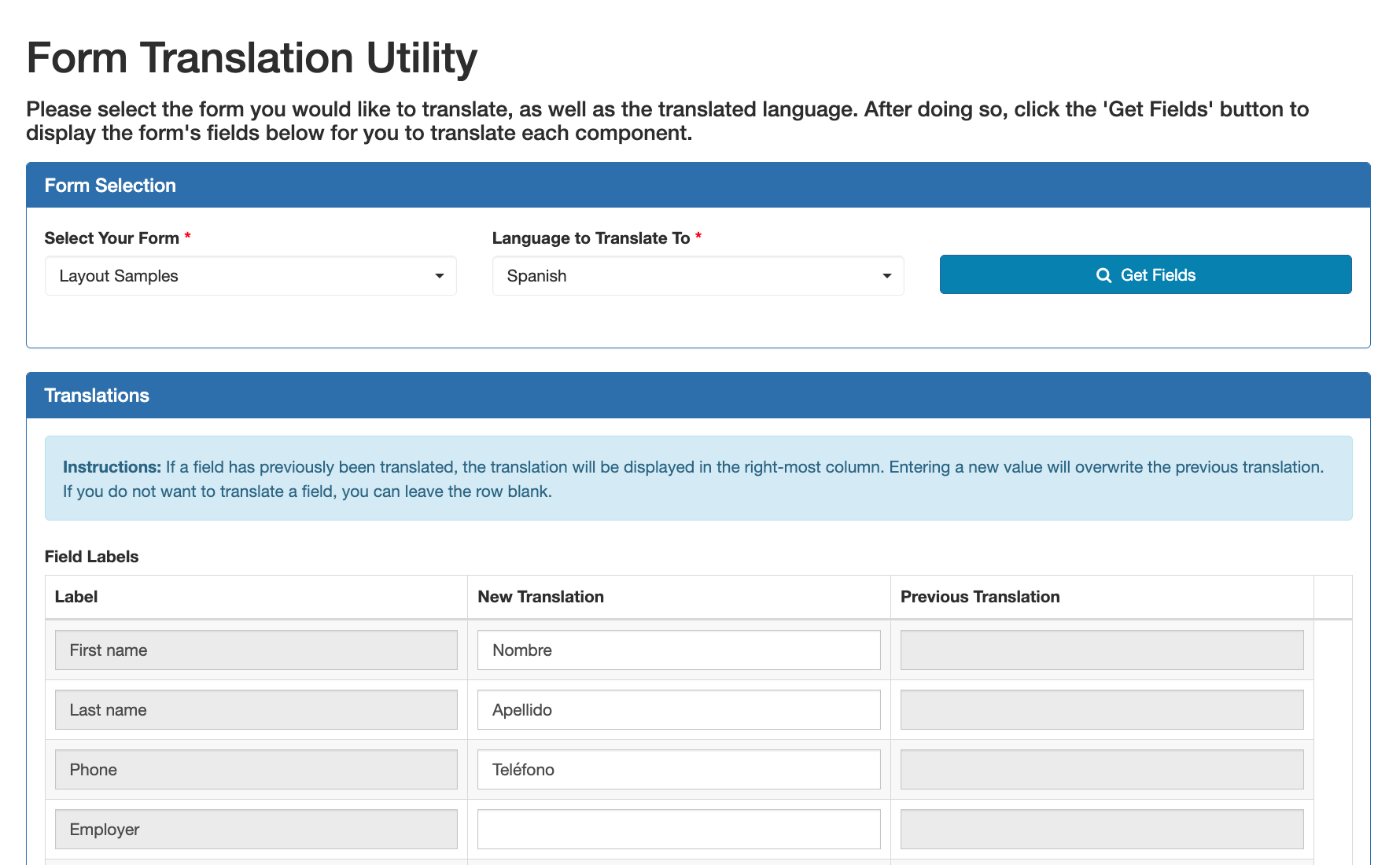
Open the Form Translation form in View mode. Do not edit this form in the form builder.
-
Select the form to translate and the language.
-
Select Get Fields. The form's components load, with any existing translations shown under Previous Translation.
-
Enter translations in New Translation:
-
Standard components: translate the label.
-
HTML Element components: translate the content.
-
-
Select Save Translation.
What users see
Users choose their language from the Language drop-down in the GlobalForms header bar, and the form updates immediately. The languages offered are English, French, Romanian, Spanish, Portuguese, Italian, German and Dutch. Components without a translation in that language keep their original text.
PDF snapshots
A PDF snapshot is produced in one language. Choose it with the Language setting of the form's PDF Snapshot action. See PDF Snapshot Action.
Related pages
-
Number (number formats follow the user's locale)