
Tips for keeping a growing library of forms organized and safe to change.
Organize forms with tags
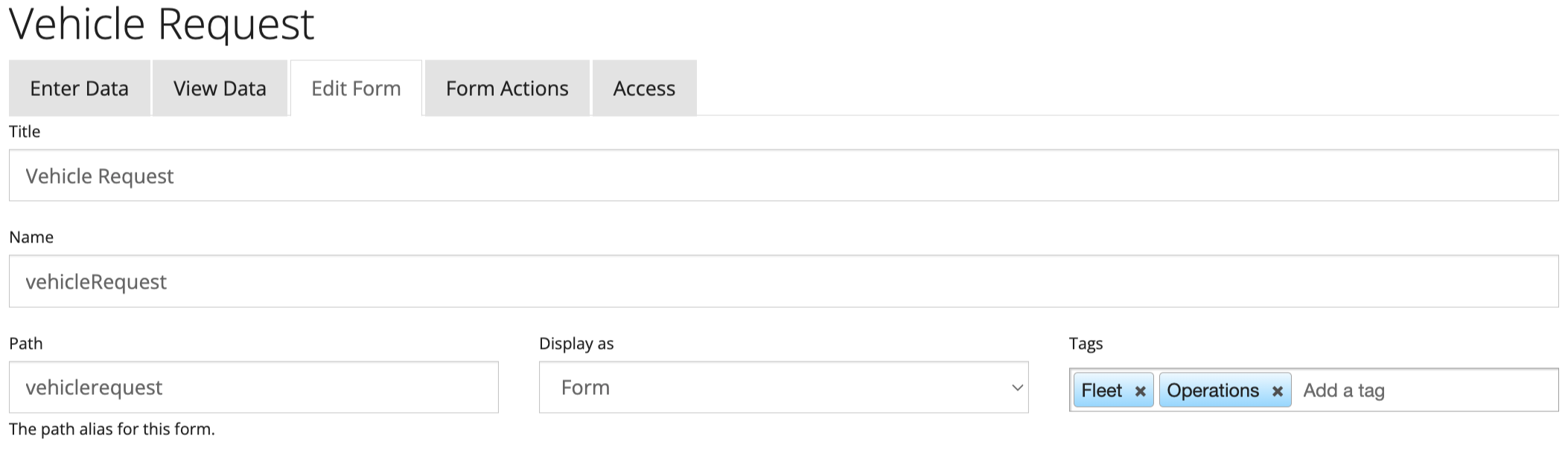
Add tags in the Tags field at the top of the form builder, for example the department (Accounting) or the process (New Hire Onboarding). On the designer home page, use the Find box and its filter selector to search by Name, Title or Tags. Filtering by tag shows all forms in a process together, and the filter stays in place when you return from editing a form.
Edit and test side by side
-
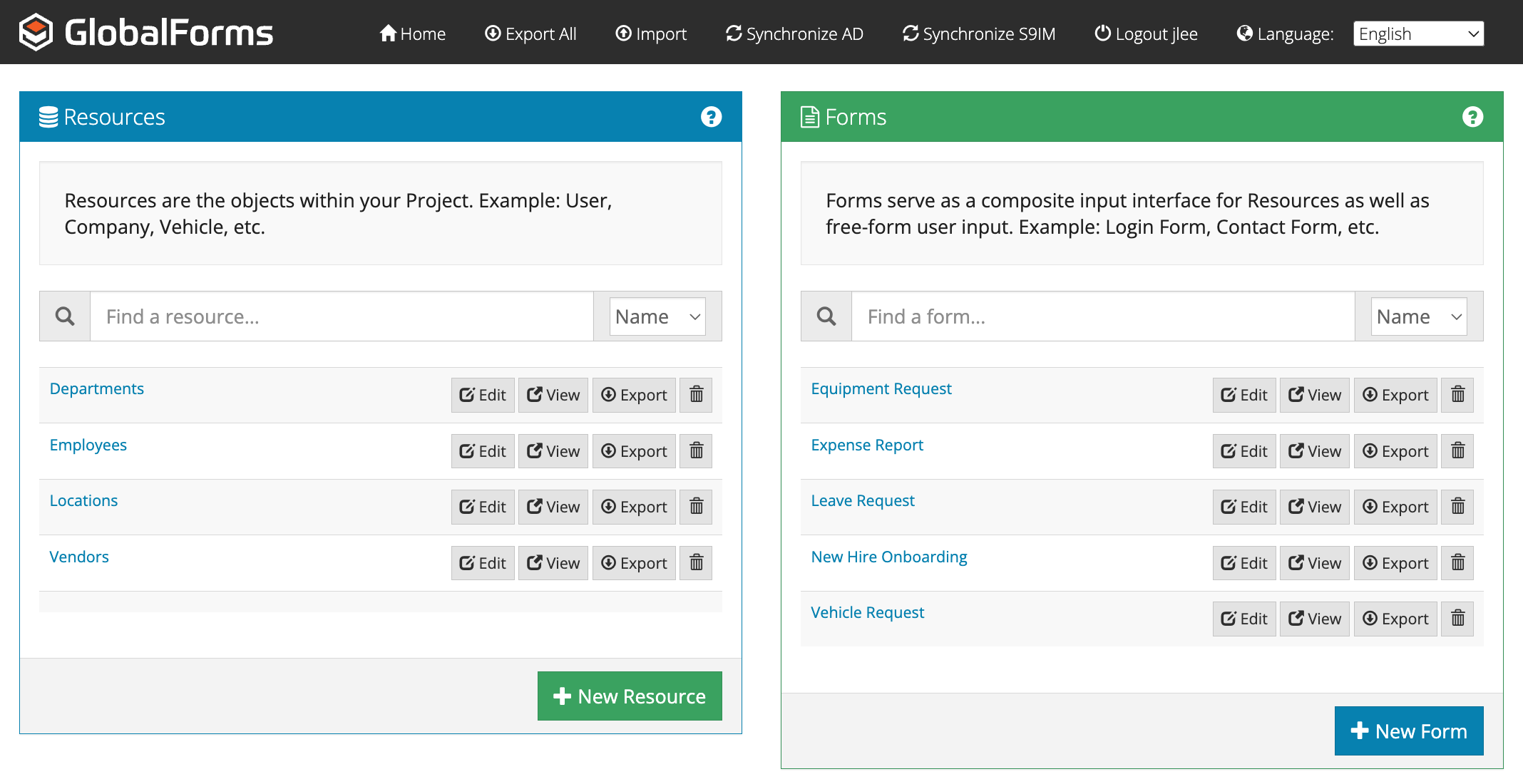
On the home page, select View on a form. It opens in a new tab.
-
Go back to the home page tab and select Edit.
-
Make changes and save, then refresh the view tab to test them.
Back up before you change a form
Select Export next to a form to download a copy, including any resources it uses. Keep exports of production forms before making changes, so you can restore the previous version by importing it. Export All in the title bar backs up every form and resource at once.
Make a copy for testing
-
Export the form.
-
Select Import in the title bar and choose the exported file.
-
In the import dialog, set the form's action to Create Copy. The copy is named "Copy Of" plus the original name.
See Exporting and Importing Forms for the other import options.