
The Toolbar contains icons that display messages, allow for quick navigation to other areas of GlobalCapture, provide access to User Settings, and Logging Out.
Toolbar Icons
The availablilty of some icons may vary depending on your permissions.
Notifications ( 
Validation ( 
Scan ( 
Designer ( 
Manage ( 
Settings ( 
Logout ( 
User Settings
User setting contains 2 tabs. One tab controls the Batch Manager view settings and the other the Language of the menus.
Batch Manager
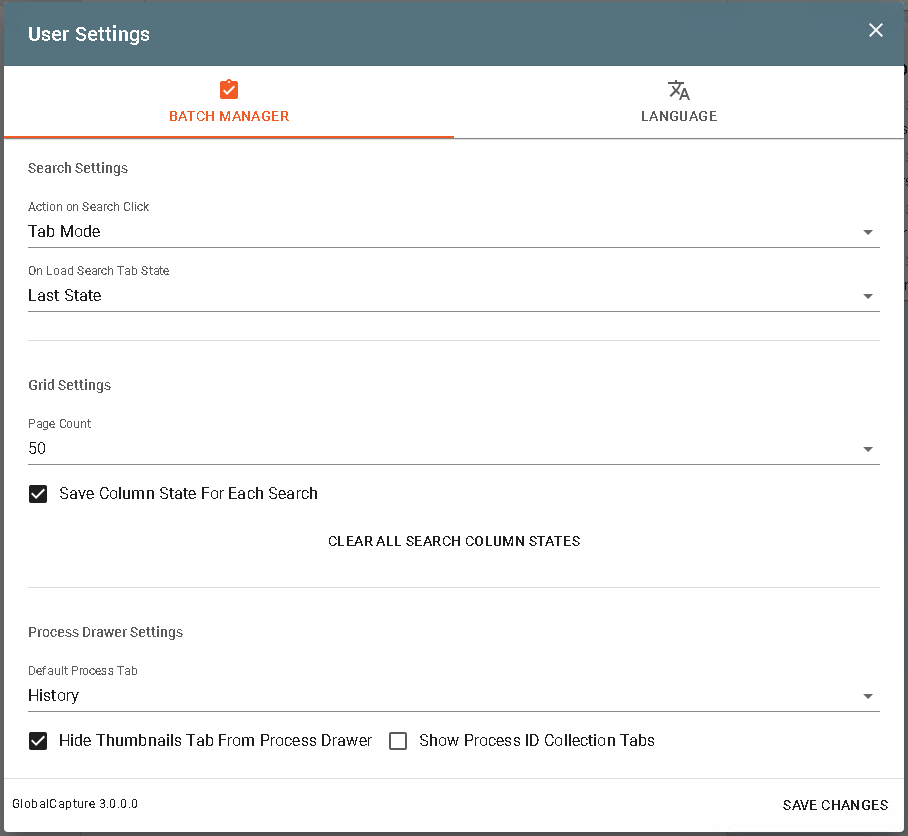
Search Settings
-
Action on Search Click
When a user selects a search from the Secured Search list, a number of options are available:-
Disabled - With this option, when a user selects a search, no changes occur.
-
Tab Mode (Default) - In this view mode, optimized for performance, the first time a user selects a search it will execute. The results are cached, so subsequent returns to that search will not incur the performance cost of running the search again. The user may click the Refresh button on the top of the search result grid to refresh the results as needed.
-
Always Run New Search - In some cases, a user may need fresh results every time a search is clicked. While this can be less performant, users who prefer this behavior can enable it here.
-
Open Search Dialog - Prompt the user for criteria any time a Search is selected.
-
-
On Load Search Tab State
Search Tabs (the Secured Search panel on the left side of the Batch Manager) can be opened or closed on demand. Options also exist for default state when a search is selected.-
Last State - Leave the panel in whatever state is was last.
-
Always Closed - Always close the panel when a search is selected.
-
Grid Settings
-
Page Count
Controls the default number of process records that will display on a single result page. -
Save Column State For Each Search
On by default. After the initial load, user's own column settings will be saved to local storage and whenever the search loads then, it will be used. -
Clear All Search Column States
Resets the search columns to the default columns configured by the GlobalCapture admin.
Process Drawer Settings
-
Default Process Tab
Set the tab that appear when the process drawer is opened.-
Last State - Remembers the last tab the user was on in the process drawer and will select that tab by default on the next process.
-
History (Default) - This option is default to be consistent with previous versions and will display the complete history of a selected process.
-
Thumbnail - Defaults to the Thumbnail tab as long as the thumbnail tab is not hidden.
-
Process Fields - Displays the list of process fields available to the user.
-
Info - A tab of processing details. Most system related properties may be found here.
-
Note that in prior versions, an administrator would have needed to map system data into process fields as part of the workflow. If the data is for informational purposes only, that mapping effort may no longer be necessary.
-
Hide Thumbnails Tab From Process Drawer
When enabled, the thumbnail tab is not visible in the process drawer. -
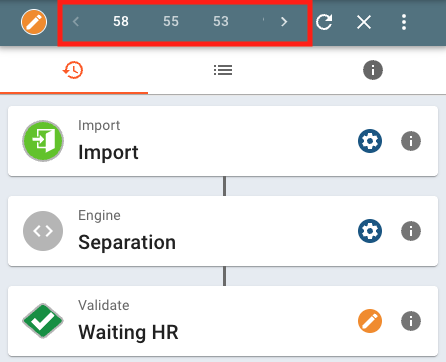
Show Process ID Collection Tabs
Displays the Process ID in the Process Drawer Tab above the tabs.
Language
Set the language for the GlobalCapture menus.
Language is only set for the GlobalCapture system menus and some system fields. Search names, process fields, process field data, etc. is not translated and will remain in the language in which it was entered.