
Control who can upload files through File components, and which file types GlobalForms accepts. These settings apply to every form on the server.
This feature requires GlobalForms version 10.14 or greater.
By default, anyone who can reach the server can upload any type of file, even without signing in. If your GlobalForms server is reachable from the internet, restrict uploads as described below.
What you can control
|
Goal |
Setting |
|---|---|
|
Accept only certain file types, such as PDF and images |
|
|
Allow only signed-in users to upload or remove files |
|
|
Turn off server file storage completely |
|
GlobalForms checks the file type before the file is saved on the server, so blocked files are never stored.
Configure file uploads
-
Add a
fileEndpointssection undersettingsinconfig\local.json:JSON{ "settings": { "fileEndpoints": { "requireAuthentication": true, "allowedFileTypes": [".pdf", ".png", ".jpg", ".jpeg", ".docx"] } } } -
Restart the GlobalForms service.
-
Test an upload on a form, both with an allowed and a blocked file type.
Settings
|
Setting |
Default |
Description |
|---|---|---|
|
|
|
A list of allowed file extensions, such as |
|
|
|
When |
|
|
|
When |
allowedFileTypes is a list, so it replaces the default as a whole. Include every extension you want to allow.
How this relates to the File component
-
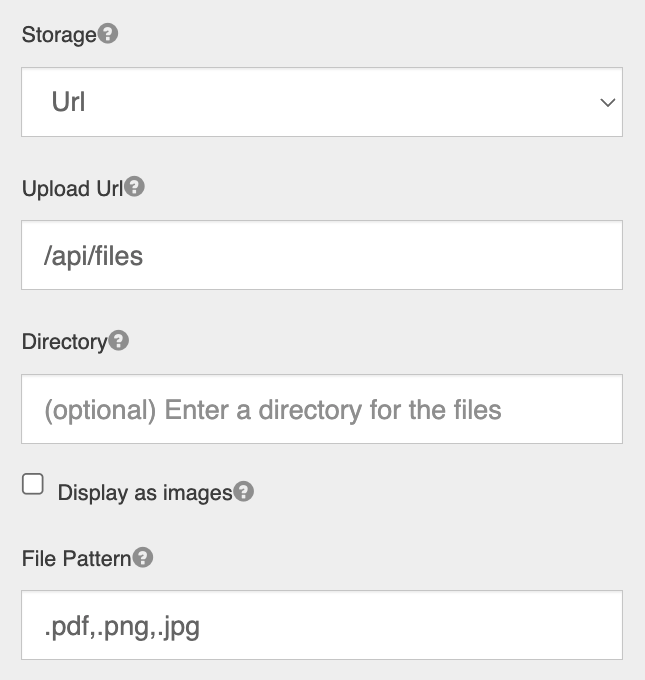
The File component's own File Pattern setting is checked in the user's browser for that one component. These server settings apply to every upload, whatever the form says. Use both: File Pattern for a helpful message on the form, and
allowedFileTypesas the enforced limit. -
These settings apply only to File components with Storage set to Url (
/api/files), the recommended setting. A File component set to Base64 stores the file inside the submission and bypasses them.
Things to consider
-
Public forms: with
requireAuthenticationset totrue, people who are not signed in cannot attach files. Leave itfalseif anonymous users must upload files to public forms, and useallowedFileTypesto limit what they can send. -
Turning off storage: with
enabledset tofalse, File components that store files on the GlobalForms server stop working, and files that were already uploaded can no longer be opened from submissions. -
Correct server address: the link saved with each uploaded file includes the server address users used. Make sure
domainand the address users use are the same and stable. See Configuration Files.
What users see
When an upload is blocked, the File component shows an error in place of the file:
|
Message |
Reason |
|---|---|
|
|
The file's extension is not in |
|
|
|
|
|
|
|
|
The file doesn't match the component's File Pattern (checked in the browser). |
Troubleshooting
|
Symptom |
Cause and fix |
|---|---|
|
A file type you allowed is still blocked |
Check the exact extension of the file, for example |
|
Anonymous users can't upload on a public form |
|
|
Uploaded file links point to the wrong address |
Update |