
GlobalForms user accounts let people sign in to fill in secured forms, save and resume their work, and review submissions. This page explains where user accounts come from and how they sign in.
Where user accounts come from
|
Source |
How users are added |
How they sign in |
|---|---|---|
|
GlobalCapture |
Users created in GlobalCapture User Management are added to GlobalForms automatically when GlobalForms is connected to GlobalCapture. |
GlobalCapture user name and password |
|
Active Directory |
Synchronized from your domain. See Active Directory Synchronization. |
|
|
Square 9 Identity Manager |
Synchronized from S9IM. See S9IM Synchronization. |
S9IM user name and password |
|
Self-service |
People create their own account using a sign-up form. See Self Service User Accounts. |
The email and password they chose |
|
Single sign-on |
Not a source of accounts. Single sign-on signs in existing users whose email matches. See Single Sign-On with OpenID Connect. |
Your identity provider |
The root administrator account, gfadmin, is created when GlobalForms is installed.
Add a user in GlobalCapture
-
Sign in to GlobalCapture as an administrator, for example at
http://<server>/square9captureweb/index.html. -
Select Manage, then Users.
-
Select the + button at the bottom right of the user list.
-
Enter the user's details and select Save.
The user can now sign in to GlobalForms.
Control what users can do
What a user can see and do depends on their roles:
-
Every signed-in user has the Authenticated role.
-
Users synchronized from Active Directory or S9IM also get a role for each of their groups.
-
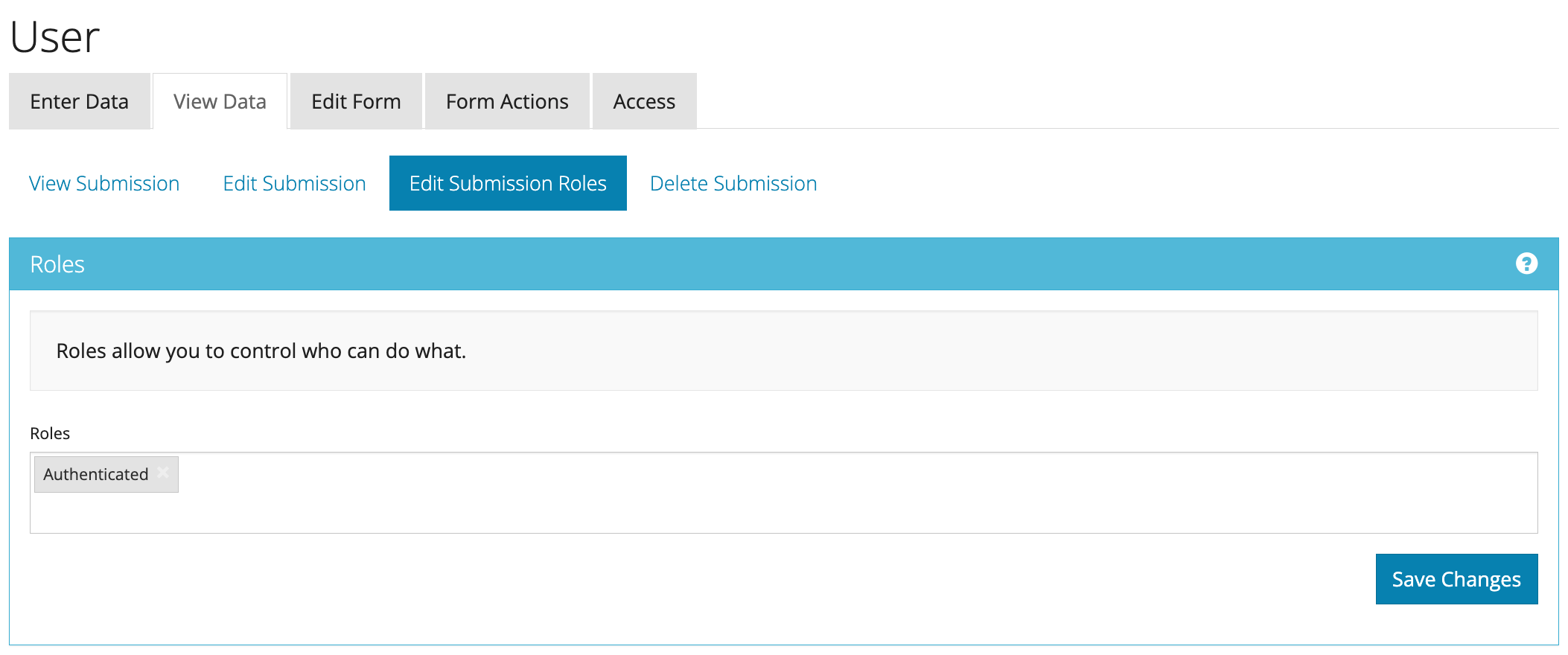
Administrators can give any user more roles, new or existing: open the user in the User resource and select Edit Submission Roles. Roles themselves are created with the Create Role form. See Roles.
-
Each form's settings decide which roles can open the form and work with its submissions.
See Roles and User Permissions.