Nodes are an integral part of Square 9's Solution Delivery Network and an ideal means for expanding the capture ecosystem. A number of nodes are available for immediate download and used to extend GlobalCapture core functionality.
While all nodes are free to download and many require no additional licensing, some nodes do require additional licensing or other software solutions. Please reach out to your Square 9 representative or email info@square-9.com for more information.
Navigating to the Downloadable Nodes
To access the Nodes gallery in the Solutions Delivery Network, you will to be a GlobalCapture Administrator.
-
Login to GlobalCapture as an administrator and select the Manage (

-
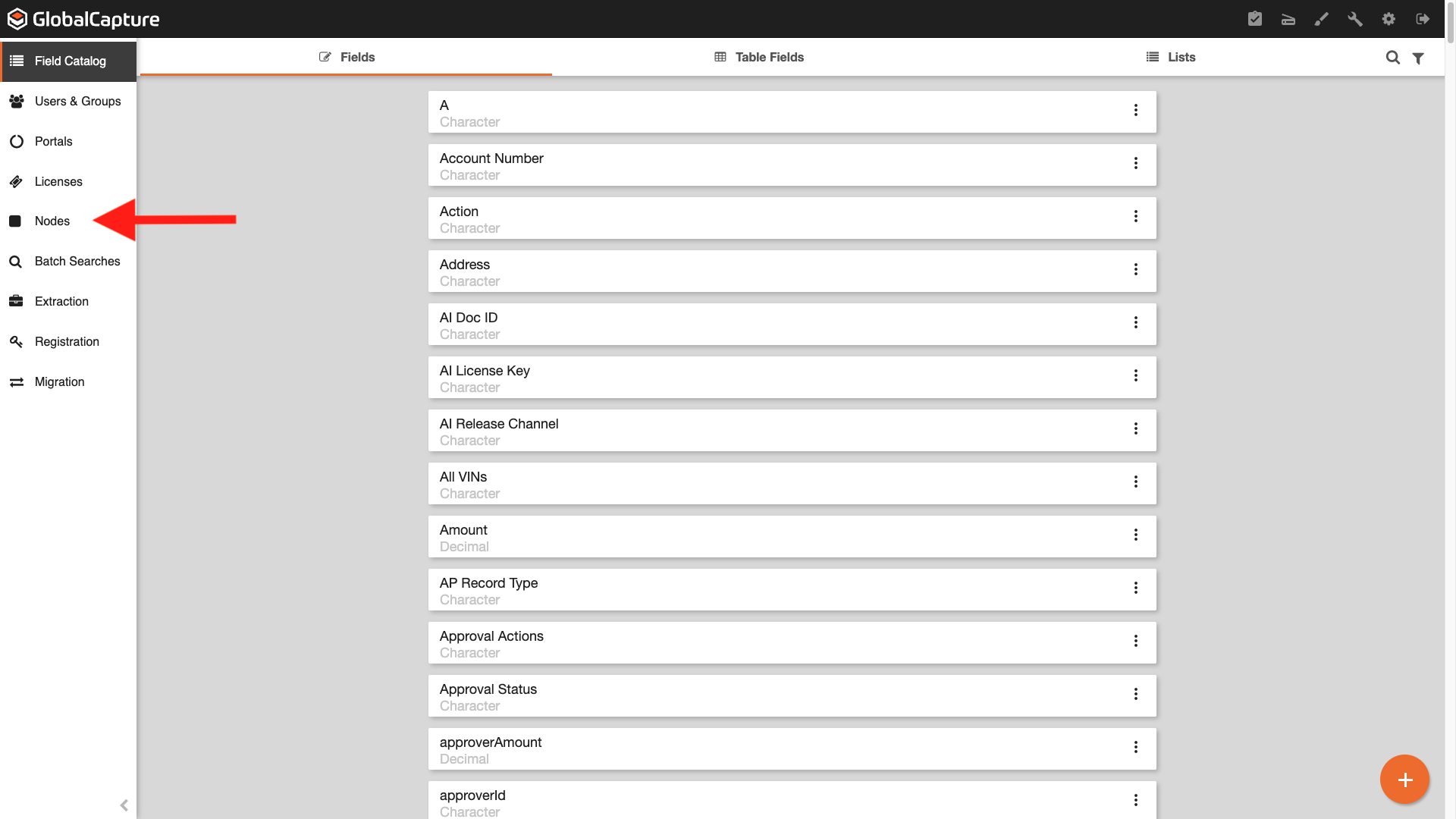
From the left side panel, select Nodes (

-
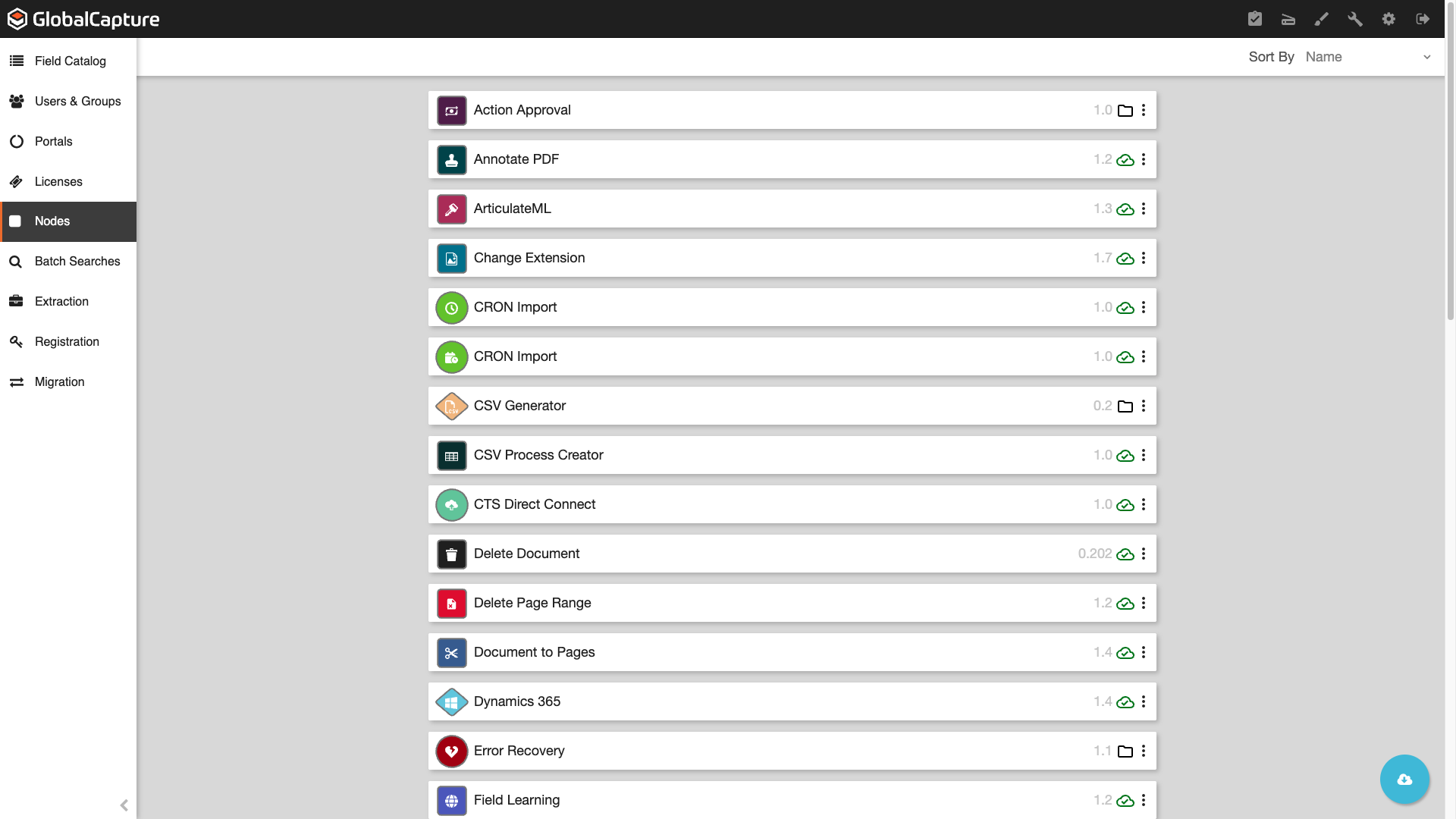
A list of all currently downloaded nodes is shown in the nodes gallery along with the version of the node currently in your GlobalCapture instance.
Downloading Nodes
To download a node from the Solutions Delivery Network:
-
Click the Download from Square 9 SDN (
-
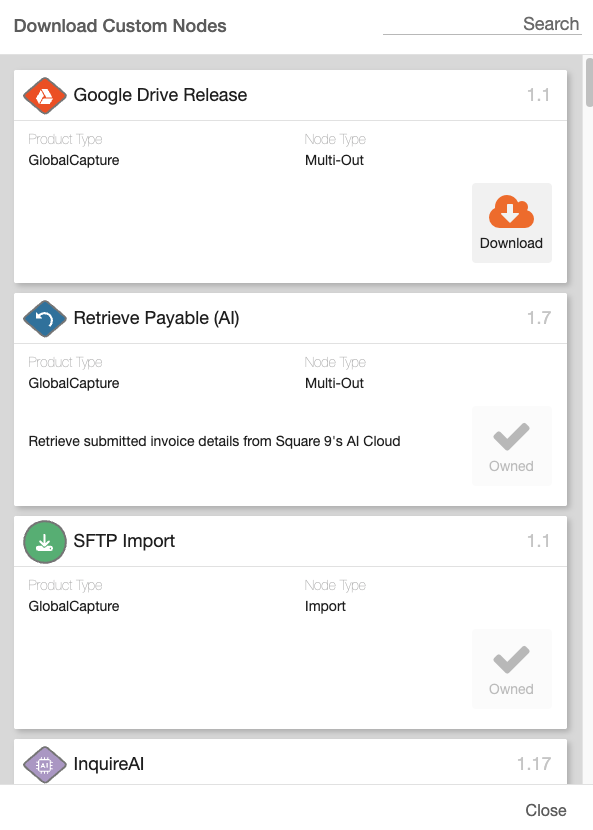
From the Download Custom Nodes popup either scroll through the list of nodes or use the search. The search will search the Name, Product Type, Node Type, and the Description.
-
To add a node to your GlobalCapture instance, click Download (

Navigate back to your GlobalCapture design canvas and the node will appear in the nodes pane. If you don’t see the node, refresh your page.
Any node marked Owned should already be available in your GlobalCapture design canvas nodes pane.
Updating Nodes
Nodes periodically get updates from the Square 9 team. These updates improve efficienty and add functionality to the node. While not expected, to ensure current workflow functionality is not interrupted, nodes are NOT updated automatically. Nodes must be first updated in the nodes gallery and then updated in any workflow containing the node.
Updating Nodes in the Nodes Gallery
To check for node updates, navigate to the nodes gallery. Any node that has an update available will display with the red update icon.
Click the icon to update the node.

Updating Nodes in a Workflow
While it is not expected, to ensure workflows are not unknowingly inturrupted by a node update, the node update must by applied to each workflow containing that node. This is done by:
-
Opening the workflow containing the node with the update.
-
Double clicking on the node to display its properties.
-
Make any desired changes to the node and click Save.
-
Save your worklfow.
Your workflow is now using the updated version of the node.
Editing and Deleting Nodes
-
It is NOT recommended to Edit or Delete any nodes.
-
Editing of a node is highly discouraged as you can break functionality.
-
Exercise extreme caution when deleting nodes.
Editing and Deleting nodes can be done from the nodes gallery. Only nodes from the SDN can be deleted.
Navigate to the nodes gallery and click the Ellipsis ( 
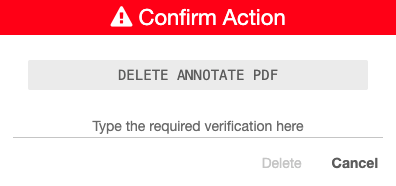
When deleting a node, you will be prompted to enter the node name before you can click delete, there are 3 possible outcomes:
-
The node is not in use in any workflow - The node is removed from the nodes gallery. To get the node back, redownload from the SDN.
-
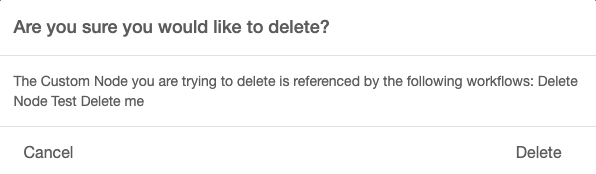
The node is used in one or more unpublished workflows - A second warning appear informing that the nodes is currently used in an unpublished workflow. Clicking delete will delete the node from the nodes gallery. When any workflow containing the node is opened, the deleted node will be immediately removed and modifications to the workflow will be required.
-
The node is used in one or more published workflows - The node cannot be deleted.
Node Facts
-
When exporting a workflow, any custom nodes that are part of that workflow are exported with the workflow.
-
When importing a workflow, any custom nodes are imported into the instance of GlobalCapture and automatically added to the nodes gallery.