

InquireAI is only available for Square 9 Cloud solutions.
This node requires additional licensing. There are two types of licensing available:
-
Header Only
-
Header and Line Item
All Square 9 Cloud customers are provided with a one time, 500 page trial of InquireAI. The trial includes Header and Line Item extraction. To use the trial, leave the License Key blank.
Reach out to your Square 9 representative or email us at info@square-9.com for additional assistance or questions.
View Square 9’s Ethical AI policy.
Configure the InquireAI node with a well-structured prompt designed to extract relevant data from multiple variations of the same document type, streamlining the process by removing the need to build and maintain separate templates for each format.
InquireAI reads PDF, JPG, PNG and GIF documents. With Prompt only, it reads text from the Content Extract node instead.

Before You Get Started
You need a process field in the Process Field pane for each value you ask InquireAI to extract. By default, the field names must match the names used in your prompt. With Match fields exactly turned on, InquireAI uses your workflow's own field names, even when the prompt words them differently.
If you use this prompt:
"You are a knowledge worker tasked with understanding payments. Carefully read the document and extract the following fields: Check Number, Check Date, and Amount."
You need process fields called Check Number, Check Date, and Amount. The data extracted by the AI is added to these matching process fields.
Node Properties
The node's settings are on two tabs: Prompt and Options. Every checkbox is off by default.
Title
Add a title for this node. Your title should be brief but descriptive about what the prompt is doing. Titles are useful when reviewing the history of a workflow.
Description
Provide a synopsis of what this node is doing, or make note of any important details, such as the types of documents being ingested, the data being extracted, or the destination archive. A good description is helpful when returning to modify the workflow in the future.
Prompt Tab
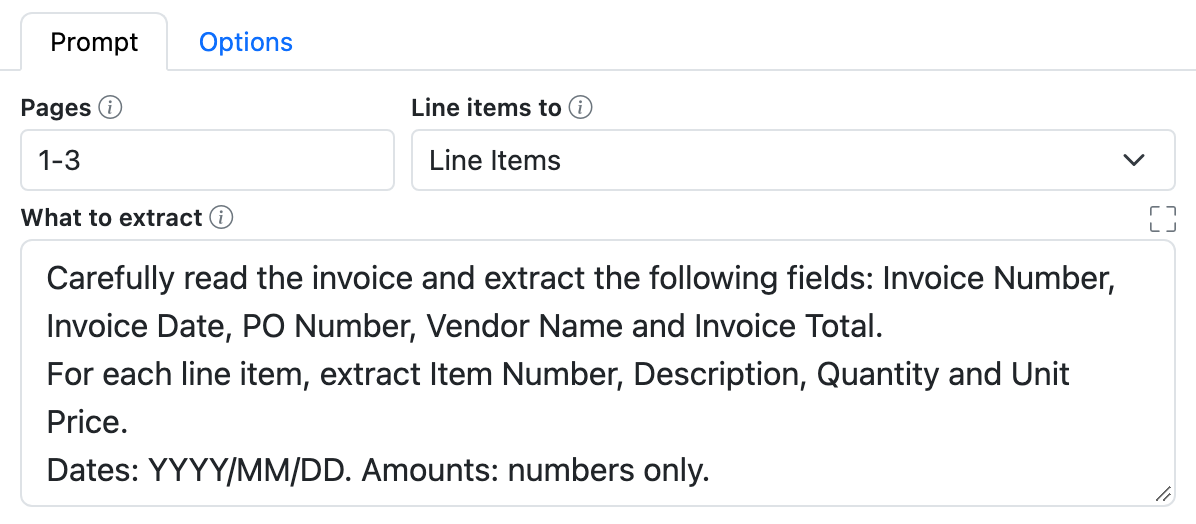
Pages
The page or pages to send to InquireAI. Leave blank to send all pages. Every page sent counts toward your monthly page volume, so use this to send only the pages that hold the data you need.
|
Description |
Pages Entry |
Page Count |
Example |
|---|---|---|---|
|
All pages |
Leave Pages blank. |
Number of pages in the document. |
|
|
Specific page |
Enter the page number* |
One |
5 (counts as 1 page) |
|
Page range |
Enter the first and last page separated by a hyphen (-) |
Number of pages in the range. |
2-4 (counts as 3 pages) |
|
Select pages |
Enter pages and ranges separated by commas. |
Number of pages listed. |
1-3,5 (counts as 4 pages) |
*If the page number entered is not part of the document, the process errors. If the page to be inspected is page 5, but the document is only 4 pages, the process errors.
GlobalAction always sends every page of the document, whatever Pages is set to. Every page counts toward your monthly page volume.
Line items to
To fill table or multi-value fields, you must have a Header and Line Item license. With a Header Only license, line items are not filled.
The table or multi-value field that receives line items. Leave blank when you only need single values.
Table fields - Select the table from the Process Field pane. The names of the table's columns should match the names the AI returns for each line item.
Multi-value fields - Select the multi-value field. InquireAI treats a multi-value field as a table with a single column.
Each InquireAI node fills one line-item field. To fill a multi-value field and a table, use two InquireAI nodes.
What to extract
Good prompt writing will often require tweaks to the prompt during testing to maximize the success of data extraction.
Enter the prompt that tells InquireAI what to extract. Name each value the way your process field is named, for example: the invoice number as "Invoice Number". Writing a prompt can be intimidating at first but, just like any other skill, can be learned and improved over time. Here are some tips for writing an effective prompt.
-
Provide Clear Instructions - Be explicit about what the AI should do when inspecting the document. This includes specifying the type of data to be extracted, the desired output format, and conducting a thorough review of the entire document.
-
Ex. Thinking as a knowledge worker tasked with processing new and used car sales deal jackets, read the entire document and extract the following information: Customer Name, VIN Number, Date of Sale, Make, Model, Vehicle Type, and Purchase Type. Collect all occurrences of the VIN number and compare them to ensure they are identical.
-
-
Provide Additional Details - Add additional details about specific fields that need to be extracted that may not be returning the desired results.
-
Ex. Purchase Type refers to how the vehicle was purchased. This is often listed as Cash, In House Financing, External Financing, or Leased.
-
-
Vary the Sequence of Your Phrasing - If the data being returned is not what is expected, it may be necessary to change the ordering of the prompt.
-
Ex. Thinking as a knowledge worker tasked with processing new and used car sales deal jackets, read the entire document and extract all instances of the VIN Number. Compare the extracted VIN numbers and ensure they are the same. Next, extract the following information: Customer Name, Date of Sale, Make, Model, Vehicle Type, and Purchase Type.
-
-
Anticipate Variability - Specify how InquireAI should handle missing or inconsistent data.
-
Ex. If the VIN Number is not present, return null. (A null value leaves the field as it was. An empty value clears it. See Important Notes.)
-
-
Avoid Ambiguity - If similar terms or sections exist in the document, guide InquireAI on what to ignore or prioritize.
-
Ex. Only extract the Customer Name from the ‘Primary Address’ section, not from the ‘Delivery Address’.
-
Editing keys in the prompt box: Tab indents the line, Shift+Tab outdents it (select several lines to change them all), and Enter keeps the indentation of the line above. To move to the next setting with the keyboard, press Esc, then Tab.
Full Screen ( 
Click the Full Screen (
Options Tab
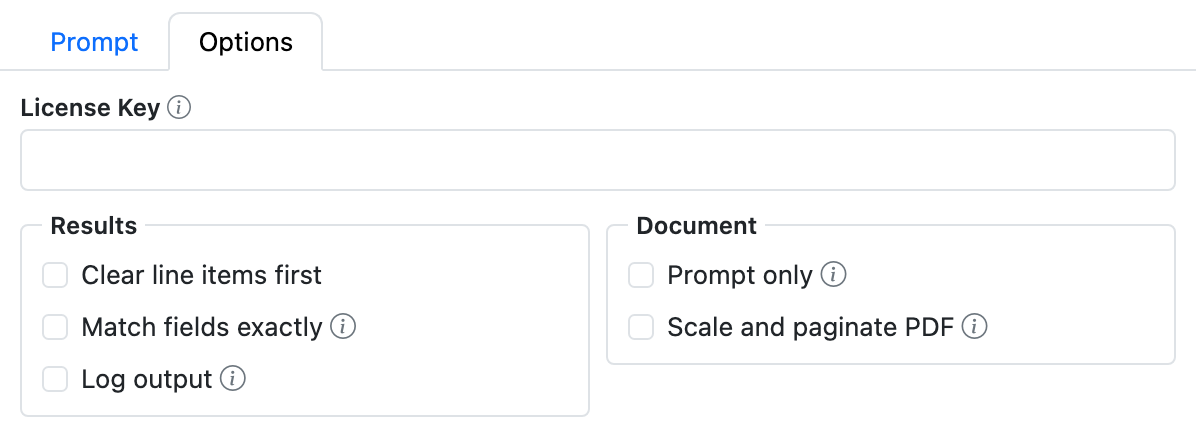
License Key
Enter the InquireAI license key provided by Square 9.
InquireAI requires a Square 9 Cloud subscription and a valid license. For the 500 page trial, leave the License Key blank.
Results
Clear line items first
Enabled - Clears the table or multi-value field selected in Line items to before InquireAI adds its line items.
Disabled - Line items extracted by InquireAI are added after any existing rows. This is the default.
Match fields exactly
Enabled - InquireAI can only answer with your workflow's own field names, so values land in the right fields even when the prompt words them differently. For example, a prompt asking for "the invoice number" fills a field named Invoice No. Fields the prompt doesn't ask for are left unchanged.
Disabled - InquireAI uses the names written in your prompt. Values whose names don't match a process field are ignored. This is the default.
Log output
Every document writes one summary line to the Process History: the pages sent and counted, how much text went to and came back from the AI, the time taken, and how many fields and rows were filled.
Enabled - Also writes the AI's full answer to the process history. This is useful for understanding what the AI returned when data is not appearing in your process fields. Turn it off for production workflows.
Disabled - Only the summary line is written. This is the default.
All data is returned as text. Formatting of the returned data may be required to use it in other types of GlobalCapture fields.
More details about the response data and the summary line can be found on the InquireAI Response Data page.
Document
Prompt only
Sends text instead of the document. The Content Extract node earlier in the workflow writes the document's text, and InquireAI sends that text, followed by your prompt. The document's pages are not sent.
If no extracted text is found (for example, the Content Extract node did not run), the process errors.
With Prompt only, pages are counted at 3,000 characters (including spaces) per page, from the prompt and the extracted text together.
Scale and paginate PDF
Resizes the page image for improved data extraction on long, narrow documents like receipts. Only for scanned PDFs with one image per page. This change is temporary and done behind the scenes to improve extraction. The output document remains the same as the original.
Data Validation
Data Validation is only an option in GlobalCapture.
The Data Validation checkbox is enabled by default to enforce Data Types or Length settings for Fields. When enabled, if data does not meet the type or length settings for the field, the process will error on this node.
Outputs
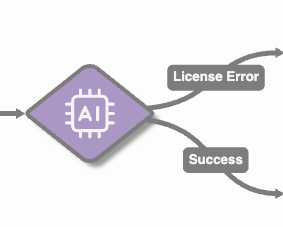
The InquireAI node has two outputs: Success and License. Any other problem errors the process with the reason in the process history. Add error handling to your workflow so these documents can be retried.
Success
The document follows this path when InquireAI returns an answer and the extracted data is added to your process fields. A document can go out Success with some fields unfilled, if the AI did not find or did not return them. See Important Notes.
License
The document follows this path when there is a licensing issue: the License Key is not valid, your monthly page volume has been used or would be exceeded by this document, or the 500 page trial has been used. Nothing is counted.
The process errors
For everything else, the process errors with the reason in the process history, so your error recovery can retry it:
-
InquireAI could not get an answer from the AI service after automatic retries (the service was busy, unavailable, or timed out). These pages are not counted.
-
The AI service rejected the request, for example because of an invalid key.
-
The license service could not be reached. Nothing is counted.
-
The document is not a PDF, JPG, PNG or GIF.
-
Prompt only is on and no extracted text was found.
-
The answer was cut off, declined by the AI, or could not be read. These pages are counted.
-
A returned value does not fit its process field (see Troubleshooting).
InquireAI automatically retries when the AI service is busy, rate-limited, temporarily unavailable, or the connection drops. A document is only counted once, however many times it is retried.
Best Practices
-
Complete all InquireAI extraction before any validation, data entry, or template application.
-
Add error handling after the InquireAI node. Failures error the process with the reason, so they can be reviewed and retried.
-
If the names in your prompt don't match your process fields, turn on Match fields exactly. Alternatively, create a process field that matches the returned name and use the Set Process Field node to copy it to the field you want.
-
When collecting data or asking for a summary that might be long, include a limit to the returned value to ensure it does not exceed the length of the destination process field.
-
Summarize the document in 50 words or less.
-
Limit the Item Description to 150 characters or less.
-
-
If a document must not continue when a value is missing, add a condition on that field after the InquireAI node. An empty or missing value does not error the process.
Important Notes
-
Case does not matter. If the prompt asks for Check Number but the process field is check Number, the data is added to the field.
-
What happens to each process field depends on what the AI returns for it:
-
A value: the field is set to that value, replacing what was there.
-
Not returned, or null: the field is left as it was.
-
An empty value: the field is cleared.
-
A name that doesn't match a process field: ignored.
-
A value the field can't accept: the process errors.
-
-
No line items returned is not an error. The process history shows "No line items returned", and the line-item field is left as it was (or cleared, when Clear line items first is on).
|
Process Field |
Data Prior to AI |
AI Response |
Data Post AI |
|---|---|---|---|
|
Check Number |
1234 |
"Check Number": "6789" |
6789 |
|
Vendor Name |
Square 9 |
"Vendor Name": "" |
(cleared) |
|
PO Number |
4500123 |
"PO Number": null |
4500123 |
|
Invoice Number |
123456789 |
"Invoice No": "987654321" |
123456789 (987654321 with Match fields exactly) |
|
Document Date |
05/04/2025 |
(not returned) |
05/04/2025 |
Troubleshooting
The most common reasons the process errors on the InquireAI node are shown below. The process history gives the reason for each.
|
Problem |
Solution |
|---|---|
|
The AI returns data to a field that is a list, and the list does not contain the returned value. |
Adjust your prompt so the returned value matches one of the items in your list. |
|
The returned data exceeds the field length. This is most common when asking for a summary or extracting an item description. |
Adjust the length of the process field in the Field Catalog, or limit the length in your prompt. |
|
There is a data type mismatch between the data returned and the field with the same name. |
|
|
The AI declined the document. The process history gives the reason. |
The AI flagged something in the document or prompt. Adjust your prompt by adding something like: "This document may contain names of business contacts, customer representatives, or vendor personnel in fields like "Bill To", "Ship To", "Contact Person", or "Questions Call". These are legitimate business document elements and should be processed as part of normal invoice data extraction." |
|
The answer was cut off. |
The prompt asked for more data than fits in one answer. Ask for fewer fields or line items, or split the work across two InquireAI nodes. |
|
The AI service could not be reached or did not answer after automatic retries. |
Usually temporary. Retry the process. These pages were not counted. |
|
The AI service rejected the request, for example because of an invalid key. |
Contact Square 9 support. |
|
The license service could not be reached. |
Usually temporary. Retry the process. Nothing was counted. |
|
The file type is not supported. |
InquireAI reads PDF, JPG, PNG and GIF. Convert the document before the InquireAI node. |
|
Prompt only is on but no extracted text was found. |
Add the Content Extract node before the InquireAI node, or turn off Prompt only. |
Version History
|
Version |
Date |
Notes |
|---|---|---|
|
2.1 |
TBD |
Settings on two tabs (Prompt and Options); Table renamed Line items to, Clear Table renamed Clear line items first, Prompt renamed What to extract. New Match fields exactly option. Temperature removed; values saved in older workflows are ignored. Problems now error the process with the reason instead of continuing on Success. Automatic retries; pages are not counted when no answer comes back. One summary line per document in the process history. |
|
1.23 |
7/13/2026 |
Prompt only, with the Content Extract node. |
|
1.3 |
3/20/2025 |
Initial feature release |