
To configure authentication with Duo, your Duo administrator needs the following:
-
A paid Duo account. Free plans with Duo do not support the necessary authentication flows. A 30 day trial account will support necessary authentication steps.
-
Your Square 9 GlobalForms URL - typically https://yourcompany.mysquare9.com:5454
-
This value will be used for the Sign in redirect url, and will be formatted like:
https://yourcompany.mysquare9.com:5454/oidc/callback -
This value must be provided as written here as the sign in redirect. Be sure to adjust for your specific Square 9 instance name. It can not be changed or truncated, and can only be configured by your Duo admin.
-
When the configuration steps are complete, your Duo admin will need to provide to Square 9 the issuer, client id, and client secret to be configured on the Square 9 side.
Duo Configuration
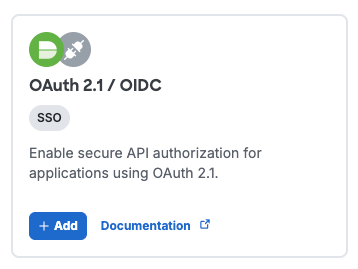
Create a new application in Duo. The application must be: OAuth 2.1 / OIDC
-
Configure user access as appropriate for your environment.
-
Collect the Issuer URL. The Square 9 team will need this value verbatim from the duo interface. Please copy and paste the raw text. Do not provide a screen-shot image.
-
Specify the Sign-In Redirect URL value noted in point 2a above.
-
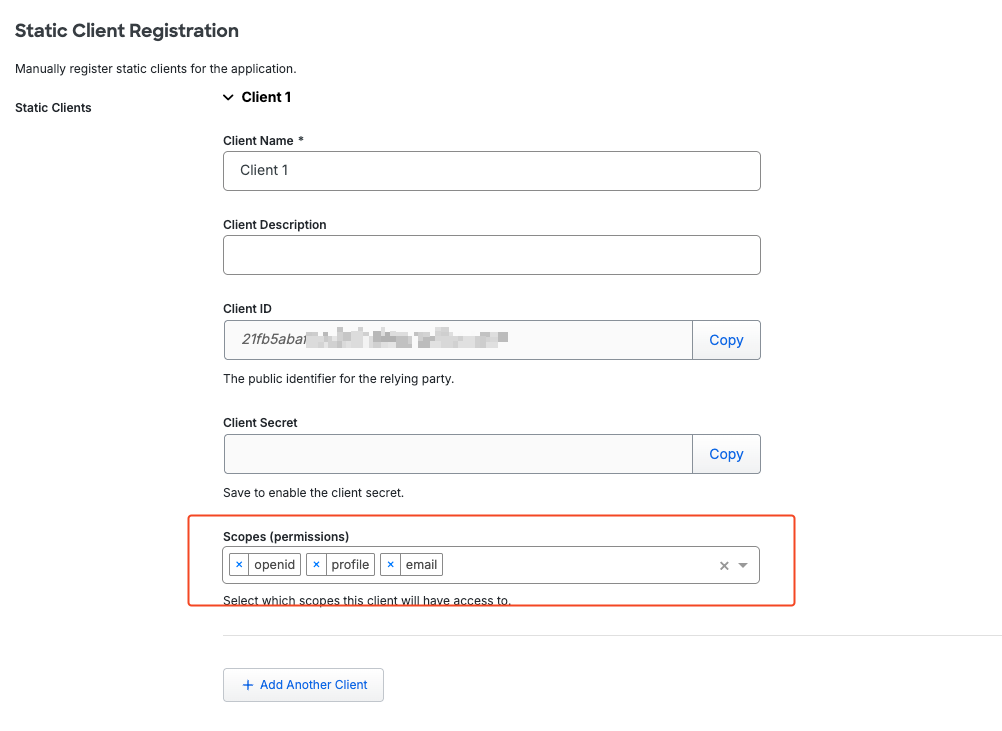
In the Static Client Registration section, ensure scopes for openid, profile, and email are all set.
-
Once the application is saved, you will need to collect the Client ID and Client Secret from the Static Client Registration section.
Collect the Issuer, Client ID, and Client Secret. All 3 values must be provided to your Square 9 team so GlobalForms can be configured to support your specific Duo configuration.