
Form actions are tasks GlobalForms runs automatically when a submission is created, updated, read or deleted. For example, they can save the submission, send an email, create a PDF or start a GlobalCapture workflow. Each form has its own actions.
Available actions
|
Action |
What it does |
|---|---|
|
Save Submission |
Saves the submission. Most forms have this action. It can also save to another resource, for example to create a user account. |
|
|
Sends an email. See Email Action. |
|
PDF Snapshot |
Creates a PDF of the submission. See PDF Snapshot Action. |
|
GlobalCapture Workflow |
Sends the submission into a GlobalCapture workflow. See GlobalCapture Workflow Action. |
|
SQL Query |
Runs a SQL statement, for example to save data to a table. See SQL Query Form Actions. |
|
Login |
Signs a user in. Used on login forms. |
|
OIDC Login |
Starts single sign-on. See Single Sign-On with OpenID Connect. |
|
Role Assignment |
Adds or removes a role for a user. See Roles. |
|
Reset Password |
Lets users reset a forgotten password by email. |
Some actions appear only after the related server settings are configured, for example GlobalCapture Workflow and SQL Query.
Add or edit an action
-
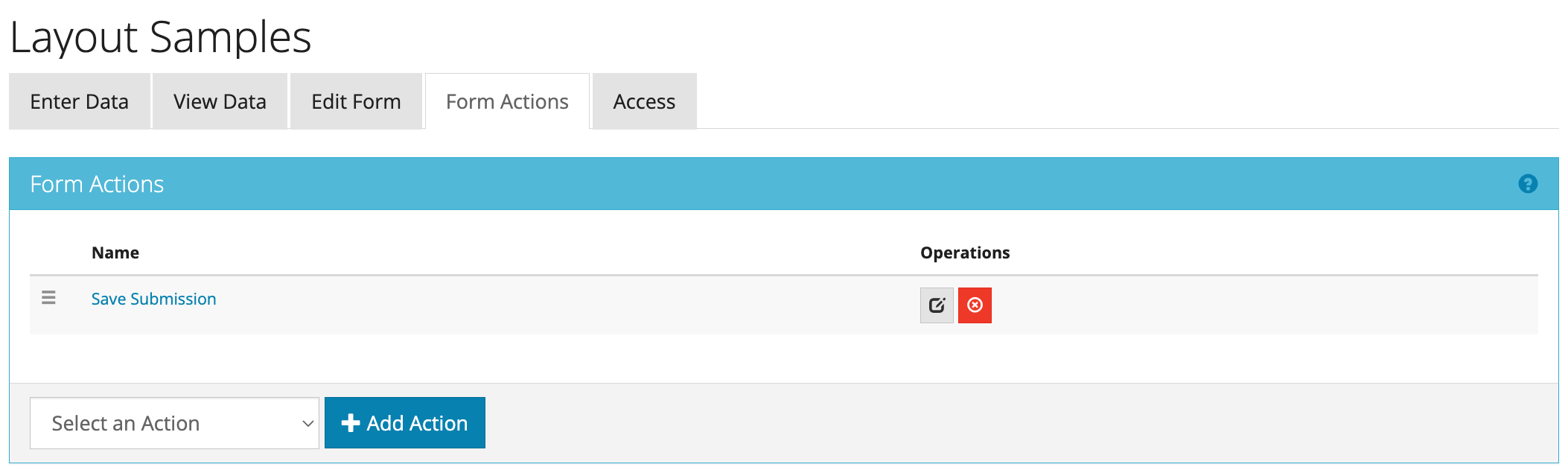
Open the form in the form builder and select the Form Actions tab.
-
Choose an action from the list and select Add Action, or select an existing action's name to edit it.
-
Give the action a clear Title, complete its settings and select Save Action.
When an action runs
|
Setting |
Description |
|---|---|
|
Handler |
Before or After the submission is saved |
|
Methods |
Which events trigger the action: Create (new submission), Update (edited submission, including edits made in GlobalCapture), Read, Delete or Index (listing submissions) |
|
Conditions |
Optional. Run the action only when a field has a certain value, or when a JavaScript condition is true. |
Action order
Actions run in the order shown on the Form Actions tab. Drag an action to change the order. The new order is saved automatically. Order matters when one action depends on another; for example, a PDF Snapshot action must run before a GlobalCapture Workflow action that attaches the PDF.
Reordering actions requires GlobalForms version 10.19 or greater.