In order to configure Azure AD logins with GlobalSearch you will have to do the following:
-
Create an Azure AD App Registration,
-
Update GlobalSearch and/or GlobalCapture config files.
If Square 9 Cloud instances, you will need to contact support after you complete your App Registration.
-
Assign users to the app registration via Enterprise Applications in Azure.
-
Make sure equivalent users (by email address) exist as Square 9 Users.
Make sure equivalent users/groups exist as Square 9 Users
When you login using a 3rd party authentication, the email address/username will be checked against Square 9 Users and then login as the user found with a matching email.
Creating an App Registration
-
Login to Azure AD.
-
Create a new App Registration.
-
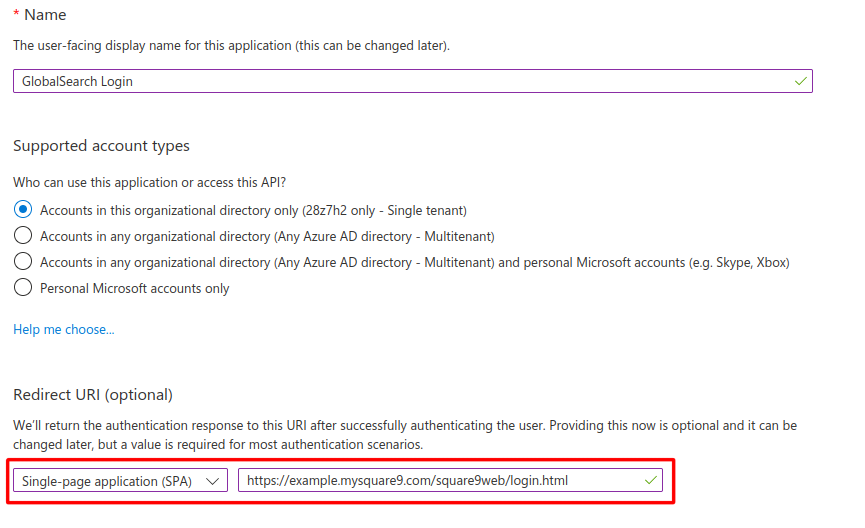
On the creation page configure a Redirect URI for a Single-page application (SPA)
-
The URI should be:
https://globalsearch.domain.name/square9web/login.html
-
-
Register the App Registration.
-
Configure App Registration.
-
Select the Authentication option under the Manage heading in the sidebar.
-
Add an additional Redirect URI.
-
Add the same URI as above except capitialize Square9Web:
https://globalsearch.domain.name/Square9Web/login.html
-
-
Enable ID tokens underneath the Implicit grant and hybrid flows section on Authentication.
-
Ensure the casing of Squre9Web is exact in both the Redirect URI and the Additional Redirect URI as this can cause issues if not properly cased.
A single App Registration can be used for GlobaSearch, GlobalCapture, and GlobalSearch Go. Create additional Redirect URI’s for each applicaiton:
GlobalCapture:
-
https://globalsearch.domain.name/Square9CaptureWeb/login.html -
https://globalsearch.domain.name/square9captureweb/login.html
GlobalSearch Go:
-
https://www.square9.cloud/login/redirect
You will also have to add matching redirect URLs if you want any of your users to be able to use the beta.square9.cloud or canary.square9.cloud website early release features.
Update config.json for Square9Web/Square9CaptureWeb
Update your config.json with the Azure AD configuration information.
All config.json paths shown are default paths for On Premise solutions. Yours may be located in a different location depending on your installation.
GlobalSearch Go
Config.json path: C:\inetpub\wwwroot\Square9API\Public\config.json
Example of a complete GSGo Json
{
    "apiUrl": "https://yourFQDN.local/square9api/api",
    "viewerUrl": "https://yourFQDN.local/globalsearchviewer",
    "licenseManagerUrl": "https://yourFQDN.local/square9web/GSWLicenseManager/",
    "userManagementUrl": "https://yourFQDN.local/square9web/UserManagement/",
    "adminUrl": "https://yourFQDN.local/square9web/#/admin/full",
    "gseUrlDefault": "https://127.0.0.1:9443",
    "dashboards": [],
    "authenticationProviders": {},
    "defaultShareDocumentExpirationDays": 3,
    "userUiSettingsDefaults": {
        "archiveResultsPerPage": 200,
        "archiveHistoryResultsPerPage": 200,
        "viewerAutoSave": true,
        "indexerReloadAfterSave": true,
        "defaultPageZoom": "page-width",
        "dropdownToTypeaheadConversionThreshold": 1
    },
    "authenticationProviders": {
        "azure": {
            "orgUrl": "https://login.microsoftonline.com/<tenantid>",
            "clientId": "<appregistrationid>"
        }
    }
}
GlobalSearch Legacy
Config.json path: C:\inetpub\wwwroot\Square9Web\config.json
Complete json to GSLegacy
{
    "viewerApiUrl": "/globalsearchviewer/",
    "links": [{
            "label": "Batch Manager",
            "url": "http://yourFQDN:80/square9captureweb/capture/batchmanager"
        }
    ],
    "authProviders": ["azure"],
    "azure": {
        "orgUrl": "https://login.microsoftonline.com/<tenantid>",
        "clientId": "<appregistrationid>"
    }
}
GlobalCapture
Config.json path: C:\inetpub\wwwroot\Square9CaptureWeb\config.json
{
    "captureAppRootUrl": "/Square9CaptureWeb/",
    "captureApiUrl": "/Square9CaptureApi/",
    "authProviders": ["azure"],
    "okta": {
        "orgUrl": "",
        "clientId": ""
        },
    "azure": {
        "orgUrl": "https://login.microsoftonline.com/<tenantid>",
        "clientId": "<appregistrationid>"
    },
    "tosUrl": "https://www.square-9.com/privacy/end-user-license-agreement/",
    "loginSidePanelUrl": "https://info.square-9.com/globalsearch-login",
    "hideBasicLogin": false,
    "hideWindowsUsersAndGroups": false
  }
Below is a subsection of the JSON file. The completed config.json has to be valid. This should look exactly the same across GlobalCapture/GlobalSearch config.json files.
Your file may be different but this is what you need to add.
"authProviders": ["azure"],
  "azure": {
	  "orgUrl": "https://login.microsoftonline.com/<tenantid>",
	  "clientId": "<appregistrationid>"
  }
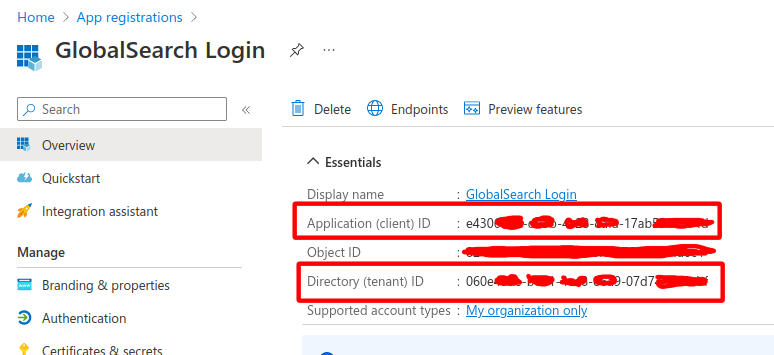
To get the App and Tenant IDs navigate to the Overview page for your App Registration.
Assign Users to the App Registration via Enterprise Applications
These settings are only accessible via Enterprise Applications.
By default only the user who created the App Registration is able to use it. To add additional users:
-
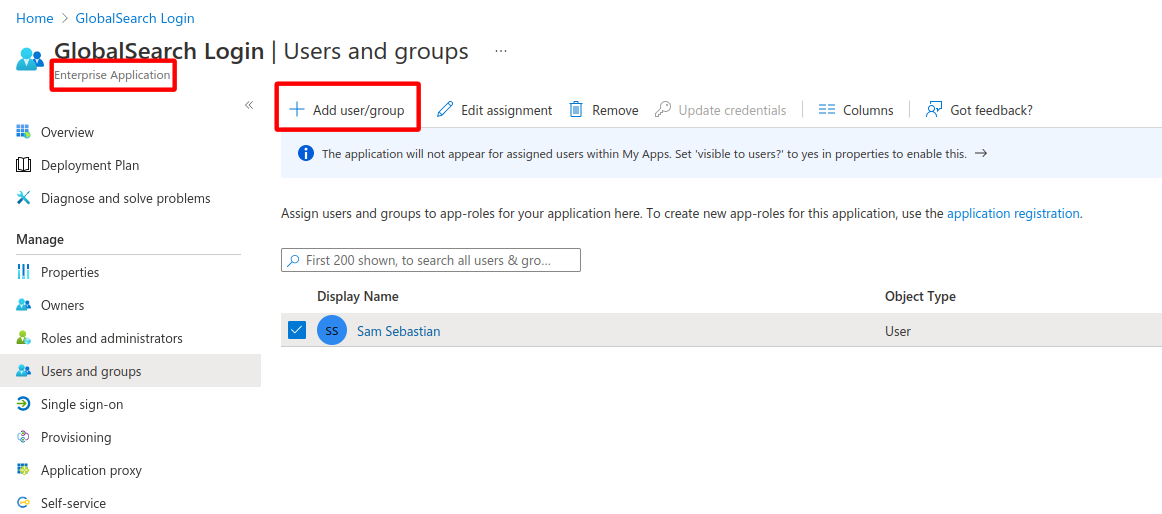
Select your App Registration from the Enterprise Applications.
-
Select Users and Groups in the sidebar and add users/groups as appropriate